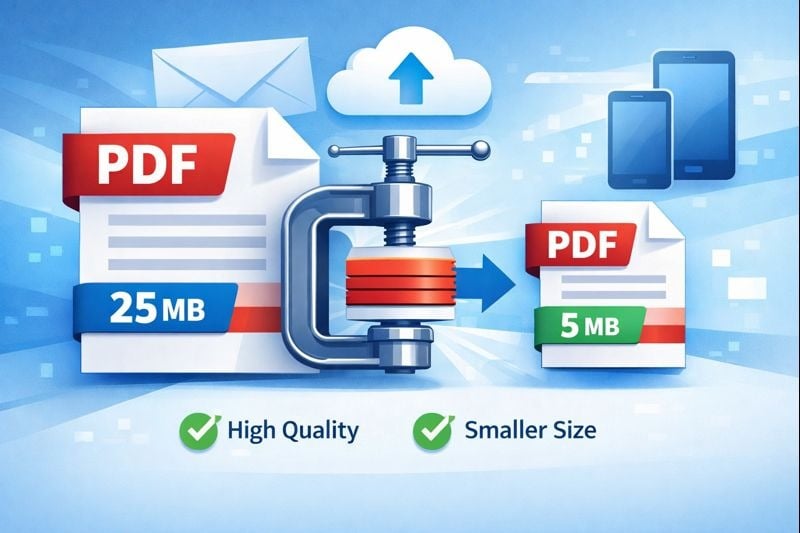
Managing PDF file sizes is a common challenge for professionals, students, and anyone who works with digital documents. Whether you're trying to email a presentation, upload documents to a website, or save storage space on your mobile device, knowing how to reduce PDF file size without sacrificing quality is essential. This complete guide explores practical compression techniques, real-world scenarios, and troubleshooting tips to help you optimize your PDF files effectively.
Why PDF File Size Matters in Real-World Scenarios
PDF file size directly impacts your daily workflow in several important ways. Understanding these limitations helps you choose the right compression strategy for your needs.
Email Attachment Limits
Gmail restricts attachments to 25MB, while Outlook limits files to 20MB. When you need to send multiple documents or large presentations, these restrictions can disrupt your communication. A single high-resolution portfolio or scanned contract often exceeds these limits, forcing you to find alternative sharing methods or compress your files.
Website Upload Restrictions
Many content management systems and online forms limit file uploads to 5-10MB. Job application portals, educational platforms, and government websites frequently reject oversized documents. This becomes particularly challenging when submitting resumes with portfolio samples or applications requiring multiple supporting documents.
Mobile Storage Constraints
Smartphones and tablets have limited storage capacity. PDF files containing high-resolution images quickly consume available space. Students downloading textbooks, professionals storing reference materials, and travelers keeping digital copies of documents all benefit from compressed files that maintain readability while using less storage.
Quick Tip:
- Check your recipient's email system limits before sending large files
- Website forms usually display maximum file size requirements
- Monitor your device storage regularly to avoid performance issues
Understanding Compression Techniques and Results
Different compression methods produce varying results depending on your document type and quality requirements. Data compression for PDFs works by reducing redundant information and optimizing how images are stored within the file.
Compression Levels Explained
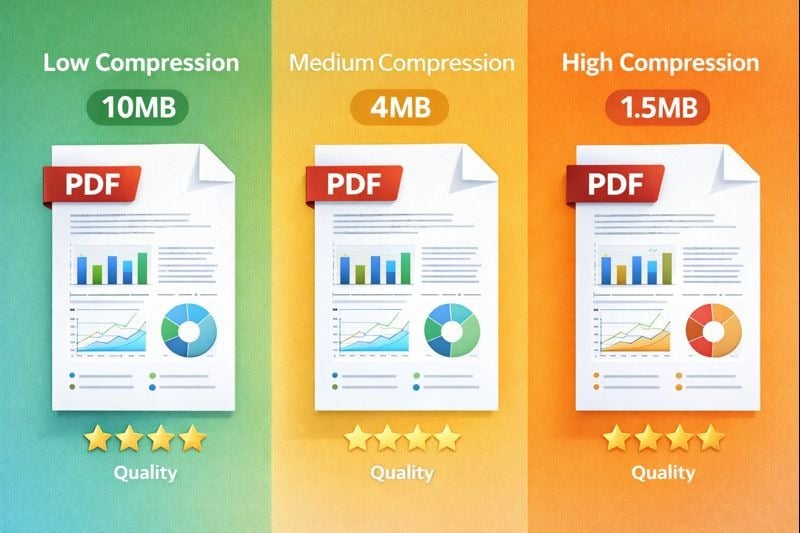
Most compression tools offer three main levels: low, medium, and high compression. Low compression typically reduces file size by 10-30% while maintaining original quality. Medium compression achieves 30-60% reduction with minimal visible quality loss. High compression can reduce files by 60-80% but may introduce noticeable quality degradation, especially in images and graphics.
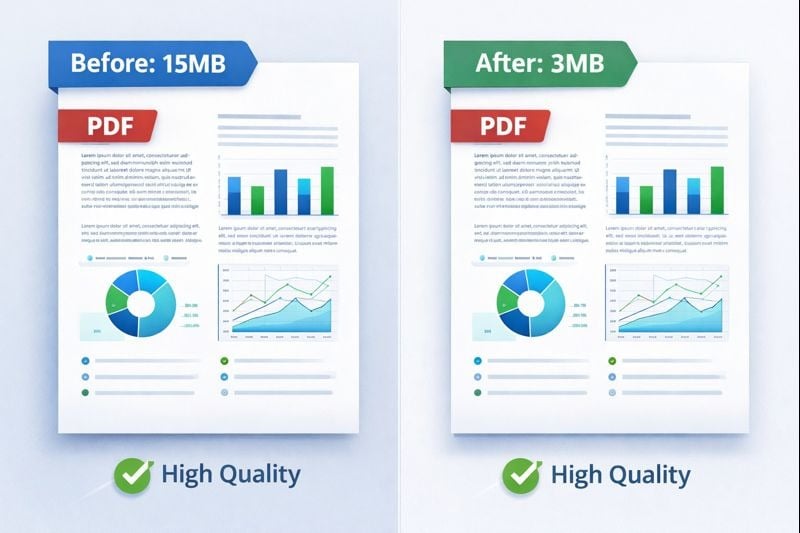
Using our professional compression tool, you can test different levels to find the optimal balance. For example, a 15MB presentation with photos might compress to 8MB with low compression, 4MB with medium, or 2MB with high compression.
Document-Specific Compression Strategies
Different document types require tailored approaches. Invoices and text-heavy documents compress well even at high levels because text data is already efficient. These files rarely exceed a few hundred kilobytes after compression.
Presentations containing charts and graphics benefit from medium compression. This preserves visual clarity while significantly reducing file size. A 20-slide presentation with embedded images might reduce from 12MB to 3-4MB without noticeable quality loss.
Image-heavy portfolios require careful attention. Photography portfolios, design samples, and architectural drawings need low to medium compression to maintain detail. A 50MB portfolio might compress to 25-30MB while preserving the quality necessary for professional evaluation.
Troubleshooting Common Compression Issues
Even with careful compression, problems can occur. Knowing how to identify and fix these issues saves time and frustration.
Fixing Blurry Images After Compression
Blurry images typically result from excessive compression or using tools that don't preserve image resolution properly. If your compressed PDF shows blurred photos or graphics, try these solutions:
- Reduce the compression level to medium or low
- Use compression tools that offer quality presets for image-heavy documents
- Compress only the text and vector elements, leaving images at original quality
- Start with higher-resolution source images before creating the PDF
Balancing Quality and Size for Scanned Documents
Scanned documents present unique challenges because they're essentially images of pages rather than digital text. A scanned 10-page contract might reach 20-30MB at 300 DPI (dots per inch).
For scanned documents, consider these approaches:
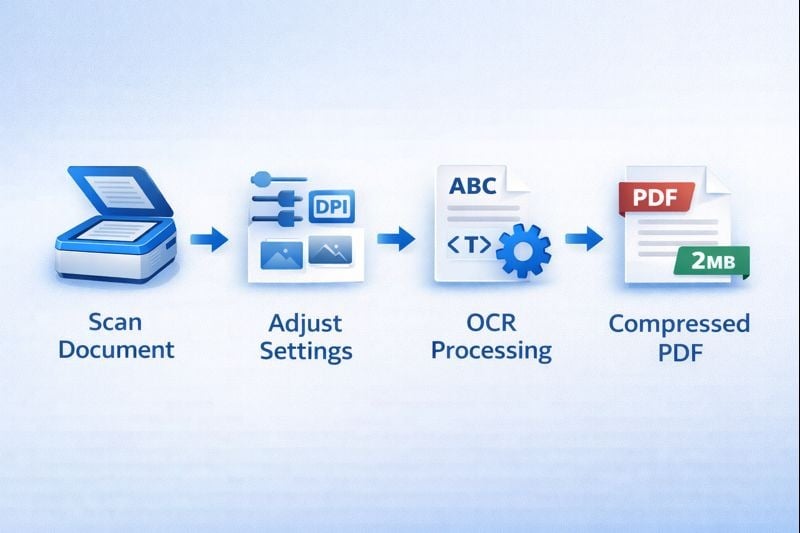
- Scan at 150-200 DPI for standard documents instead of 300 DPI
- Use grayscale instead of color when possible
- Apply OCR (Optical Character Recognition) to convert scanned images to searchable text, which dramatically reduces file size
- Clean up scans before compression by removing background noise and adjusting contrast
Key Takeaways:
- Choose compression levels based on document type: high for text, medium for presentations, low for portfolios
- Test compressed files before sending to ensure quality meets your needs
- Use OCR on scanned documents to reduce file size while improving searchability
- Always keep original uncompressed versions as backups
Conclusion
Compressing PDF files without losing quality requires understanding your document type, intended use, and the limitations you're working within. By selecting appropriate compression levels and using reliable tools, you can significantly reduce file sizes while maintaining the quality your recipients expect. Whether you're sending invoices, sharing presentations, or storing portfolios, these techniques help you work more efficiently within email limits, upload restrictions, and storage constraints. Test different compression settings with your specific documents to find the perfect balance between size and quality for your needs.
FAQ
For PDF files containing photographs, use low to medium compression to maintain image quality. This typically reduces file size by 30-50% while preserving visual clarity. High compression can introduce artifacts and blur that make photos look unprofessional, especially when printed or viewed on high-resolution displays.
Start by using medium compression on your PDF file. If it's still too large, try splitting the document into multiple smaller files, reducing image resolution before creating the PDF, or removing unnecessary pages. For very large files, consider using cloud storage services and sharing a link instead of attaching the file directly.
Blurry images after compression usually mean the compression level was too aggressive or the tool reduced image resolution excessively. To fix this, use a lower compression setting, ensure your source images are high quality before creating the PDF, or use compression tools that let you specify image quality separately from other document elements.
Most compression tools require you to remove password protection before compressing the file. After compression, you can reapply password protection to the smaller file. This is a security measure that ensures the tool can access and modify the file content during compression.
Compression reduces file size by optimizing how data is stored without changing page dimensions or content layout. Resizing changes the actual page dimensions and can affect how the document displays and prints. For most purposes, compression is the better choice because it maintains the original document format while reducing storage requirements.