Converting HTML in PDF format is one of the most practical skills you can learn for archiving, sharing, and presenting web content. Whether you need to save a receipt, preserve a research article, or create a professional document from a webpage, understanding how to properly convert HTML to PDF ensures your content looks exactly as intended. This guide walks you through every method available, from quick browser tricks to dedicated tools, with real constraints and actionable steps you can follow today.
Content Table
Why Convert HTML to PDF?
Web pages are dynamic. They change, disappear, or get updated without notice. Converting a webpage in PDF format creates a permanent snapshot that remains consistent across all devices and platforms. PDFs maintain formatting, fonts, and layout regardless of the viewer's browser or operating system.
Beyond preservation, PDFs offer practical advantages for sharing. You can email a PDF to someone who lacks internet access, print it with predictable results, or annotate it for collaborative work. For learners especially, saving course materials, tutorials, or documentation as PDFs means you always have offline access to critical resources.
Key Takeaways:
- Converting HTML in PDF preserves web content permanently, even if the original page changes or disappears
- Browser print functions work for basic conversions, but dedicated tools handle complex layouts better
- Always check for missing images, broken links, and formatting issues before finalizing your PDF
- Online conversion tools offer the fastest path for users who need professional results without technical setup
Methods to Save a Webpage in PDF
You have several options for converting HTML content to PDF, each with distinct advantages and limitations. Understanding these helps you choose the right approach for your specific situation.
Browser Print Function
Every modern browser includes a built-in "Print to PDF" feature. This method requires no additional software and works instantly. However, it often struggles with complex layouts, interactive elements, and pages that load content dynamically.
Online Conversion Tools
Web-based converters like our HTML to PDF tool handle the technical complexity for you. Simply paste a URL or upload your HTML file, and receive a properly formatted PDF within seconds. These tools typically preserve styling better than browser printing.
Browser Extensions
Extensions add conversion capabilities directly to your browser toolbar. They offer more control than basic printing but require installation and may have privacy implications depending on the extension.
Command-Line Tools
For technical users, tools like wkhtmltopdf provide powerful automation options. These work well for batch processing but require command-line familiarity.
Step-by-Step Guide for Each Method
Method 1: Using Your Browser's Print Function
This approach works in Chrome, Firefox, Edge, and Safari with minor variations.
- Navigate to the webpage you want to convert
- Open the print dialog using Ctrl+P (Windows/Linux) or Cmd+P (Mac)
- Select "Save as PDF" or "Microsoft Print to PDF" as your destination
- Adjust settings - choose portrait or landscape orientation, select which pages to include
- Click "Save" and choose your file location
- Review the output - open the PDF to verify formatting
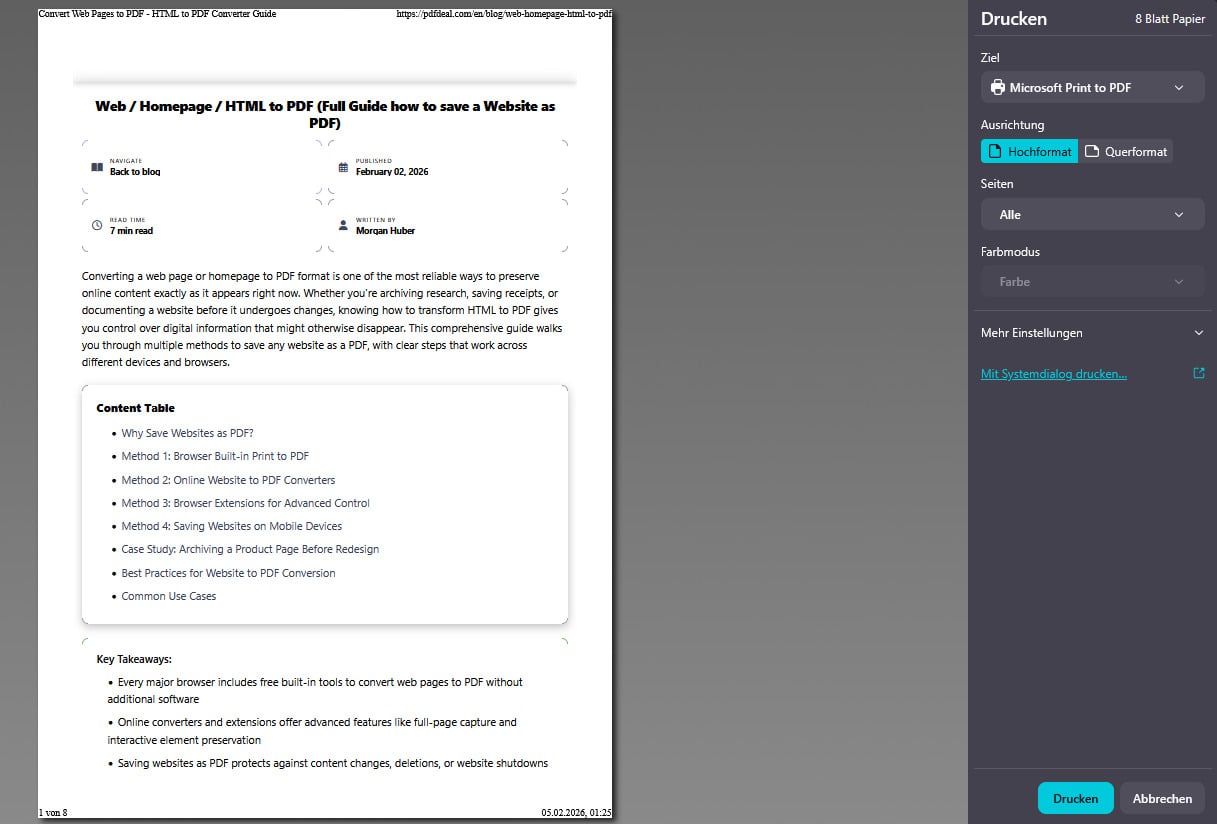
Constraint to note: Browser printing often removes background colors and images by default. In Chrome, expand "More settings" and enable "Background graphics" to include these elements.
Method 2: Using our Online HTML to PDF Converter
Online tools provide the most reliable results for complex pages. Here is how to use our converter:
- Visit the converter - go to our HTML to PDF tool
- Enter your URL or paste your HTML code directly into the input field
- Configure options - select page size (A4, Letter, etc.), orientation, and margins
- Click Convert - the tool processes your content server-side
- Download your PDF - save the generated file to your device
This method handles JavaScript-rendered content, complex CSS layouts, and embedded media more reliably than browser printing. For full website captures, you might also explore our website to PDF converter.
Method 3: Using Developer Tools for Specific Elements
Sometimes you only need a portion of a webpage. Browser developer tools help isolate specific content:
- Right-click the element you want and select "Inspect"
- Find the parent container in the Elements panel
- Right-click the HTML element and choose "Copy" then "Copy outerHTML"
- Paste into a new HTML file or directly into an online converter
- Convert the isolated content to PDF
Common Challenges and How to Solve Them
Converting HTML in PDF format rarely works perfectly on the first attempt. Here are the most common issues and their solutions:
Missing Images
Images may not appear if they load lazily or require authentication. Solution: Scroll through the entire page before converting to trigger lazy loading. For authenticated content, take screenshots instead or use a tool that supports cookies.
Broken Layouts
Responsive designs sometimes render incorrectly at PDF dimensions. Solution: Try landscape orientation for wide content, or adjust the page width in your conversion tool settings.
Cut-off Content
Long pages may truncate or split awkwardly across pages. Solution: Use a tool that supports continuous rendering, or manually adjust page breaks. Our guide on common PDF mistakes covers additional troubleshooting steps.
Large File Sizes
Image-heavy pages create bloated PDFs. Solution: After conversion, use a PDF compression tool to reduce file size without significant quality loss.
Practical Use Cases
Understanding when to convert a webpage in PDF helps you apply these skills effectively:
- Academic Research: Save journal articles, Wikipedia pages, and online textbooks for offline study and citation
- Receipt Archiving: Convert online purchase confirmations and invoices for expense tracking and tax records
- Documentation Backup: Preserve software documentation, API references, and tutorials before they change or disappear
- Legal Records: Create timestamped snapshots of terms of service, contracts, or web-based agreements
- Portfolio Creation: Convert your online work samples into a single PDF portfolio for job applications
- Offline Reading: Save long-form articles and guides for reading during travel or in areas without internet
For image-heavy content like infographics, you might also find our WebP to PDF converter useful for handling modern image formats.
Hypothetical Case Study: Maria's Online Course Archive
Note: This is a hypothetical example created to illustrate practical application of HTML to PDF conversion.
The Situation: Maria, a graduate student, enrolled in an online certification course with 47 lesson pages. The course platform only guaranteed access for 12 months after completion. Maria wanted permanent copies of all materials for future reference.
The Challenge: Each lesson page contained embedded videos, interactive quizzes, and dynamically loaded content. Simple browser printing produced PDFs with missing elements and broken formatting.
The Solution: Maria developed a systematic approach:
- She used browser developer tools to identify which content loaded dynamically
- For text-heavy lessons, she used an online HTML to PDF converter that handled JavaScript rendering
- For video lessons, she saved the transcript separately and noted video timestamps
- She organized all PDFs into folders matching the course structure
- She compressed the final collection using PDF optimization to save storage space
The Result: Maria created a 312-page PDF archive of her course materials. Two years later, when she needed to reference specific techniques for a work project, she had instant access to the original content, even though her course access had expired.
Key Lesson: Complex web content often requires combining multiple conversion methods. Planning your approach before starting saves significant time and produces better results.
Conclusion
Converting HTML in PDF format is a fundamental skill that serves countless practical purposes. Whether you use your browser's built-in print function for quick captures or dedicated online tools for complex pages, the key is matching your method to your content's complexity. Start with the simplest approach, browser printing, and move to more sophisticated tools when you encounter limitations.
For reliable, high-quality conversions without technical hassle, try our HTML to PDF converter. It handles the technical complexity automatically, producing professional PDFs from any webpage or HTML code in seconds. Save your important web content today before it changes or disappears.