Choosing between PDF vs Word might seem like a minor decision, but it can have a real impact on how your document is received, edited, and shared. Send the wrong format to a client and your carefully designed proposal might arrive with broken fonts and shifted images. Send a PDF when someone needs to fill in a form, and you have created extra work for everyone. The format you pick shapes the entire experience of a document - from how it looks on screen to whether someone can change a single word. This guide walks you through the practical differences, gives you a concrete example of when each format wins, and helps you make the right call every time.
Content Table
Key Takeaways:
- Use Word when a document is still being written, reviewed, or edited collaboratively.
- Use PDF when a document is final, needs consistent formatting, or will be shared with people who should not edit it.
- Converting from Word to PDF takes seconds and locks in your layout across every device and operating system.
- PDF offers stronger security options, including password protection and permission controls, that Word cannot match in shared environments.
What Makes PDF and Word Different
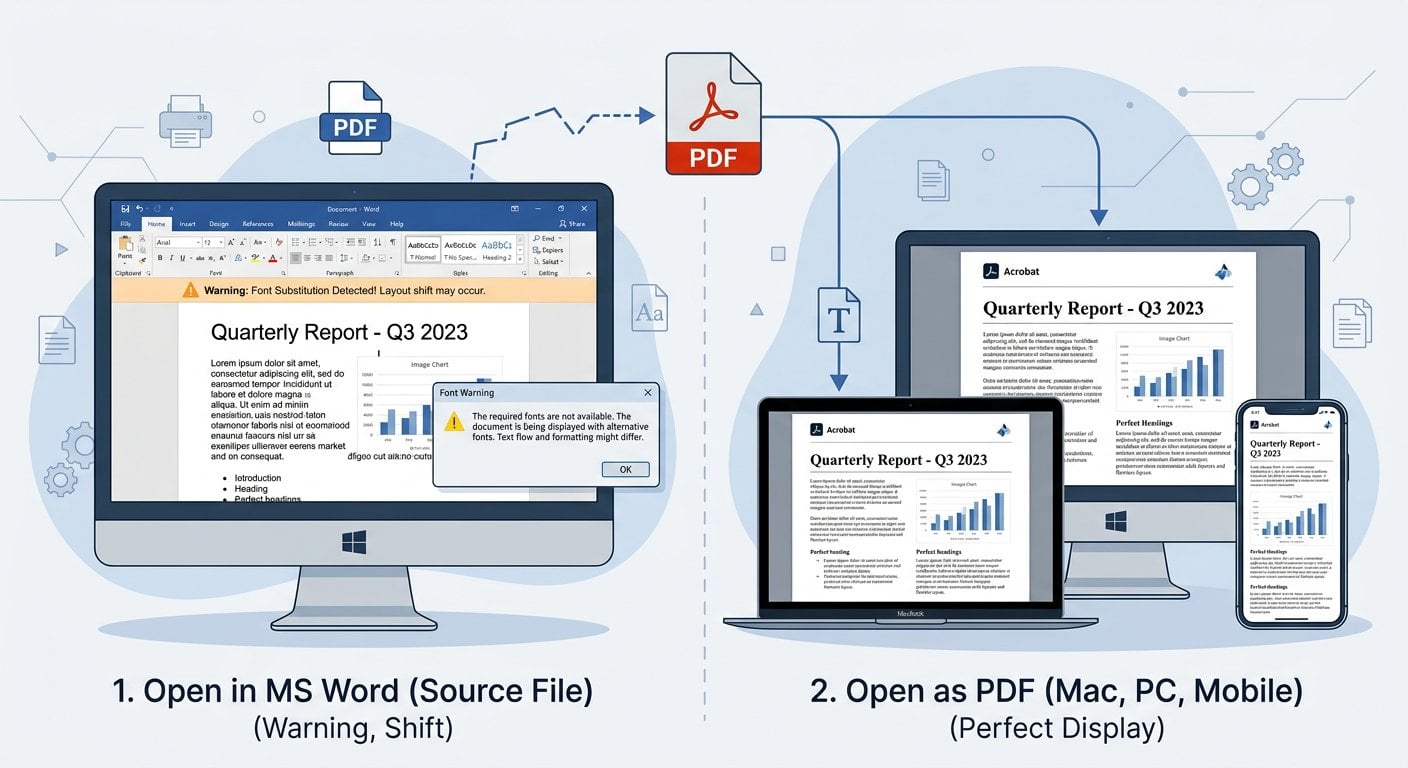
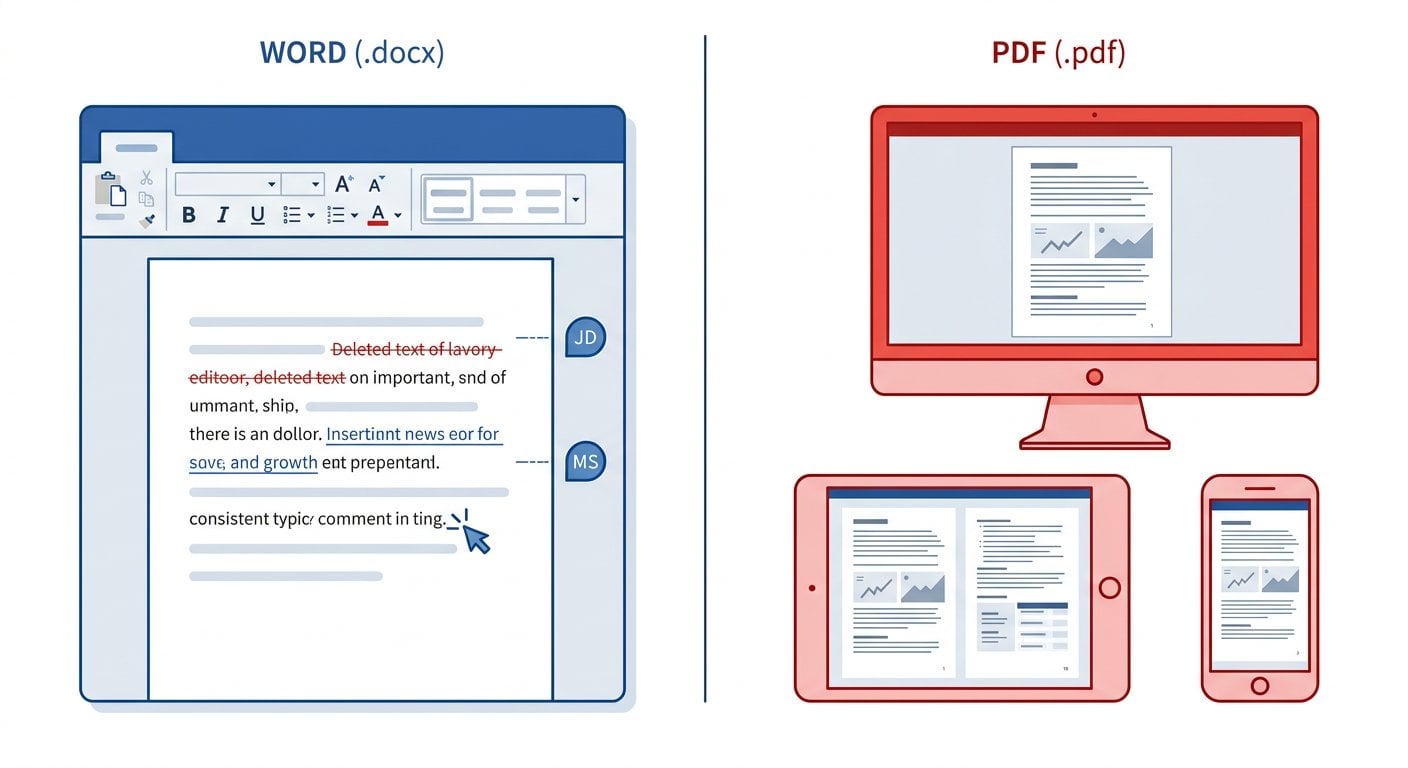
At their core, these two formats serve different purposes. Microsoft Word (.docx) is a living document format. It is built for writing and editing. The content flows and reflows depending on the reader's software version, operating system, fonts installed, and even printer settings. That flexibility is a feature when you are drafting, but it becomes a problem when the document is finished.
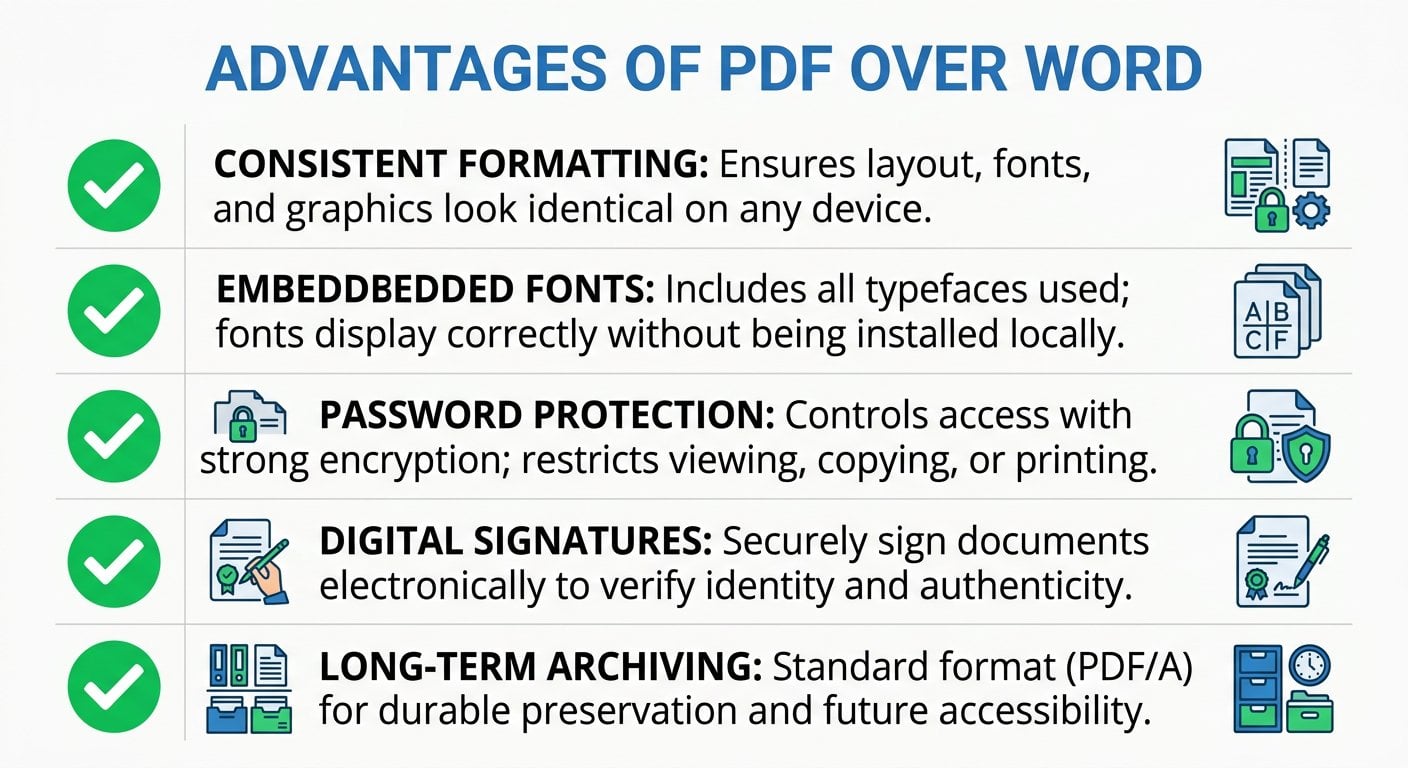
PDF (Portable Document Format) was created by Adobe specifically to solve that problem. A PDF looks identical on every device, every operating system, and every screen size. The layout is fixed. The fonts are embedded. What you see is exactly what the recipient sees. That is the core trade-off: Word gives you flexibility, PDF gives you consistency.
When to Use Word Format
Word is the right choice when a document is not finished yet. Here are the situations where keeping it in .docx makes sense:
- Internal drafts: When a team is still writing and revising, Word's tracked changes and comment features are genuinely useful.
- Collaborative editing: If multiple people need to contribute text, Word (or Google Docs exported to .docx) keeps everyone working in the same editable space.
- Template creation: If you are building a document that others will fill out and customize, Word gives them the freedom to do that.
- Content that will be reformatted: If the document is going into a CMS, a publishing tool, or another system, raw editable text is often easier to work with.
The constraint here is real: Word documents behave differently depending on the version of Microsoft Office installed. A document built in Word 2021 may look noticeably different when opened in an older version or in LibreOffice. If visual consistency matters at all, Word is not the format to use for final delivery.
When to Use PDF Format
PDF is the right choice when a document is finished and needs to be shared. The question of which format to use often comes down to this single point: is the document done? If yes, convert it to PDF. Here is why:
- Client-facing documents: Proposals, invoices, contracts, and reports should always go out as PDFs. The recipient sees exactly what you designed.
- Legal and compliance documents: PDFs support digital signatures and can be certified, making them the standard in legal environments. The ISO 32000 standard defines PDF as an open format with long-term archival support.
- Public-facing content: Any document posted on a website, sent to a job application portal, or submitted to a government office should be a PDF.
- Security-sensitive files: PDFs allow you to add password protection, restrict printing, and disable copying of content. Learn more about this in our guide to PDF Security and Privacy in 2026.
- Archiving: PDF/A is a specific PDF variant designed for long-term archiving. Word files depend on software that may not exist in ten years.
A Concrete Example: The Job Application Scenario
Here is a situation most people have faced. You spend two hours building a resume in Word. You pick a clean font, align everything carefully, and add a subtle header. Then you email it as a .docx file. The hiring manager opens it on a Mac with a slightly different version of Word. The font substitutes automatically. The header shifts down. The bullet points change size. Your carefully designed resume now looks like a rough draft.
The fix is simple: convert the file to PDF before sending. The layout is locked. The fonts are embedded. The hiring manager sees exactly what you built, on any device, in any PDF reader. This is not a hypothetical edge case. It happens constantly, and it is entirely avoidable.
The same logic applies to a business proposal. You send a Word file to a prospective client. They open it, and the table formatting breaks because their version of Word handles cell padding differently. Your numbers look disorganized. The deal feels less professional before they have read a word. A PDF would have prevented that entirely.
If you ever receive a PDF and need to make edits, our PDF to Word converter can extract the content into an editable format quickly.
PDF Advantages and Best Practices
Beyond the basic "use PDF for final documents" rule, there are specific practices that make PDFs work harder for you. Here is a list of working tips with real reasons behind each one:
1. Always Convert Final Documents to PDF Before Sharing
Do not send Word files externally unless the recipient specifically needs to edit them. Use our Word to PDF converter to create a clean, consistent version in seconds. This eliminates font substitution, layout drift, and version compatibility issues in one step.
2. Use PDF for Any Document With a Table or Complex Layout
Tables in Word are notoriously fragile across versions and platforms. A PDF freezes the table exactly as you built it. If your document includes financial data, comparison charts, or structured data, PDF is the only safe format for sharing. For related guidance, see our article on converting Excel tables to PDF without losing formatting.
3. Add Password Protection When Sharing Sensitive PDFs
Word has basic password protection, but it is easier to bypass and less standardized than PDF encryption. When sharing contracts, financial reports, or personal data, use a PDF with proper encryption. This is a real security constraint, not just a preference.
4. Use PDF/A for Archiving Long-Term Documents
If a document needs to be readable in five or ten years, Word is a risky choice. Software changes. File formats evolve. PDF/A embeds everything the document needs to display correctly, regardless of what software exists in the future. This matters for legal records, tax documents, and compliance files.
5. Compress PDFs Before Emailing Large Files
A Word file with embedded images can bloat when converted to PDF. Compress the PDF before sending to keep file sizes manageable. Most email systems have attachment limits between 10MB and 25MB, and large files slow down recipients on mobile connections.
6. Use Editable PDF Forms Instead of Word Forms
If you need someone to fill out a structured form, an editable PDF form is more reliable than a Word document. The fields stay in place, the layout does not shift, and the recipient does not need to own Microsoft Office to complete it.
Converting Between Formats
The good news is that choosing the right format does not mean you are locked in from the start. Converting between Word and PDF is straightforward, and doing it at the right point in your workflow solves most problems before they happen.
The standard workflow looks like this: draft and collaborate in Word, then convert to PDF for final delivery. If you receive a PDF and need to edit it, convert it back to Word, make your changes, and convert it to PDF again before sending. This two-direction flexibility means you get the editing power of Word during drafting and the consistency of PDF for distribution.
Small businesses in particular can save significant time by building this into their document workflow - see our guide on how small businesses can use PDF tools to save time in 2026.
Quick Decision Rule: If someone needs to edit the document, use Word. If the document is going to anyone outside your team, or if it needs to look the same on every device, convert it to PDF first.
Conclusion
The PDF vs Word debate is not really a debate at all once you understand what each format is built for. Word is a drafting tool. PDF is a delivery format. Use Word while you are building a document and working with others. Switch to PDF the moment it leaves your hands. The job application example makes this concrete: one format conversion prevents a layout disaster that could cost you an opportunity. Apply that same logic to every client proposal, contract, report, and form you send, and you will avoid a category of problems that most people do not realize they are creating.
Convert Word to PDF in Seconds - Free Online Tool
Stop sending Word files that break on other devices. Convert your document to a perfectly formatted PDF instantly, with no software to install and no account required.
Try Our Free Tool →
PDF is almost always better for a resume. Word files can display differently depending on the recipient's software version, operating system, or installed fonts. A PDF locks your formatting in place so the hiring manager sees exactly what you designed, regardless of what device or software they use.
Yes. Converting from Word to PDF using a reliable tool preserves your fonts, layout, tables, and images accurately. The key is to use a quality converter rather than printing to PDF through a basic driver, which can sometimes flatten or distort complex layouts. Our Word to PDF tool handles this cleanly.
Use Word when the document is still being written or reviewed. Word is ideal for internal drafts, collaborative editing with tracked changes, and building templates that others will customize. Once the document is finalized and ready to share externally, convert it to PDF to lock the formatting.
PDF advantages include consistent formatting across all devices, embedded fonts, stronger security options like password protection and permission controls, support for digital signatures, and long-term archival stability. For client-facing documents, contracts, and reports, these benefits make PDF the clear professional standard.
Yes. The typical workflow is to draft in Word, convert to PDF for sharing, and if edits are needed later, convert the PDF back to Word, make changes, and convert to PDF again. This round-trip conversion gives you the best of both formats at each stage of the document lifecycle.