
Making an interactive PDF means turning a static document into something readers can actually click, fill out, and navigate without printing a single page. Whether you want to add clickable buttons, form fields, navigation links, or embedded media, the process comes down to understanding how PDF actions work and which tool gives you the right controls. Here is everything you need to know about how to make an interactive PDF that genuinely works.
Content Table
What Makes a PDF Interactive
A regular PDF is essentially a digital printout. An interactive PDF uses the PDF specification's built-in support for annotations, form fields, JavaScript, and actions to respond to user input. The PDF 1.7 specification (ISO 32000-1) defines these capabilities, so they work across compliant viewers like Adobe Acrobat Reader, Preview on Mac, and most modern browsers.
The key difference comes down to this: a static PDF stores content. An interactive PDF stores content plus a set of instructions about what happens when a user clicks, types, selects, or submits something.
Types of Interactive Elements You Can Add
Before you start building, it helps to know what the PDF format actually supports:
- Clickable buttons that trigger actions (go to a page, open a URL, submit a form, play media)
- Text fields for typed input
- Checkboxes and radio buttons for yes/no or multiple-choice selections
- Dropdown lists and list boxes for choosing from predefined options
- Digital signature fields for signing documents
- Hyperlinks to external URLs or internal page destinations
- Bookmarks for navigation panels
- Embedded media including video, audio, and 3D objects (with viewer support caveats)
- JavaScript-driven calculations for auto-totaling form fields
PDF Buttons Explained: How They Work
PDF buttons are technically a type of form field, not a separate object. They are defined in the PDF spec as "push button" widgets. What makes them useful is the action you attach to them.
A button can trigger any of these action types:
- Go-To Action: Jumps to a specific page or named destination within the same PDF. Great for navigation buttons like "Next Page" or "Back to Menu."
- URI Action: Opens a URL in the user's browser. Use this for "Visit Our Website" or "Download Resource" buttons.
- Submit-Form Action: Sends form data to a server URL via HTTP POST. This is how clickable PDF forms can submit data without the user manually emailing anything.
- Reset-Form Action: Clears all form fields back to their default values. Useful for a "Start Over" button.
- JavaScript Action: Runs a script when clicked. You can use this to show/hide fields, validate input, or calculate totals.
- Named Action: Triggers a built-in viewer action like Print, Save, or NextPage.
Visually, buttons can look like anything. You can style them with a background color, border, label text, and even an icon image. The "button" appearance is purely cosmetic; the action is what makes it functional.
Form Actions In Depth
Form actions are the backbone of dynamic PDFs used for data collection. Here is how the most important ones actually work:
Submit-Form Action
When a user clicks a Submit button, the viewer collects all field values and sends them to the URL you specified. You can choose the data format: FDF (Forms Data Format), XFDF (XML-based FDF), HTML (standard web form encoding), or the full PDF. FDF and XFDF are compact and designed specifically for PDF form data. HTML format works well if your server already handles standard web form POST requests.
JavaScript Calculations
You can attach a JavaScript action to any field's "Calculate" event. For example, a field named "Total" can run a script like
event.value = this.getField("Price").value * this.getField("Quantity").value;
to auto-calculate a product total whenever Price or Quantity changes. Acrobat Reader executes this automatically; browser viewers often do not.
Validation Actions
Fields can have validation scripts that run when the user leaves the field. A phone number field can check the format and show an error if the input does not match. This keeps form data clean before submission.
To understand the full range of field types before you start building, it is worth reading up on how fillable, flat, and interactive PDF form fields differ so you pick the right approach for your use case.
How to Build an Interactive PDF Step by Step
- Start with your base document. Design the layout in a program like Adobe InDesign, Microsoft Word, or Google Docs. Export it as a PDF. This becomes your canvas.
- Open the PDF in an editor that supports interactivity. Adobe Acrobat Pro is the most capable option. There are also alternatives covered in the next section.
- Add form fields. Use the form editing tools to place text fields, checkboxes, radio buttons, and dropdowns over the areas you designed. Name each field clearly (e.g., "FirstName", "TotalPrice") because field names are how scripts and submit actions reference them.
- Add buttons. Insert a push button widget where you want a clickable button. Set its appearance (label, color, border). Then open its properties and go to the Actions tab.
- Assign actions to buttons. Choose the trigger (usually "Mouse Up" for a click) and the action type. For a navigation button, use Go-To and pick the destination page. For a submit button, use Submit-Form and enter your server URL.
- Add hyperlinks. Select text or a region and add a Link annotation with a URI action pointing to your URL. This creates a clickable PDF link that works in virtually every viewer.
- Set tab order. In the form properties, set the tab order so keyboard users can navigate fields logically. This matters for accessibility.
- Set field calculation order. If you have calculated fields, make sure they calculate in the right sequence (e.g., subtotals before totals).
- Test thoroughly. Open the finished PDF in Adobe Acrobat Reader, in Chrome's built-in viewer, and on a mobile device. Click every button, fill every field, and submit a test entry if you have a submit action.
- Save as PDF (not PDF/A). PDF/A is an archiving format that strips interactivity. Save as a standard PDF to preserve all actions and fields.
Tools for Creating Interactive PDFs
| Tool | Best For | Interactive Features | Cost |
|---|---|---|---|
| Adobe Acrobat Pro | Full-featured PDF authoring | All features: buttons, forms, JS, media, signatures | Paid subscription |
| Adobe InDesign | Design-heavy interactive PDFs | Buttons, hyperlinks, page transitions, media | Paid subscription |
| LibreOffice Writer/Impress | Free desktop alternative | Hyperlinks, basic form fields | Free |
| Foxit PDF Editor | Acrobat alternative | Forms, buttons, JS, signatures | Paid (free tier available) |
| Online PDF editors | Quick form fields and links | Form fields, basic links | Free to freemium |
If you plan to use online tools to edit or work with your PDF, it is worth understanding the privacy implications first. Our guide on whether online PDF tools are safe covers what to look for before uploading sensitive documents.
Embedded Media and Dynamic Content
The PDF spec allows embedding video, audio, and even 3D content directly inside the file. However, support is patchy outside of Adobe Acrobat. Here is the honest picture:
- Video (MP4/H.264): Supported in Acrobat Reader on desktop. Most browser viewers ignore it entirely. If your audience will use Chrome or Firefox, link to a video URL instead of embedding.
- Audio (MP3): Same situation as video. Works in Acrobat, unreliable elsewhere.
- 3D content (U3D/PRC): Supported only in Acrobat. Useful for engineering and product catalogs where the audience is known to use Acrobat.
- Animated GIFs: Not natively supported in PDF. They render as static images.
For most use cases, the safest approach for "dynamic" content is to use a clickable button or link that opens the media in a browser rather than trying to embed it. Your PDF stays small, and the experience works everywhere.
Common Mistakes to Avoid
Interactive PDFs are easy to get wrong in ways that are hard to spot until a reader complains. The most common issues include:
- Flattening the PDF before distribution. Flattening merges form fields into the page content, making them uneditable. Only flatten if you want to lock responses in place.
- Forgetting to set field tab order. Without it, pressing Tab jumps fields in the order they were created, which is rarely logical.
- Using page numbers instead of named destinations for navigation. Adding a page later breaks all your Go-To actions.
- Not testing in multiple viewers. A button that works perfectly in Acrobat may do nothing in Chrome's viewer.
- Saving as PDF/A. This strips all interactivity. Use standard PDF.
- Overlapping form fields. If two fields overlap, only the top one receives clicks. This is a common layout error when converting from Word or InDesign.
Many of these issues fall into a broader category of avoidable PDF errors. If you want a fuller picture of what goes wrong when creating and sharing PDFs, the guide on common PDF mistakes and how to fix them is a practical companion to this article.
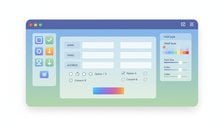
Build Fillable, Interactive PDF Forms Online
Ready to make an interactive PDF with real form fields and actions? Our PDF forms tool lets you add fillable fields to any PDF document quickly, without installing software.
Create Your Interactive PDF →
Yes. LibreOffice Writer and Impress are free desktop tools that let you export PDFs with hyperlinks and basic form fields. Online PDF editors also offer free tiers for adding form fields. For advanced features like JavaScript actions, button triggers, and embedded media, Adobe Acrobat Pro is the most capable option but requires a paid subscription.
Not universally. Adobe Acrobat Reader supports the full range of button actions, including JavaScript. Browser-based viewers like Chrome's built-in PDF viewer and Firefox PDF.js support hyperlinks and most form fields, but often ignore JavaScript actions and embedded media. If your audience is mixed, stick to simple Go-To actions, URI links, and standard form fields for the widest compatibility.
A clickable PDF typically refers to a document with hyperlinks or navigation buttons, where clicking takes you somewhere. A fillable PDF specifically has form fields that users can type into, check, or select. Both are types of interactive PDFs. A fully interactive PDF often combines both: navigation buttons plus fillable form fields, sometimes with a submit action to send collected data to a server.
You set up a Submit-Form action on a button that points to a server URL. When the user clicks Submit, the viewer sends the form data (in FDF, XFDF, or HTML format) to that URL via HTTP POST. Your server then processes and stores it. Alternatively, you can configure the submit action to open a pre-filled email with the data attached, though that approach depends on the user having a mail client configured.
It works in Adobe Acrobat Reader on desktop when the video is MP4/H.264. Outside of Acrobat, support is unreliable. Chrome, Firefox, and most mobile PDF viewers do not play embedded video. For broad compatibility, the better approach is to place a thumbnail image in the PDF with a URI action button that opens the video in a browser. Your file stays small and the experience works everywhere.
You can add interactivity to an existing PDF without rebuilding it. Open the PDF in Acrobat Pro or another PDF editor and add form fields, buttons, and links on top of the existing content. The original layout stays intact. The only exception is if the PDF is locked or permissions-restricted, in which case you need to unlock it first before editing is possible.