
Running a small business means wearing a lot of hats, and paperwork is rarely anyone's favorite. Yet documents are central to almost every transaction, agreement, and client interaction. That's why investing in the right PDF tools for small business can quietly transform how much time you spend on admin work each week. Whether you're sending quotes, signing contracts, or sharing reports, the way you handle documents either costs you time or saves it. This article breaks down practical, tested strategies that real small business owners can apply today, with concrete steps rather than vague advice.
Content Table
Key Takeaways:
- Standardizing your document process with PDF tools reduces back-and-forth with clients and saves hours each month.
- Sending contracts as PDFs protects formatting and prevents unauthorized edits before signing.
- A consistent pdf workflow for small business covers creation, editing, security, and delivery in one streamlined loop.
- Free and low-cost online tools make professional document handling accessible even on a tight budget.
Why PDFs Still Matter for Small Businesses
The PDF format was designed to present documents consistently across any device or operating system. For small businesses, that consistency is genuinely valuable. A proposal you send as a Word document might render differently on your client's computer. A PDF arrives looking exactly as you intended.
Beyond appearance, PDFs protect your content. Once a document is exported to PDF, the layout is locked. Clients cannot accidentally (or intentionally) alter your pricing, terms, or scope of work before forwarding it. For business documents PDF workflows, this stability is a practical safeguard, not just a technical detail.
Small businesses also deal with a wide range of document types: invoices, proposals, onboarding packets, service agreements, and tax forms. Each of these benefits from a format that is universally readable, printable, and easy to archive. Building a reliable pdf workflow for small business around these document types is one of the highest-leverage improvements you can make to your operations.
A Concrete Example: The Freelance Designer
Consider Maya, a freelance graphic designer who works with five to eight clients at any given time. Before she standardized her document process, she was losing roughly three hours a week to document-related friction: reformatting proposals, chasing signed contracts, and re-sending invoices that clients claimed looked broken on their end.
Here's what her new workflow looks like after adopting a consistent set of PDF tools:
- Proposal creation: She builds proposals in Google Docs, then converts them to PDF before sending. This ensures clients see exactly what she designed, with no font or layout surprises.
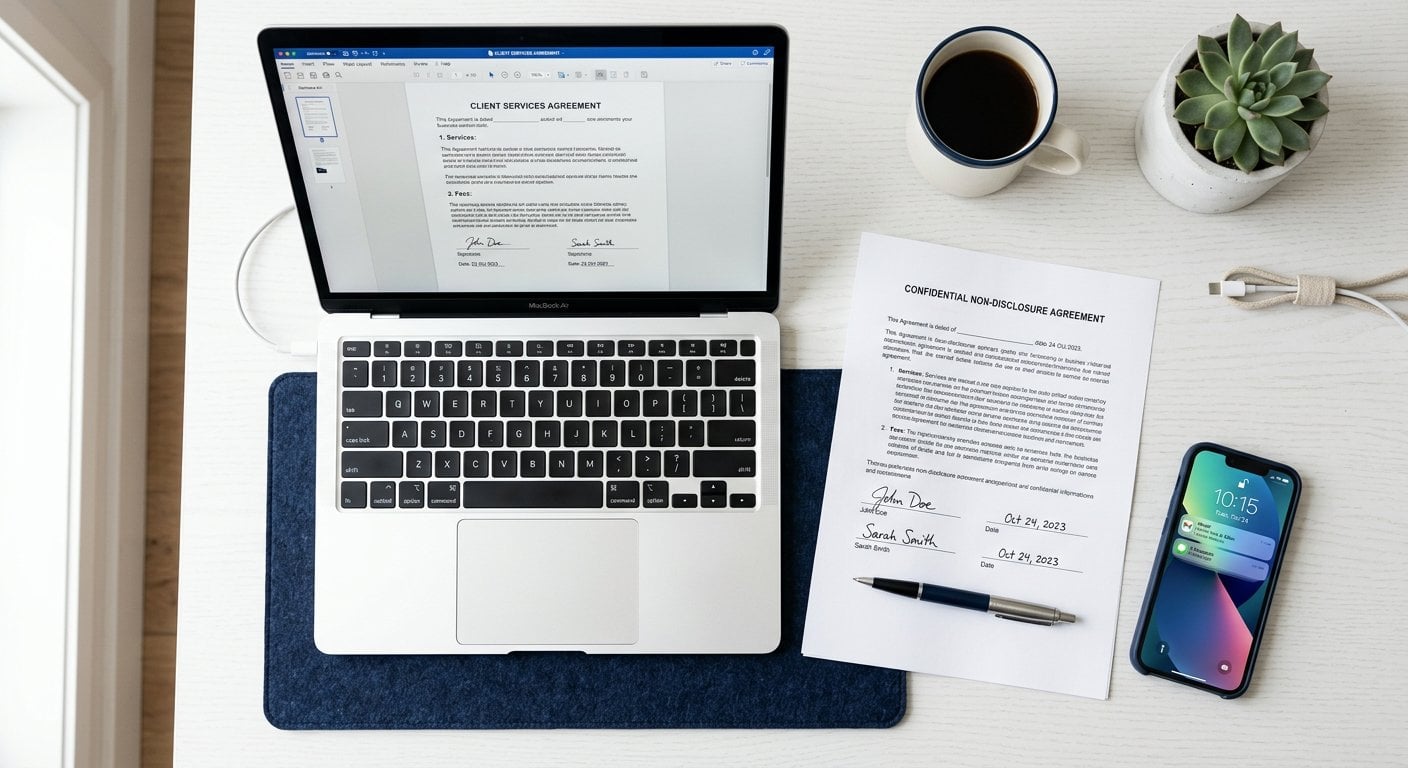
- Contract delivery: She uses a PDF editor to add a fillable signature field to her standard contract template. Clients sign digitally and return the file. No printing, scanning, or mailing involved.
- Invoice management: She converts her Excel-based invoice tracker to PDF before sending. If you handle similar spreadsheets, the guide on how to convert Excel tables to PDF without losing formatting covers exactly this process.
- File security: For sensitive project briefs, she adds password protection before sharing via email. More on that approach in the article on PDF security and privacy.
The result: Maya reclaimed about two and a half hours per week. That's over 100 hours a year, simply by being more deliberate about her document format.
Best Practices for PDF Workflows in Small Business
The following tips are grounded in real constraints: limited time, limited budget, and no dedicated IT support. These are not theoretical best practices. They work for solo operators and teams of ten alike.
1. Create a Master Template for Each Document Type
Build one clean, branded PDF template for your proposals, invoices, and contracts. Edit it once, lock the design, and reuse it. This eliminates the "start from scratch" problem that wastes time on every new client. Tools that let you edit PDFs online make it simple to update these templates without needing desktop software.
2. Use PDF Forms for Client Intake
Instead of sending a Word document that clients need to edit and return, create a fillable PDF form. Clients fill it out directly in their browser or PDF reader and send it back. This reduces formatting errors and speeds up your intake process. PDFDeal's PDF forms tool makes this straightforward without technical setup.
3. Compress Before You Send
Large PDF files cause real problems: they bounce back from email servers, load slowly, and frustrate clients. Compressing your files before sending is a five-second habit that prevents those issues. The guide on how to compress PDF files without losing quality walks through the best approaches.
4. Remove Unnecessary Pages Before Sharing
If you're sending a contract that includes internal notes or draft pages, remove them before the file leaves your hands. Sending a clean, final version looks more professional and avoids confusion.
5. Standardize File Naming
A consistent naming convention (for example: ClientName_Invoice_2025-06.pdf) makes your files searchable and your folders manageable. This sounds minor but becomes critical when you're looking for a document during a client call.
6. Protect Sensitive Documents with Passwords
Not every document needs a password, but financial summaries, legal agreements, and client data should be protected. Most online PDF tools let you add encryption in seconds. This is a basic but often skipped step in a pdf workflow for small business.
7. Keep an Editable Source File
Always save the original editable version (Word, Google Docs, Excel) alongside the exported PDF. When you need to update terms or pricing, you won't have to reverse-engineer a locked file.

How to Send Contracts as PDF the Right Way
Knowing how to send contracts as PDF properly is one of the most practical skills a small business owner can develop. A poorly handled contract creates legal ambiguity and delays projects. Here's a clean process that works:
- Draft in a word processor first. Write and review the contract in Google Docs or Word, where editing is easy and version history is available.
- Export to PDF only when the content is final. Exporting too early leads to multiple versions floating around, which creates confusion.
- Add a fillable signature field. Use a PDF editor to insert a signature line. This lets the other party sign digitally without printing.
- Send via a trackable method. Email with a read receipt, or a document-sharing platform that logs when the file was opened, gives you a basic paper trail.
- Store the signed copy immediately. Save it to a dedicated folder with a clear name and date. Don't leave it in your email inbox.
If you regularly deal with contracts PDF workflows, PDFDeal's tools let you handle editing, signing fields, and compression in one place without switching between multiple apps. Try the PDFDeal tools to see how it fits your current process.
For a broader look at how document workflows can be structured, the article on workflow ideas using PDF tools offers additional frameworks worth adapting for business use.
Common PDF Mistakes That Waste Your Time
Even experienced users repeat the same document errors. Recognizing them is the first step to cutting them out. For a full breakdown, the article on top PDF mistakes and how to fix them is worth reading. The most time-consuming ones for small businesses include:
- Sending editable Word files instead of locked PDFs, which invites accidental changes.
- Forgetting to check how a PDF looks on mobile before sending it to a client.
- Using inconsistent fonts or layouts across documents, which undermines brand credibility.
- Not compressing files, leading to delivery failures on email.
- Skipping version control, so you're not sure which draft was the last one sent.
Each of these is fixable with a small process change. The goal is not perfection on the first try but building habits that prevent repeat errors. Professional PDF tips are only useful when they're applied consistently, not just once.
Conclusion
Time is the real currency for small business owners, and document friction drains it steadily. By building a deliberate process around PDF tools for small business, you reduce the invisible overhead that comes with every client interaction. Start with one change: standardize how you send contracts, or compress files before delivery, or build a reusable invoice template. Small adjustments compound quickly. The tools are available, most are free or low-cost, and the payoff in recovered time is real. Your documents represent your business. Make them work for you, not against you.

Handle Every Business Document Faster with PDFDeal
Edit, compress, sign, and secure your PDFs in one place. No software to install, no steep learning curve - just clean, professional documents ready to send.
Try Our Free Tool →
Many high-quality PDF tools are free or low-cost. Online platforms like PDFDeal let you edit, compress, convert, and secure PDFs without a subscription. The key is finding one tool that handles multiple tasks so you're not juggling five different apps for basic document work.
Write and finalize the contract in a word processor, then export it to PDF only when the content is ready. PDF locks the layout so fonts, spacing, and structure appear identically on any device. Avoid sending Word or Google Docs files directly for contracts, as formatting can shift unpredictably.
A PDF workflow is a repeatable process for creating, editing, securing, and delivering business documents. It matters because inconsistency in document handling creates delays, errors, and a less professional impression. A defined workflow saves time and reduces the back-and-forth that comes from unstructured document management.
Not every file needs encryption, but any document containing financial data, personal client information, or legal terms should be protected. Password protection takes seconds with most online tools and adds a meaningful layer of security, especially when files are shared via email rather than a secure portal.
Fillable PDF forms let clients enter information directly into the file using any PDF reader or browser, then return it digitally. This eliminates printing, handwriting errors, and scanning. For small businesses, it speeds up onboarding and keeps all client data in a consistent, searchable format from day one.