
Managing PDF file sizes is a common challenge for professionals, students, and anyone who works with digital documents. Whether you want to email a presentation, upload files to a website, or save storage space on your phone, knowing how to reduce PDF file size without losing quality is essential. This guide covers practical compression techniques, real-world scenarios, and troubleshooting tips to help you get the best results.
Why PDF file size matters
PDF file size affects your daily workflow in several ways. Understanding these limits helps you pick the right compression approach.
Email attachment limits
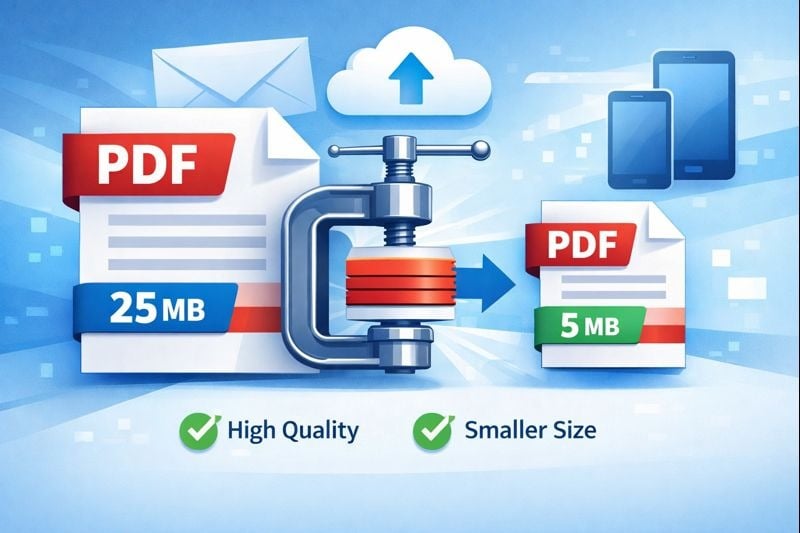
Gmail allows attachments up to 25MB. Outlook limits files to 20MB. Large presentations or scanned contracts often exceed these limits. When that happens, you need to compress your files or find another way to share them.
Website upload restrictions
Many online forms and content management systems cap uploads at 5 to 10MB. Job portals, educational platforms, and government sites often reject files that are too large. This can be a problem when you need to submit a resume with portfolio samples or multiple supporting documents.
Mobile storage constraints
Phones and tablets have limited storage. PDFs with high-resolution images fill up that space quickly. Students, professionals, and travelers all benefit from smaller files that stay readable while using less storage.
Quick tip:
- Check your recipient's email size limit before sending large files
- Online forms usually display the maximum file size allowed
- Check your device storage regularly to avoid slowdowns
Understanding compression techniques and results
Data compression for PDFs works by removing redundant information and optimizing how images are stored. Different methods produce different results depending on your document type and quality needs.
Compression levels explained
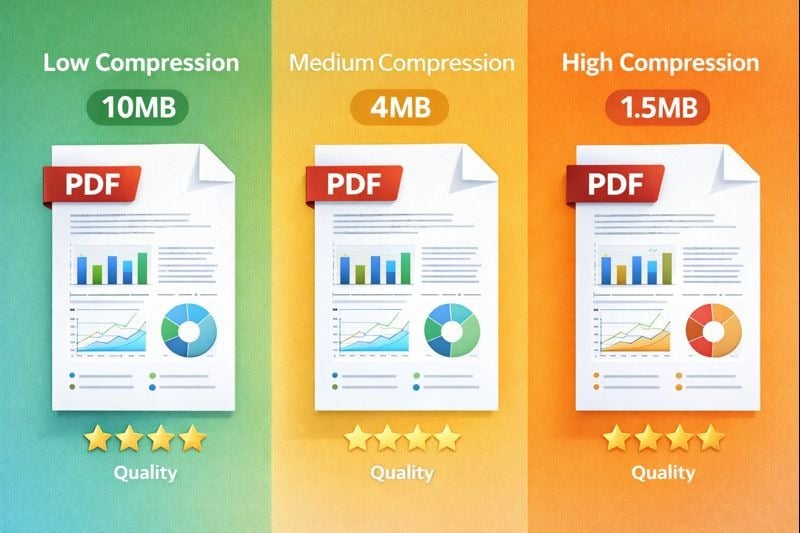
Most tools offer three compression levels. Here is what each one does:
- Low compression: Reduces file size by around 10 to 30%. Quality stays close to the original.
- Medium compression: Reduces file size by around 30 to 60%. Quality loss is minimal and often hard to notice.
- High compression: Reduces file size by around 60 to 80%. Images and graphics may look noticeably degraded.
Using our professional compression tool , you can test different levels to find the right balance. For example, a 15MB presentation with photos might compress to 8MB on low, 4MB on medium, or 2MB on high.
Compression strategies by document type
Different documents need different approaches:
- Invoices and text-heavy files: These compress well even at high levels. Text data is already efficient, so file sizes rarely exceed a few hundred kilobytes after compression.
- Presentations with charts and graphics: Medium compression works best. It keeps visuals clear while cutting file size. A 12MB, 20-slide presentation might shrink to 3 to 4MB without visible quality loss.
- Photo portfolios and design samples: Use low to medium compression to protect detail. A 50MB portfolio might compress to 25 to 30MB while staying sharp enough for professional review.
Troubleshooting common compression issues
Even with careful compression, problems can come up. Here is how to fix the most common ones.
Fixing blurry images after compression
Blurry images usually mean the compression was too aggressive. Try these fixes:
- Switch to medium or low compression
- Use a tool that offers quality presets for image-heavy documents
- Compress only text and vector elements, and leave images at their original quality
- Start with higher-resolution source images before creating the PDF
Balancing quality and size for scanned documents
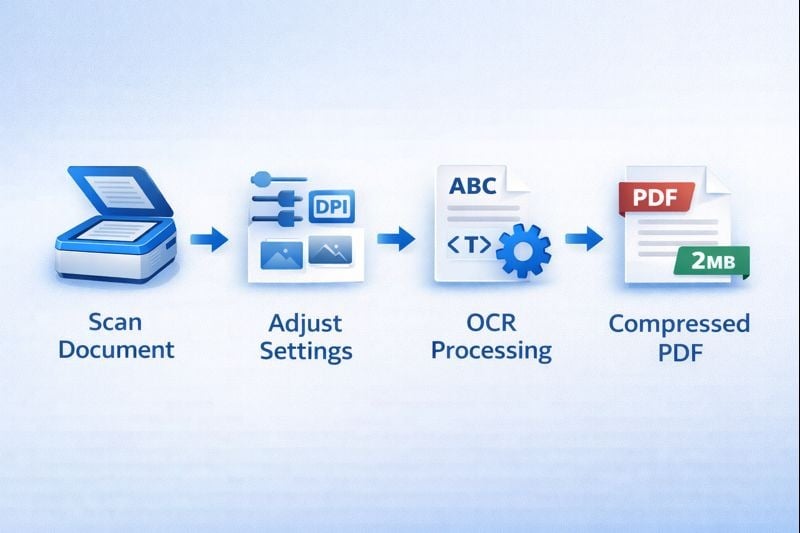
Scanned documents are essentially images of pages, not digital text. A 10-page scanned contract can reach 20 to 30MB at 300 DPI. Here are some ways to reduce that:
- Scan at 150 to 200 DPI for standard documents instead of 300 DPI
- Use grayscale instead of color when color is not needed
- Apply OCR (Optical Character Recognition) to convert scanned images to searchable text, which can cut file size significantly
- Clean up scans before compressing by removing background noise and adjusting contrast
Key takeaways:
- Match compression level to document type: high for text, medium for presentations, low for portfolios
- Test compressed files before sending to confirm quality meets your needs
- Use OCR on scanned documents to reduce size and improve searchability
- Always keep original uncompressed versions as backups
Conclusion
Compressing PDF files without losing quality comes down to knowing your document type, your intended use, and the limits you are working within. Pick the right compression level, use a reliable tool, and test your results before sharing. Whether you are sending invoices, sharing presentations, or storing portfolios, these steps help you work within email limits, upload restrictions, and storage constraints. Try different settings with your own documents to find the best balance between size and quality.
FAQ
Use low to medium compression for PDFs with photos. This typically reduces file size by 30 to 50% while keeping images clear. High compression can introduce blurring and artifacts that look unprofessional, especially when printed or viewed on high-resolution screens.
Start with medium compression. If the file is still too large, try splitting it into smaller parts, reducing image resolution before creating the PDF, or removing pages you do not need. For very large files, upload to cloud storage and share a link instead of attaching the file directly.
Blurry images after compression usually mean the compression level was too high or the tool lowered image resolution too much. To fix this, use a lower compression setting, make sure your source images are high quality before creating the PDF, or use a tool that lets you control image quality separately.
Most compression tools require you to remove password protection before compressing the file. After compression, you can reapply password protection to the smaller file. This is a security requirement that lets the tool access and modify the file during processing.
Compression reduces file size by optimizing how data is stored. It does not change page dimensions or content layout. Resizing changes the actual page dimensions, which can affect how the document looks when displayed or printed. For most purposes, compression is the better choice because it keeps the original format intact while reducing storage requirements.