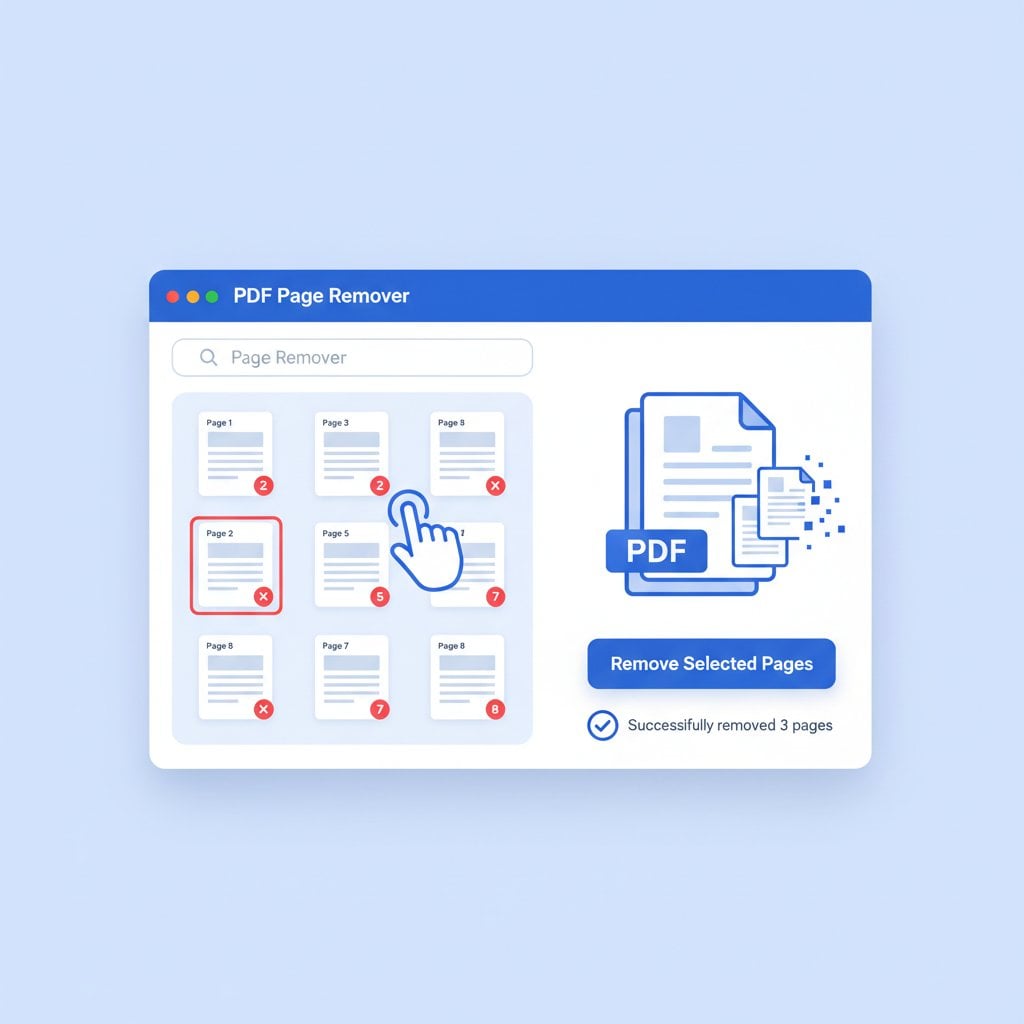
Learning how to remove pages from PDF files is a skill that saves time and reduces frustration in countless professional scenarios. Whether you're preparing a contract without unnecessary appendices, sharing a report minus confidential sections, or cleaning up scanned documents with blank pages, the ability to delete PDF pages quickly makes your workflow smoother. This complete guide walks you through practical methods to remove PDF pages online, extract specific content, and edit PDF pages without expensive software. We'll cover step-by-step instructions using our free tool, address common challenges, and provide a real-world example that shows exactly how page removal works in practice.
Content Table
Key Takeaways:
- Removing pages from PDFs is free and requires no software installation when using online tools
- Always work on copies of original documents to prevent accidental data loss
- Password-protected PDFs need unlocking before page deletion is possible
- Batch processing multiple PDFs saves significant time for large projects
Why You Need to Remove Pages from PDFs
PDF documents often contain more content than necessary for specific purposes. You might receive a 50-page report when only 10 pages apply to your department. Legal documents frequently include standard terms that don't need redistribution. Scanned files commonly capture blank pages between sections.
The ability to delete PDF pages addresses several practical needs:
- File size reduction: Fewer pages mean smaller files that are easier to email and store. If your PDFs are still too large after removing pages, you can compress PDF files further.
- Confidentiality: Remove sensitive information before sharing documents externally. Learn more about protecting your files in our PDF security guide.
- Clarity: Eliminate irrelevant sections that distract from core content.
- Professionalism: Present clean, focused documents to clients and colleagues.
Unlike complex desktop software that requires installation and often subscription fees, online tools let you remove PDF pages online instantly from any device with a browser.
Step-by-Step Guide to Delete PDF Pages
Follow these instructions to remove unwanted pages from any PDF document using our Delete PDF Pages tool.
Step 1: Upload Your PDF Document
Navigate to the page deletion tool and click the upload button. You can either drag and drop your file directly onto the upload area or browse your computer to select it. The tool accepts PDF files up to 100MB, which covers most standard documents.
Step 2: Preview All Pages
Once uploaded, the tool displays thumbnail previews of every page in your document. This visual overview helps you identify exactly which pages to remove. Scroll through the thumbnails to review your entire document before making selections.
Step 3: Select Pages to Remove
Click on the thumbnails of pages you want to delete. Selected pages are highlighted so you can easily track your choices. For documents with many pages, you can also enter specific page numbers or ranges (for example, 5-8, 12, 15-20) to speed up selection.
Step 4: Confirm and Process
Review your selections carefully. The tool shows how many pages will remain after deletion. Click the delete or process button to remove the selected pages. Processing typically takes just a few seconds, even for longer documents.
Step 5: Download Your Modified PDF
After processing completes, download your new PDF file. The modified document contains only the pages you kept. Your original file remains unchanged, so you always have a backup if needed.
Pro Tip: If you need to rearrange remaining pages or make additional edits, check out our guide on how to edit PDFs online for more advanced modifications.
Real-World Example: Cleaning Up a Business Proposal
Consider this scenario: Sarah, a marketing manager, needs to send a customized proposal to a potential client. Her company's standard proposal template is 35 pages and includes:
- Pages 1-5: Company overview and credentials
- Pages 6-15: Service descriptions (covering all services)
- Pages 16-25: Case studies from various industries
- Pages 26-30: Pricing for all service tiers
- Pages 31-35: Standard legal terms and appendices
Her client only needs information about social media marketing services (pages 6-8), retail industry case studies (pages 20-22), and mid-tier pricing (page 28). Here's how Sarah uses page removal to create a focused proposal:
Original document: 35 pages, 4.2MB
Pages to keep: 1-5 (company intro), 6-8 (relevant services), 20-22 (retail case studies), 28 (appropriate pricing), 31-32 (essential terms)
Pages to remove: 9-19, 23-27, 29-30, 33-35
Final result: 14 pages, 1.8MB
The customized proposal is now 60% smaller, directly relevant to the client's needs, and much more likely to be read in full. This process took Sarah under two minutes using our online tool.
Common Challenges and Solutions
Even straightforward tasks can present obstacles. Here are common issues when trying to split PDF document content or remove pages, along with practical solutions.
Challenge 1: Password-Protected PDFs
Some PDFs have editing restrictions that prevent page deletion. If you own the document and know the password, you'll need to unlock it first. For documents you created, check your original software settings. For received documents, contact the sender for an unrestricted version.
Challenge 2: Very Large Files
Documents over 100MB may exceed upload limits. Before attempting page removal, consider whether you can compress your large PDF file first. Alternatively, if the document has natural sections, you might split it into smaller parts for processing.
Challenge 3: Scanned Documents with Mixed Content
Scanned PDFs sometimes have pages that appear blank but contain artifacts or watermarks. Preview each page carefully before deletion. What looks empty in a thumbnail might contain important footer information or page numbers needed for reference.
Challenge 4: Maintaining Document Integrity
Removing pages can affect internal links, bookmarks, and table of contents entries. After deletion, review your document to ensure navigation elements still work correctly. You may need to update or remove broken references manually.
For a broader overview of PDF editing pitfalls, our article on common PDF mistakes covers additional scenarios you might encounter.
Best Practices for PDF Page Management
Follow these guidelines to extract PDF pages and manage documents efficiently:
- Always keep originals: Work on copies of important documents. Store originals in a separate folder before making any modifications.
- Use descriptive filenames: Name modified files clearly (for example, "Proposal_ClientName_Condensed_2024.pdf") so you can identify versions later.
- Check page dependencies: Before removing pages, note any cross-references. Page 15 might reference a chart on page 22 that you plan to delete.
- Review before sending: Open your modified PDF and scroll through it completely. Verify that content flows logically and no essential information is missing.
- Consider your audience: Remove pages that don't serve your recipient's needs, but keep context pages that help them understand the remaining content.
If you frequently work with PDFs in various formats, our PDF conversion guide explains when and how to convert between different file types.
Conclusion
Removing pages from PDF files is a fundamental skill for anyone who works with digital documents regularly. Whether you need to delete a single blank page or extract specific sections from a lengthy report, the process is straightforward with the right tools. Our free PDF page deletion tool handles the task in seconds, requires no software installation, and works on any device. Start by uploading your document, select the pages you don't need, and download your streamlined PDF. For more complex document editing needs, explore our full range of PDF tools designed to make your workflow more efficient.
Frequently Asked Questions
Yes, our PDF page deletion tool is completely free to use. You can remove pages from unlimited documents without creating an account or paying any fees. The tool processes files directly in your browser for quick, convenient access.
No, page removal does not compress or reduce the quality of remaining content. Images, text, and formatting stay exactly as they were in the original document. Only the pages you select for deletion are removed from the file.
Absolutely. Our online tool works on any device with a web browser, including smartphones and tablets. Simply visit the page deletion tool, upload your PDF, select pages to remove, and download the result directly to your device.
Your privacy is protected. Uploaded files are processed securely and automatically deleted from our servers after a short period. We do not store, share, or access your document content. Your files remain confidential throughout the process.
Once you download the modified PDF, the deletion is permanent in that file. However, your original document remains unchanged on your device. We recommend always keeping a copy of the original file before making any modifications.