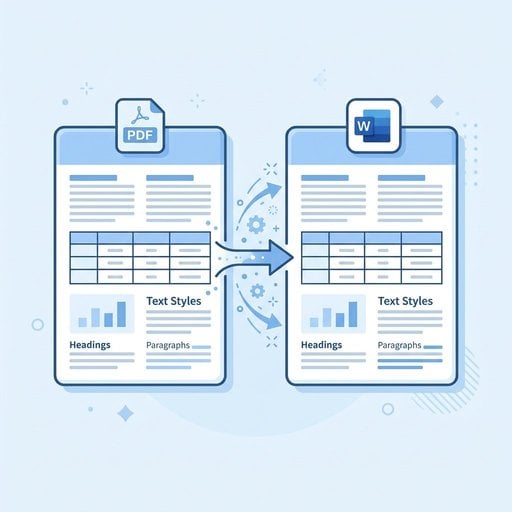
If you've ever tried to convert PDF to Word without losing formatting, you know the frustration. Columns collapse, fonts swap out, tables fall apart, and bullet points scatter across the page. This isn't a rare edge case - it's one of the most common complaints among anyone who regularly works with documents. The good news is that with the right approach, you can preserve the structure of your original file and get a clean, editable Word document. This guide walks you through exactly how to do that, including what causes formatting to break, which tools actually work, and a concrete example so you can see the process in action.
Content Table
- Why Formatting Breaks During PDF to Word Conversion
- The Best Methods to Convert PDF to Word While Keeping Formatting
- A Concrete Example: Converting a Business Report
- Best Practices for a Clean Conversion Every Time
- Troubleshooting PDF to Word Formatting Issues
- How to Convert PDF to Word Free Without Sacrificing Quality
- Conclusion
Key Takeaways:
- PDF formatting breaks because PDFs store content as fixed visual layouts, not structured text.
- The quality of your conversion depends heavily on whether the PDF is text-based or image-based (scanned).
- Using a dedicated online converter with OCR support gives the best results for complex documents.
- A few simple preparation steps before converting can eliminate most formatting problems before they start.
Why Formatting Breaks During PDF to Word Conversion
To fix a problem, it helps to understand why it exists. PDFs are designed to look identical on every device and screen. They store text as positioned elements on a fixed canvas, not as a structured document with paragraphs, styles, and headings. When a converter tries to reverse-engineer that into a Word document, it has to make guesses about what was a heading, what was a table column, and what was a text box.
There are two main types of PDFs, and they behave very differently during conversion:
- Text-based PDFs - These are created directly from Word, InDesign, or another application. The text is embedded as actual characters, so converters can extract it accurately.
- Image-based (scanned) PDFs - These are photos of pages. There is no real text inside, only pixels. A converter needs Optical Character Recognition (OCR) to read them, and OCR introduces its own margin of error.
If you're working with a scanned document, check out our guide on what OCR is and how to extract text from scanned PDFs before you start. It will save you a lot of trial and error.
The Best Methods to Convert PDF to Word While Keeping Formatting
Not all conversion methods are equal. Here's a practical breakdown of your main options.
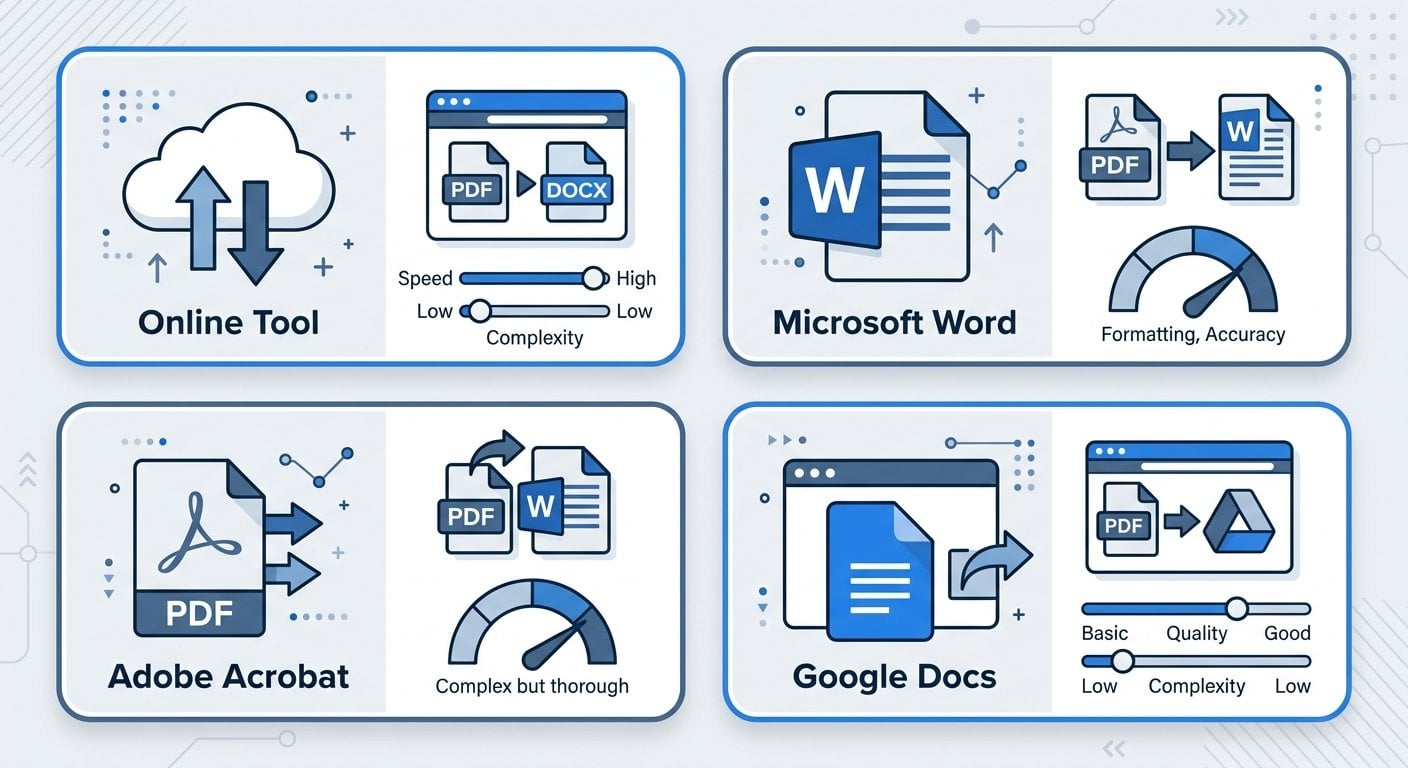
Option 1: Use a Dedicated Online Converter
Online tools built specifically for PDF-to-Word conversion tend to outperform general-purpose tools. They use more sophisticated parsing engines that can recognize multi-column layouts, embedded tables, and custom fonts. Our PDF to Word converter is built to handle exactly these cases, preserving structure as closely as possible.
Option 2: Use Microsoft Word Directly
Since Word 2013, Microsoft Word has had a built-in PDF import feature. You can open a PDF file directly in Word, and it will attempt a conversion. This works reasonably well for simple, text-heavy documents. However, it struggles with complex layouts, multi-column formats, and anything with heavy graphic elements. It's a useful fallback, but not the best choice for polished documents.
Option 3: Adobe Acrobat
Adobe's own software offers the most accurate conversion for complex PDFs, which makes sense since Adobe created the PDF format. The downside is cost - a subscription is required. For occasional conversions, it's hard to justify the expense when capable free tools exist.
Option 4: Google Docs
You can upload a PDF to Google Drive and open it with Google Docs, which performs an automatic conversion. It handles basic formatting reasonably well but often misses complex table structures and custom fonts. It's a decent free option for simple documents.
A Concrete Example: Converting a Business Report
Let's make this concrete. Imagine you have a 12-page quarterly business report in PDF format. It includes a cover page with a logo, a two-column executive summary, three embedded data tables, and a footer with page numbers and a company address.
Here's what happens when you use a basic converter versus a dedicated tool:
| Element | Basic Converter Result | Dedicated Tool Result |
|---|---|---|
| Two-column layout | Merges into one column, text runs together | Columns preserved as text boxes or table layout |
| Data tables | Flattened into plain text rows | Converted to editable Word tables |
| Logo image | Missing or displaced | Embedded as an inline image |
| Footer text | Appears inline with body text | Placed in the Word footer section |
| Custom fonts | Replaced with default system font | Matched to closest available font |
The difference is significant. If you're editing this report and need to update the tables or revise the executive summary, the quality of the conversion directly affects how much manual cleanup you'll need to do afterward. For more on why format choice matters in the first place, see our article on PDF vs Word: which format should you use and when.
Best Practices for a Clean Conversion Every Time
These tips apply regardless of which tool you use. Following them before and after conversion will cut your cleanup time significantly.
- Check if the PDF is text-based first. Open the file and try to select and copy a sentence. If you can highlight individual words, it's text-based. If nothing selects, it's scanned and needs OCR.
- Use the highest-quality source PDF you can find. If you have access to the original document that generated the PDF, use that instead. Converting from the source is always cleaner.
- Avoid converting PDFs with heavy graphics as your primary goal. If the document is mostly images and charts, conversion will be messy. Consider editing the PDF directly instead with our PDF Editor.
- Review the converted document section by section. Don't skim it. Tables, headers, and footers are the most common failure points. Check each one.
- Use Find and Replace to catch encoding errors. Scanned PDFs sometimes introduce odd characters where apostrophes or quotation marks should be. A quick search will catch these.
- Re-apply heading styles in Word after conversion. Even if text lands in the right place, it may not carry the correct paragraph style. Re-applying Heading 1, Heading 2, etc. will restore the document outline and make it easier to navigate.
- Save a copy of the original PDF. Always keep the source file. If something goes wrong in the conversion, you'll want to start over from the original rather than from a corrupted Word file.
If you also work with spreadsheets, the same principles apply when you convert between formats. Our guide on how to convert Excel tables to PDF without losing formatting covers the equivalent challenges in that direction.
Troubleshooting PDF to Word Formatting Issues
Even with a good tool and careful preparation, PDF to Word formatting issues can still appear. Here's how to diagnose and fix the most common ones.
Problem: Text appears in the wrong order
This usually happens with multi-column layouts. The converter reads text left to right across the full page width instead of column by column. Fix this by manually cutting and pasting the text into the correct sequence, or by using a tool that explicitly supports multi-column detection.
Problem: Tables are broken or missing
If a table was created using tab stops rather than actual table formatting in the original document, it may not survive conversion. Rebuild these tables manually in Word using the Insert Table function. It takes a few minutes but gives you a properly structured table you can edit reliably.
Problem: Fonts look wrong
PDFs can embed custom fonts that aren't installed on your system. When the converter can't find the font, it substitutes a default. You can either install the missing font or manually re-apply the correct font in Word. If font accuracy is critical, contact the document's creator for the original file.
Problem: Images are missing or out of place
Images in PDFs are stored separately from text. Some converters don't extract them, or they place them incorrectly. If images are critical, extract them separately using a PDF tool, then insert them manually into the converted Word document at the correct position.
Problem: Headers and footers appear in the body text
Some converters treat headers and footers as regular text blocks. After conversion, select this text, cut it, and paste it into the actual Word header or footer section using Insert > Header or Insert > Footer. This is a common issue and easy to fix once you know what to look for.
For a broader look at document errors you might encounter, our article on top PDF mistakes everyone makes and how to fix them is worth a read.
How to Convert PDF to Word Free Without Sacrificing Quality
You don't need to pay for software to get a good conversion. Several capable tools let you convert PDF to Word online free with results that are more than adequate for most use cases. The key is knowing what "free" actually covers.
Most free online tools handle standard text-based PDFs well. Where they sometimes fall short is with scanned documents (which require OCR), very large files, or documents with complex multi-column layouts. If your PDF fits the standard profile - a straightforward text document with basic tables - a free tool will do the job cleanly.
When evaluating a free tool, check for these features:
- OCR support for scanned documents
- Preservation of tables as Word tables (not plain text)
- Image extraction alongside text
- No file size limits that would block your document
- A clear privacy policy explaining how your file is handled
The last point matters more than most people realize. If you're converting a document that contains sensitive business or personal information, make sure the tool deletes your file from its servers after conversion. Check the privacy policy before uploading anything confidential — and if you want to understand the risks in more depth, this guide on PDF security is worth reading.
Conclusion
Converting a PDF to Word without losing formatting is entirely achievable when you understand the process and use the right tool. The key is recognizing what type of PDF you're working with, choosing a converter that matches that type, and doing a methodical review of the output before you start editing. Most formatting problems are fixable - they just require knowing where to look. Whether you're handling a simple one-page document or a complex multi-column report, the steps in this guide give you a reliable framework to get a clean result every time.
Convert PDF to Word Free - Keep Your Formatting Intact
Upload your PDF and get a clean, editable Word document in seconds. Our tool preserves tables, columns, fonts, and images so you spend less time fixing and more time working.
Try Our Free Tool →
PDFs store content as fixed visual positions on a page, not as structured document elements. When a converter tries to rebuild this as a Word file, it has to guess at the original structure. Complex layouts, custom fonts, and multi-column designs are the most common sources of formatting loss during conversion.
Yes, but you need a tool with OCR (Optical Character Recognition) support. OCR reads the text from the scanned image and reconstructs it. The accuracy depends on scan quality. High-resolution, clearly printed documents convert well. Handwritten notes or low-quality scans will require more manual correction after conversion.
It depends on the tool. Reputable online converters process your file and delete it from their servers within a short window, typically within 24 hours. Always check the privacy policy before uploading sensitive documents. For highly confidential files, consider using a desktop application that processes files locally without uploading them.
A dedicated online PDF to Word converter is your best free option for most documents. Look for one that supports OCR, preserves tables as editable Word tables, and extracts images. For simple text-heavy PDFs, even Google Docs' built-in import feature can produce acceptable results with minimal cleanup required.
Start by reviewing tables, headers, footers, and multi-column sections - these are the most common failure points. Re-apply Word heading styles to restore the document outline. Use Find and Replace to catch encoding errors from OCR. For missing images, extract them from the PDF separately and insert them manually at the correct positions.