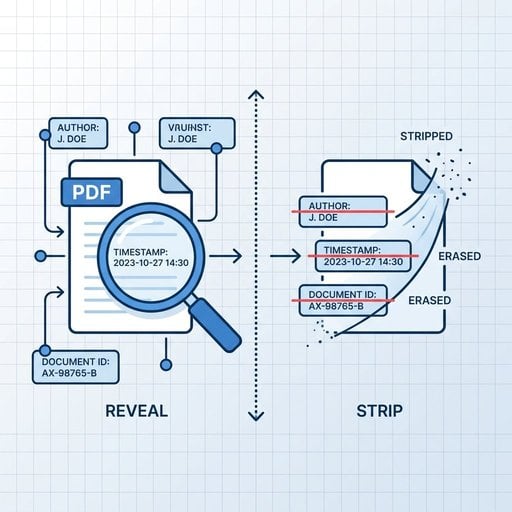
PDF metadata removal is the process of stripping hidden information embedded inside a PDF file - things like the author's name, the software used to create it, revision history, and even GPS coordinates in some cases. Most people share PDFs without realizing this data travels with the file, quietly revealing details they never intended to share. Whether you're a lawyer sending a contract, a journalist protecting a source, or just someone who values privacy, knowing how to strip PDF metadata is a practical skill worth having.
Content Table
What Is PDF Metadata?
A PDF file is not just the visible pages. Inside the file structure, Adobe's PDF specification defines two separate places where metadata can live:
- Document Information Dictionary - a legacy key-value store embedded in the file since PDF 1.0. It holds fields like Author, Title, Subject, Keywords, Creator, Producer, CreationDate, and ModDate.
- XMP (Extensible Metadata Platform) - a more modern XML-based packet introduced by Adobe that can hold far more detailed information, including custom properties defined by third-party software.
Both can exist in the same file simultaneously, and they don't always agree with each other. Some tools only scrub one of the two, leaving the other intact - which is why a quick, shallow clean-up can still leave sensitive data behind.
What Hidden Data Actually Gets Exposed
Here's a realistic breakdown of what you might find hiding in a PDF, depending on how it was created:
| Metadata Field | What It Reveals | Where It Lives |
|---|---|---|
| Author | The name registered to the software - often a real person's full name or a company username | Info Dictionary + XMP |
| Creator / Producer | The application that made the file (e.g., "Microsoft Word 2019", "Adobe Acrobat Pro DC 2023") | Info Dictionary + XMP |
| Creation Date / Mod Date | Exact timestamps, sometimes including timezone, that can contradict claimed dates in a document | Info Dictionary + XMP |
| Revision History | How many times the document was saved and edited | XMP (xmpMM namespace) |
| Document ID | A unique identifier that can link multiple versions of the same document together | XMP |
| Custom Properties | Company name, department, legal status, internal tags - added by Word, SharePoint, or legal software | Info Dictionary + XMP |
| Embedded Fonts / Resources | Font names that can hint at internal branding or proprietary software | PDF resource dictionary |
Real-World Risks of PDF Hidden Data
This isn't a theoretical problem. There are well-documented cases where PDF hidden data caused serious damage:
- The Tony Blair Iraq Dossier (2003) - A UK government PDF released to justify the Iraq War had tracked changes and author names still embedded. Journalists extracted the names of the civil servants who drafted the document, which caused a significant political embarrassment.
- Legal filings - Law firms have accidentally filed documents with opposing counsel's comments, tracked changes, or internal notes still embedded in the PDF.
- Journalism - A source who leaks a document can be identified if the PDF's Author field or Document ID traces back to their login credentials.
- Procurement and bidding - Companies have revealed their internal cost structures through custom metadata fields added by their accounting software before submitting tender documents.
How to Remove PDF Metadata
There are several practical ways to strip PDF metadata, each with different trade-offs.
Option 1: Adobe Acrobat Pro (Windows / Mac)
This is the most thorough desktop option for people who already have Acrobat Pro.
- Open the PDF in Acrobat Pro.
- Go to Tools > Redact > Sanitize Document - this removes metadata, embedded content, scripts, and hidden layers in one pass.
- Alternatively, go to File > Properties > Description to manually clear individual fields, but note this only touches the Info Dictionary, not XMP.
Option 2: ExifTool (Free, Command Line)
ExifTool by Phil Harvey is the gold standard for metadata manipulation across dozens of file types, including PDFs. It's free and runs on Windows, Mac, and Linux.
To remove all metadata from a PDF:
exiftool -all= yourfile.pdfTo remove metadata and save a clean copy (keeping the original):
exiftool -all= -o cleanfile.pdf yourfile.pdfExifTool removes both the Info Dictionary and the XMP packet. It does not, however, remove embedded fonts, hidden layers, or comments - for those you need Acrobat's Sanitize function or a dedicated PDF sanitizer.
Option 3: Print to PDF (Quick and Dirty)
Opening the PDF and printing it to a new PDF using your OS's built-in PDF printer (Windows Print to PDF, macOS Save as PDF) strips most metadata because it essentially re-renders the document. The downside is that it can flatten interactive elements, lose bookmarks, and sometimes reduce quality. It's fine for simple text documents but not for complex forms or layered graphics.
Option 4: Python with pikepdf (Developers)
If you're processing PDFs programmatically, pikepdf is a clean Python library built on QPDF that gives you precise control over metadata.
import pikepdf

with pikepdf.open("input.pdf") as pdf:
    with pdf.open_metadata() as meta:
        meta.clear()
    del pdf.docinfo  # clears the Info Dictionary
    pdf.save("output_clean.pdf")
Option 5: Using an Online Tool like PDFDeal
If you prefer not to install software or write code, an online tool is the quickest route. PDFDeal lets you upload a PDF, strip its metadata, and download the cleaned file directly in your browser. No installation required, which makes it a convenient option for one-off files or when you're working on a machine where you can't install software.
Keep in mind that uploading sensitive documents to any third-party service carries its own privacy considerations. For highly confidential files, a local tool like ExifTool or Acrobat Pro is the safer choice.
How to Verify the Metadata Is Gone
After you strip PDF metadata, always check the result before sharing the file. Assuming the clean-up worked is how leaks happen.
-
ExifTool
- Run
exiftool cleanfile.pdfand check the output. You should see only basic structural fields (file size, PDF version), not personal data. - Adobe Acrobat Reader (free) - Go to File > Properties and check the Description and Custom tabs.
- Online metadata viewers - Several free tools let you upload a PDF and display its raw metadata. Useful for a quick sanity check without installing software.
Strip PDF Metadata Instantly - No Software Needed
Upload your PDF and remove all hidden data in seconds. Clean author names, timestamps, revision history, and custom properties before you share any file.
Try Our Free Tool →
Not reliably. Converting to Word often imports the original PDF metadata into the Word document's own properties, and then re-exporting to PDF can re-embed it - sometimes with additional Word-specific fields like the company name from your Office license. It's better to use a dedicated metadata removal tool or ExifTool directly on the PDF.
No - they solve different problems. Redaction removes visible text or images from the page content (like blacking out a name in a contract). Metadata removal strips the invisible data stored in the file's structure. A properly redacted document can still expose the author's name through metadata, so both steps are often needed together.
Yes. The Creator field records the original application (like "Microsoft Word"), while the Producer field records what converted it to PDF. The Author field often carries over from the source document's registered user. Combined with timestamps, this can build a fairly detailed picture of who created and modified the file, even across format conversions.
No. Standard PDF password protection encrypts the page content but leaves the metadata dictionary accessible. Tools like ExifTool can read and display the metadata of a password-protected PDF without needing the password. If privacy is the goal, you need to strip the metadata separately before or after adding any password protection.
In some jurisdictions, yes. Under GDPR in the EU, personal data embedded in a document (like an author's name) is subject to data minimization principles when sharing with third parties. Several bar associations also have professional conduct rules requiring lawyers to scrub metadata from documents before sending them to opposing counsel or courts.