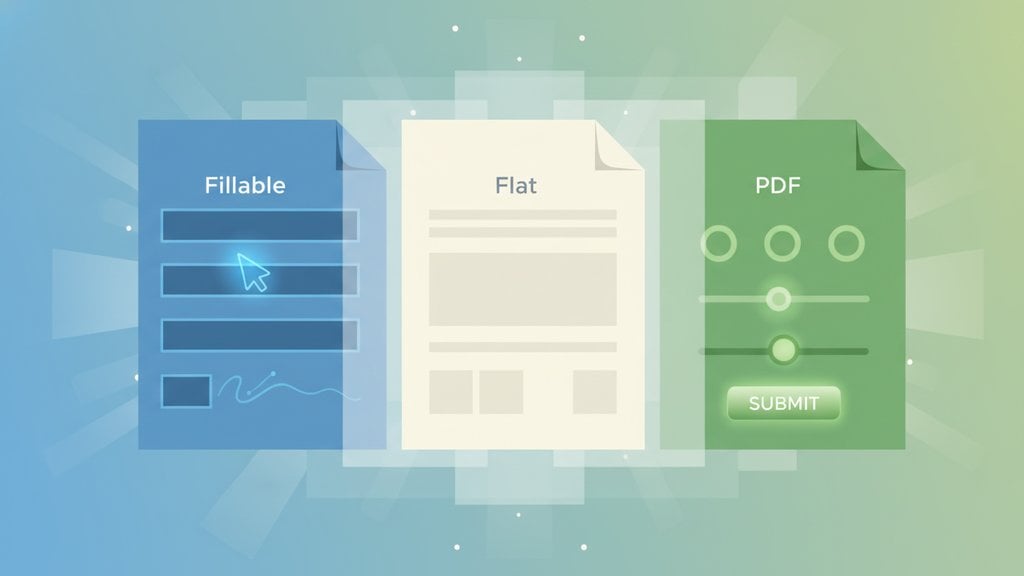
PDF form fields are the interactive or static elements inside a PDF that hold text, checkboxes, signatures, or other data. There are three distinct types: fillable fields you can type into, flat fields that are permanently baked into the document, and interactive fields that respond to user input with logic or calculations. Knowing which type you are dealing with saves enormous frustration, especially when a fillable PDF suddenly stops accepting input.
Content Table
The Three Types of PDF Form Fields
Fillable Fields
A fillable PDF has form fields that are live, meaning you can click on them and type directly into the document. These fields are defined in the PDF's internal structure using the AcroForm specification , which Adobe introduced as part of the PDF standard. Common field types include:
- Text fields (single line or multi-line)
- Checkboxes and radio buttons
- Signature fields
- Dropdown lists
- Date pickers
When you open a fillable PDF in Adobe Acrobat Reader or a modern browser, a toolbar usually appears asking if you want to fill out the form. That prompt is your confirmation the fields are live.
Flat Fields (Static PDF)
A flat PDF looks identical to a fillable one on screen, but the text you see is rendered as permanent content, not as editable fields. Think of it as a photograph of a form rather than the form itself. Flat PDFs are created in a few common ways:
- Printing a filled form to PDF, which collapses all fields into static graphics
- Using "Flatten" in Acrobat to lock a completed form before sending it
- Scanning a paper form and saving the scan as a PDF
- Exporting from Word or another app without adding AcroForm fields
Flat PDFs are intentional when you want to prevent further editing after submission. They become a problem when you receive one and need to fill it out.
Interactive Fields
Interactive PDF form fields go a step beyond basic fillable fields. They include JavaScript-driven logic that can:
- Calculate totals automatically (common in IRS tax forms like the 1040 )
- Show or hide sections based on a checkbox selection
- Validate input (for example, reject a ZIP code that is not five digits)
- Populate other fields from a single entry
- Restrict field types (numbers only, dates only, etc.)
Interactive forms are common in government documents, legal contracts, and medical intake forms. They require a PDF viewer that supports JavaScript, which is why they sometimes behave differently in a browser tab versus Adobe Acrobat Reader.
| Type | Editable? | Has Logic? | Common Use Case |
|---|---|---|---|
| Fillable | Yes | No | Job applications, registration forms |
| Flat | No | No | Finalized documents, scanned records |
| Interactive | Yes | Yes | Tax forms, legal contracts, medical intake |
Why the Distinction Matters
The type of PDF form field you are working with determines what you can actually do with the document. Sending a flat PDF to a client expecting them to fill it out will result in them printing it, writing by hand, and scanning it back. That is a workflow problem that costs real time.
For anyone comparing document formats, understanding this also helps when deciding whether a PDF or an editable Word document is the right choice for a given task. If you want a deeper look at that decision, this guide on PDF vs Word covers the trade-offs clearly.
For businesses and freelancers, the practical stakes are:
- Flat PDFs shared as forms create friction and errors from manual re-entry
- Fillable PDFs without logic allow invalid data (wrong dates, text in number fields)
- Interactive PDFs with JavaScript may not work in all viewers, causing confusion
How to Check If a PDF Is Fillable
You do not need special software to check. Here are three quick methods:
- Click on the document. If your cursor changes to a text cursor when you hover over a field area, the fields are live. If nothing happens, it is flat.
- Check in Adobe Acrobat Reader. Go to File, then Properties, then the Description tab. Look for "Form: AcroForm" in the document properties. If it says "None," there are no form fields.
- Try the Tab key. Open the PDF and press Tab. If the cursor jumps between fields, the form is fillable. If nothing moves, it is flat.
Why Fillable PDF Forms Stop Working (And How to Fix Them)
A PDF fillable form not working is one of the most common PDF complaints. Here are the actual causes and their fixes:
The PDF Is Protected or Restricted
Some PDFs are locked with permissions that prevent editing, even in fillable fields. In Acrobat Reader, go to File, Properties, Security tab. If "Filling of form fields" is listed as "Not Allowed," the form creator has restricted it. You will need the owner password to unlock it, or you will need to work around the restriction with a tool that can edit PDFs.
You Are Using the Wrong Viewer
Browser-based PDF viewers (Chrome's built-in viewer, Safari's preview) do not support all PDF features. Interactive fields with JavaScript calculations will often fail silently. Fix: download the PDF and open it in Adobe Acrobat Reader (free) or another full-featured PDF application.
The PDF Was Flattened Before Sending
If someone filled out and then flattened the form before sending it to you, those fields are gone permanently. You will see the text but cannot edit it. The only solution is to get the original unflatted version, or convert the flat PDF to a new fillable one.
The PDF Is Scanned or Image-Based
A scanned PDF is essentially a picture. There are no text layers or form fields at all. You would need optical character recognition (OCR) to extract the text before any fields can be added.
The File Is Corrupted or Partially Downloaded
A PDF that did not fully download can open but behave erratically. Re-download the file and check its size matches what the server reports.
How to Convert a Flat PDF Into a Fillable One
If you have a flat PDF and need to make it fillable, the process involves adding AcroForm fields on top of the existing content. Here is how it works in practice:
- Open the PDF in a PDF editor that supports form field creation.
- Use the form field tool to draw text boxes over the areas where input is needed.
- Set field properties such as font, size, and whether the field is required.
- Add any logic if you need calculations or conditional visibility.
- Save as a fillable PDF (not flattened) so recipients can type into it.
For those who also work with other document formats, understanding how formatting carries over when you convert a PDF to Word can help you decide whether editing the source document and re-exporting is faster than adding fields directly to the PDF.
How PDFDeal Helps With PDF Form Fields
PDFDeal's PDF Forms page gives you a searchable catalog of over 50 official government forms from agencies including the IRS, USCIS, SSA, and the State Department. You can browse by category (Tax, Real Estate, Business, Government, Legal, Medical), search by name, preview any form, and fill it directly in your browser without downloading anything first.
Common forms available include:
- IRS 1040, W-9, W-4, 1099-MISC, 1099-NEC, 4868, 941, 940
- USCIS I-9 (employment eligibility)
- State Department DS-11 (passport application)
The workflow is straightforward:
- Go to the PDF Forms page and search for the form you need
- Click to open it in the browser-based viewer
- Fill in the fields directly on screen
- Download the completed form
For users who need to edit existing PDFs beyond form filling, the PDF editor handles text edits, annotations, and other modifications without requiring any software installation.

Fill PDF Form Fields Without the Frustration
PDFDeal's PDF forms catalog lets you find, preview, and fill official government PDF form fields directly in your browser. No software, no printing, no scanning.
Browse PDF Forms →
A fillable PDF simply has text fields you can type into, but the fields do not react to what you enter. An interactive PDF goes further, using JavaScript to calculate totals, show or hide sections, validate input, or auto-populate related fields. All interactive PDFs are fillable, but not all fillable PDFs are interactive.
The PDF has almost certainly been flattened. Flattening merges all form field data into the static page content, making it look exactly like a filled form but removing all editable elements. This happens when someone finalizes and locks a form before sending it. You would need the original unflatted version or a tool to add new fields on top.
Yes, for basic fillable PDFs. Chrome, Edge, and Firefox all have built-in PDF viewers that handle simple AcroForm text fields and checkboxes. However, forms with JavaScript calculations or conditional logic often fail in browsers. For those, download the PDF and open it in Adobe Acrobat Reader, which is free and handles the full AcroForm specification correctly.
In Adobe Acrobat Reader, open the PDF and go to File, then Properties, then the Security tab. Look at the "Document Restrictions Summary." If "Filling of form fields" shows as "Not Allowed," the document owner has restricted editing. You need the owner password to change those permissions. Some PDFs also display a lock icon in the toolbar as a visual indicator.
It depends on the tool. PDFDeal's forms catalog only sources PDFs from official government domains (irs.gov, uscis.gov, ssa.gov, state.gov, and similar). The forms are proxied through a secure server and cached temporarily. Your filled data stays in your browser session and is downloaded locally when you save, so sensitive information is not stored on a third-party server.
Most conversion tools flatten the form fields during the PDF-to-Word process, turning them into plain text or table cells. The field structure (AcroForm definitions, JavaScript logic) is not preserved in the Word format. If you need to edit the form's structure rather than just its content, it is usually better to work directly in a PDF editor rather than converting formats first.