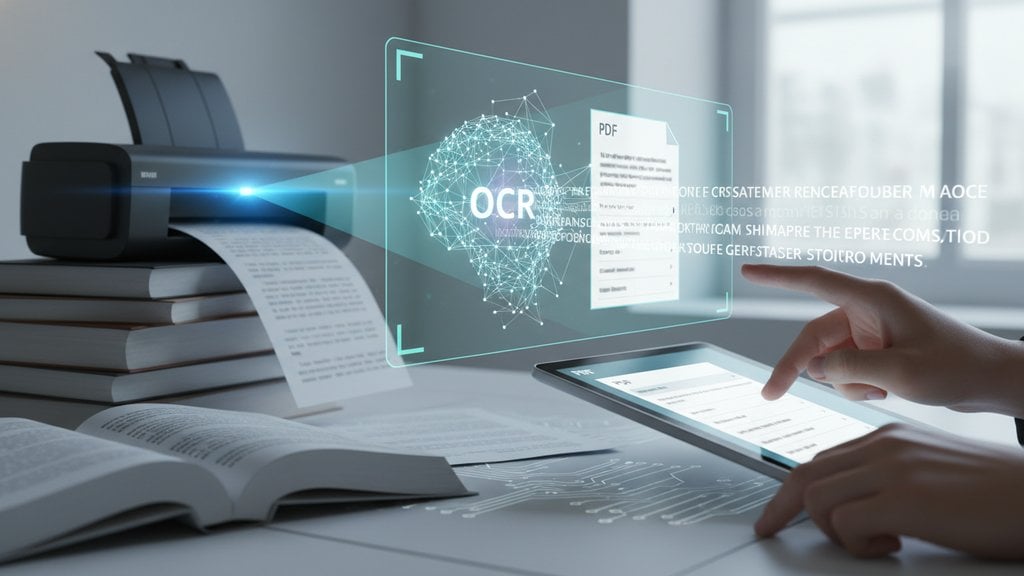
You scan a contract, a medical record, or a research paper and open it as a PDF - only to find you cannot select a single word. The document looks like text, but it behaves like an image. That is the core frustration with scanned PDFs, and it affects thousands of professionals every day. OCR PDF technology solves this problem by converting those static image-based files into fully searchable, editable documents. This guide explains exactly how OCR text recognition works, why scanned PDFs fall short, and how you can extract usable text from them using practical, step-by-step methods - including free tools you can start using right now.
Content Table
Key Takeaways:
- OCR (Optical Character Recognition) converts image-based scanned PDFs into searchable, editable text.
- Scanned PDFs store content as flat images, making text impossible to copy, search, or edit without OCR.
- Free tools like Google Drive, Adobe Acrobat, and Smallpdf can run OCR on most documents in minutes.
- After OCR processing, you can further edit, annotate, and manage your PDF using pdfdeal.com's OCR PDF tool.
What Is OCR and How Does It Work
OCR stands for Optical Character Recognition. It is a technology that reads the visual patterns in an image - shapes, curves, lines - and maps them to recognizable characters like letters, numbers, and punctuation. In simpler terms, OCR text recognition teaches software to "read" the way a human does, but at scale and at speed.
The process relies on pattern matching and, increasingly, machine learning. Early OCR systems compared scanned characters against a fixed library of templates. Modern optical recognition engines use neural networks trained on millions of document samples, which makes them far more accurate across fonts, languages, and document qualities.
Real-world use cases include:
- Digitizing printed books and historical archives
- Automating data entry from paper invoices or forms
- Making government records searchable online
- Extracting text from scanned contracts for legal review
- Converting handwritten notes into typed text (with advanced models)
According to Wikipedia's overview of OCR technology, the concept dates back to the early 20th century, but it became widely practical with the rise of digital scanning and computing in the 1970s and 1980s. Today, it powers everything from passport scanners at airports to accessibility tools for the visually impaired.
Why Scanned PDFs Are a Problem
When you scan a physical document and save it as a PDF, the scanner takes a photograph of the page. The resulting file is essentially a container holding one or more images. There is no underlying text layer - just pixels arranged to look like words.
This creates several concrete problems:
- You cannot search the document. Pressing Ctrl+F finds nothing, even if the word appears clearly on screen.
- You cannot copy or paste text. Selecting content is impossible because there is no text to select.
- Screen readers cannot process it. People using assistive technology get no useful output from image-only PDFs.
- File sizes tend to be larger. Image-based PDFs are often heavier than their text-based equivalents.
- Editing is blocked. You cannot correct a typo, update a date, or reformat a paragraph.
Consider a practical example: a law firm receives a 40-page scanned contract from a client. Without PDF text extraction, a paralegal must read every page manually to find specific clauses. With OCR, the same task takes seconds using a keyword search. The productivity difference is significant.
How OCR PDF Technology Works Step by Step
Understanding the process helps you set realistic expectations about output quality. Here is what happens under the hood when you run OCR on a scanned PDF:
- Pre-processing: The software analyzes the image and corrects issues like skew (slight rotation from scanning), noise (speckles or smudges), and uneven lighting. This step significantly affects final accuracy.
- Page segmentation: The engine identifies distinct regions on the page - headings, body text, tables, images, and margins - and processes each region separately.
- Character recognition: Each character within a text region is analyzed. The OCR engine compares shapes against trained models and assigns the most probable character match.
- Language modeling: Context matters. If the engine is uncertain between "rn" and "m", it checks surrounding words to pick the most likely option.
- Output generation: The recognized text is layered onto the original PDF. The result is an OCR PDF to PDF conversion - the visual appearance stays the same, but a hidden text layer is added underneath, making the file searchable and selectable.
The quality of the source scan has the biggest impact on accuracy. A clean, 300 DPI scan of a printed document will typically achieve 98-99% character accuracy. A low-resolution photo of a crumpled page may drop below 80%.
How to Extract Text from a Scanned PDF
Below are three practical methods using widely available tools. Each approach takes under five minutes for most documents.
Method 1: Google Drive (Free)
Google Drive uses Google's built-in optical recognition engine to convert scanned PDFs automatically.
- Upload your scanned PDF to Google Drive.
- Right-click the file and select "Open with Google Docs".
- Google Docs will open a new document with the recognized text below the original image.
- Copy the text or use File - Download - PDF Document to save a new version.
Tip: Google Drive works well for straightforward single-column documents. For multi-column layouts or tables, formatting may break. Once you have your extracted text, use pdfdeal.com's OCR PDF tool to generate a properly structured, searchable PDF with the original layout preserved.
Method 2: Adobe Acrobat (Paid, with Free Trial)
Adobe Acrobat offers the most reliable OCR for complex documents, especially those with mixed layouts.
- Open your scanned PDF in Adobe Acrobat.
- Go to Tools - Enhance Scans - Recognize Text.
- Choose "In This File" and select your preferred language. Click Recognize Text.
- Save the file. It is now a searchable PDF with a full text layer.
Tip: Acrobat's OCR creates an editable PDF, but further formatting, annotations, or page management is easier with a dedicated tool. After running Acrobat's OCR, you can upload the result to pdfdeal.com to edit the PDF online, add comments, or reorganize pages without needing the full Acrobat subscription.
Method 3: Smallpdf (Free, Browser-Based)
Smallpdf is a quick option for users who do not want to install software.
- Go to Smallpdf's PDF to Word tool.
- Upload your scanned PDF. Smallpdf automatically detects that OCR is needed.
- Wait for the conversion to complete (usually under 60 seconds).
- Download the Word document, then re-export to PDF if needed.
Tip: Smallpdf exports to Word, which adds an extra conversion step. If you want to stay in PDF format throughout, convert your scanned PDF to text directly using pdfdeal.com and skip the Word detour entirely.
Benefits of Using OCR on Your PDFs
Running OCR on your document library is not just a technical upgrade - it changes how you work with information. Here are the most practical benefits:
- Full-text search: Find any word or phrase across hundreds of digitized documents instantly.
- Copy and paste text: Extract quotes, data points, or clauses without retyping them.
- Accessibility compliance: Searchable PDFs work with screen readers, helping meet WCAG and PDF/UA accessibility standards.
- Reduced storage overhead: Text-layer PDFs can be compressed more efficiently than pure image files. See our guide on compressing PDFs without losing quality for more on this.
- Workflow automation: OCR output can feed into document management systems, CRMs, or databases automatically.
- Editable content: Correct errors, update information, or reformat sections without starting from scratch.
Common Use Cases for OCR PDF Technology
OCR is not a niche tool. It solves real problems across many industries:
Legal and Compliance
Law firms routinely receive scanned contracts, court filings, and discovery documents. OCR converts these into searchable PDFs, allowing attorneys to locate specific clauses or precedents in seconds rather than hours. It also supports secure document handling by enabling proper metadata and access controls on text-layer files.
Healthcare and Medical Records
Hospitals scanning patient intake forms, lab results, or historical records use OCR to feed data into electronic health record (EHR) systems. Accurate PDF text extraction reduces manual data entry errors and speeds up patient care workflows.
Finance and Accounting
Invoices, receipts, and bank statements that arrive as scanned PDFs can be processed automatically using OCR. The extracted data flows into accounting software, eliminating hours of manual entry. Small businesses especially benefit - read more about how small businesses use PDF tools to save time in 2026.
Education and Research
Students and researchers working with digitized books, journal articles, or archived materials rely on OCR to make those sources searchable and citable. Converting scanned PDFs enables proper annotation and reference management.
Government and Public Records
Public agencies digitizing historical records, permits, or census data use OCR at scale to make archives accessible online. This supports transparency and reduces the burden on staff handling information requests.
Final Thoughts
A scanned PDF that you cannot search or edit is a document that is working against you. OCR PDF technology removes that barrier in minutes, turning static image files into fully functional, searchable documents. Whether you use Google Drive for a quick one-off conversion or a dedicated platform for batch processing, the key is choosing a tool that preserves your document's layout while adding a clean text layer. For reliable OCR text recognition combined with full PDF editing capabilities, try pdfdeal.com's OCR PDF tool and see how much faster your document workflows can be.
Frequently Asked Questions
OCR (Optical Character Recognition) is a technology that analyzes the visual patterns in a scanned image and converts them into machine-readable text. It works by segmenting the page into regions, identifying individual characters using pattern matching or neural networks, and then generating a text layer that can be searched and edited.
Yes. Google Drive offers free OCR by opening a scanned PDF directly in Google Docs. Smallpdf also provides free OCR conversions with daily limits. For more consistent results and better layout preservation, pdfdeal.com offers an OCR PDF tool designed specifically for this purpose.
A scanned PDF stores pages as flat images - there is no text data, only pixels. A searchable PDF contains a text layer beneath the visual content, created through OCR. This text layer allows you to search, copy, and select content, and it enables screen readers and document management tools to process the file properly.
Accuracy depends heavily on scan quality. A clean, 300 DPI scan of a standard printed document typically achieves 98-99% character accuracy with modern OCR engines. Low-resolution scans, handwriting, unusual fonts, or damaged pages can reduce accuracy significantly. Always review OCR output for critical documents before relying on it.