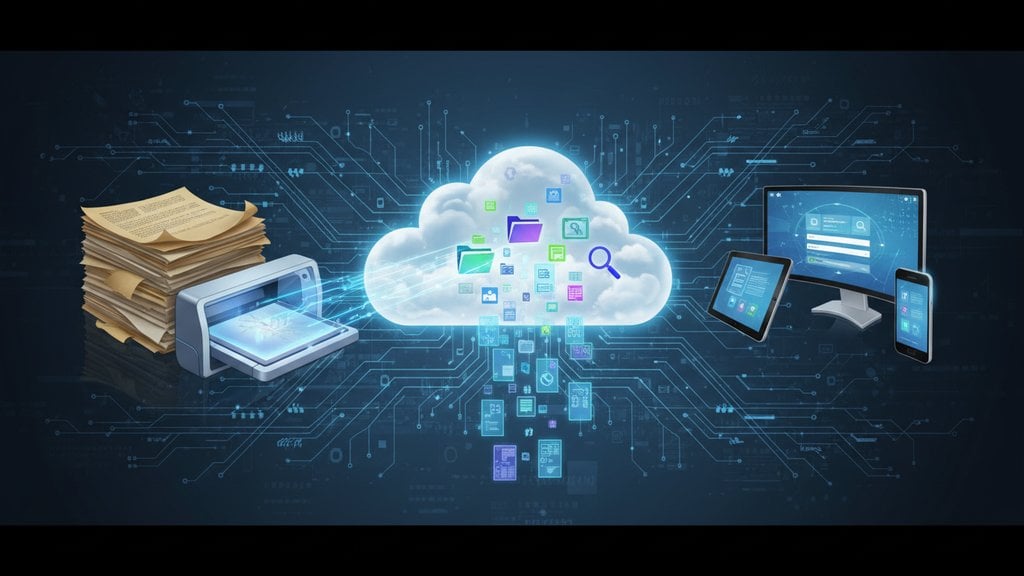
Digitizing paper documents means converting physical pages into searchable, shareable digital files - and it's one of the most practical things you can do to cut clutter, protect important records, and actually find what you need when you need it. Whether you're clearing out a filing cabinet at home or setting up a paperless office workflow, the process is more straightforward than most people expect.
Content Table
- What You Need Before You Start
- Scanning Methods Compared
- Step-by-Step Document Scanning Workflow
- Making Your Scans Searchable with OCR
- Choosing the Right File Format
- How to Organize and Store Your Digital Documents
- Keeping Your Digitized Documents Secure
- Common Document Digitization Mistakes to Avoid
What You Need Before You Start
You don't need expensive equipment to digitize paper documents effectively. Here's what actually matters:
- A scanner or smartphone: A flatbed scanner (like the Canon CanoScan series or Epson Perfection line) gives the cleanest results at 300-600 DPI. A smartphone camera works fine for casual documents.
- Scanning software: Most scanners ship with software. On Windows, the built-in Windows Scan app works. On macOS, Image Capture is built in. Mobile apps like Adobe Scan or Microsoft Lens add auto-cropping and perspective correction.
-
A file naming system:
Decide on a consistent naming convention before you scan a single page - something like
YYYY-MM-DD_DocumentType_Description(e.g.,2024-03-15_Invoice_Plumber). - Storage destination: Cloud (Google Drive, OneDrive, Dropbox) or a local hard drive with a backup. Ideally both.
Scanning Methods Compared
| Method | Best For | Quality | Speed | Cost |
|---|---|---|---|---|
| Flatbed scanner | Legal docs, photos, fragile pages | Excellent | Slow (1 page at a time) | $80-$300 hardware |
| Sheet-fed / ADF scanner | Large batches, office documents | Very good | Fast (20-40 pages/min) | $150-$500 hardware |
| Smartphone app | Quick captures, receipts, notes | Good (varies by lighting) | Fast for small batches | Free (app) + phone you own |
| Multifunction printer | Home/small office mixed use | Good | Moderate | Already owned in most cases |
For a true paperless office, an ADF (Automatic Document Feeder) scanner pays for itself quickly if you're processing more than a few hundred pages. The Fujitsu ScanSnap series is a popular choice for small businesses and home offices because it handles duplex (double-sided) scanning automatically and integrates with cloud storage.
Step-by-Step Document Scanning Workflow
A consistent document scanning workflow prevents the chaos of having hundreds of unnamed files dumped in a single folder. Here's a reliable process that scales whether you're scanning 10 documents or 10,000:
- Sort before you scan. Separate documents into categories: keep permanently (tax records, legal contracts, medical history), keep for a defined period (utility bills, receipts), and discard (junk mail, duplicates). Shred what you don't need before it ever gets scanned.
- Prep the physical documents. Remove staples, paper clips, and sticky notes. Unfold folded pages. For fragile or torn documents, use the flatbed scanner - never the ADF.
- Set your scanner resolution. 300 DPI for standard text, 600 DPI for anything with fine print or signatures, 1200 DPI for photos you want to preserve archivally.
- Scan to PDF by default. PDF is the universal format for document digitization. It preserves layout, is universally readable, and can be made searchable via OCR later.
- Name the file immediately. Don't scan 50 documents and then try to name them. Name each file the moment it's created, before moving to the next document.
- Run OCR on text-heavy documents. This converts the image of text into actual selectable, searchable text (more on this below).
- File it. Move the finished file to its destination folder or cloud location right away. Never leave files in a "to be sorted" pile - that's just a digital version of the paper pile you're trying to escape.
- Verify and back up. Spot-check a few scans for readability. Then make sure your backup runs (cloud sync, external drive, or both).
Making Your Scans Searchable with OCR
Scanning a document creates an image - basically a photograph of the page. Without OCR (Optical Character Recognition) , you can't search the text, copy a phone number, or have the file show up in a keyword search. OCR adds an invisible text layer on top of the image, turning it into a proper searchable PDF.
PDFDeal's OCR tool handles this directly in your browser. Here's how to use it:
- Go to the "Recognize Text via OCR" tool page on PDFDeal.
- Upload your scanned PDF or image file (JPG, PNG, GIF, or WebP are all supported).
- Select the document language from the dropdown - this matters a lot for accuracy. The tool supports 19 languages including English, German, French, Spanish, Japanese, Arabic, Chinese Simplified, Hindi, and more.
- Optionally specify which pages to process (e.g., "1, 3, 5-7") - or leave it blank to process all pages.
- Click "Recognize Text" and watch the progress bar.
- When complete, you can view the extracted text, download it as a .txt file, or copy it to the clipboard.
OCR is especially valuable for business document digitization. Once your scanned contracts, invoices, and reports have a text layer, your operating system's search function (Windows Search, macOS Spotlight) can find them by content - not just filename.
Choosing the Right File Format
For most document digitization, PDF is the right answer. But there are situations where other formats make more sense:
- PDF: Best for anything you want to preserve exactly as it looks - contracts, invoices, forms, official letters. Universal compatibility, supports OCR text layers, can be compressed, encrypted, and signed.
- PDF/A: A stricter archival version of PDF, designed for long-term preservation. If you're digitizing records that need to remain readable in 20+ years (legal archives, government records, historical documents), PDF/A is the format to use . It embeds all fonts and disallows features that might not be supported by future software.
- TIFF: Used in archival and legal contexts where lossless image quality is mandatory. Files are large but pixel-perfect.
- JPEG/PNG: Fine for casual captures (a photo of a receipt, a whiteboard sketch) but not ideal for multi-page documents or anything you'll need to search.
For a paperless office setup, standardize on PDF for everything. It's the most compatible, the most flexible, and the easiest to manage long-term.
How to Organize and Store Your Digital Documents
The biggest failure mode in going paperless isn't the scanning - it's ending up with a digital mess instead of a paper mess. A folder structure you design once and stick to consistently is worth more than any fancy document management software.
A simple folder structure that works for most households and small businesses:
- Finance/ - Tax returns (by year), bank statements, investment records
- Legal/ - Contracts, deeds, wills, insurance policies
- Medical/ - Health records, insurance claims, prescriptions
- Property/ - Home/rental documents, utility accounts, warranties
- Work/ - Employment contracts, pay stubs, professional certifications
- Archive/ - Anything older than 5 years that you're keeping but rarely need
For cloud storage, Google Drive, OneDrive, and Dropbox all work well. The key is the 3-2-1 backup rule: 3 copies of your data, on 2 different media types, with 1 copy offsite (which cloud storage satisfies automatically). This is the standard recommended by data backup professionals and applies just as much to digitized documents as to any other important files.
Keeping Your Digitized Documents Secure
Digitizing sensitive documents - tax returns, medical records, legal contracts - means you need to think about digital security, not just physical security. A filing cabinet can be locked; a cloud folder needs a different kind of protection.
- Password-protect sensitive PDFs. Most PDF tools let you add password encryption to individual files. Do this for anything containing financial data, personal identification, or medical information.
- Use two-factor authentication on cloud storage. A strong password alone isn't enough if your email gets compromised.
- Check what metadata your PDFs contain. Scanned files can carry hidden data like the device used, timestamps, and GPS coordinates from mobile scans. Learn more about what metadata your PDFs might reveal before sharing them externally.
- Limit sharing permissions. When sharing cloud folders with others, use "view only" unless they need to edit. Review shared access permissions periodically.
Common Document Digitization Mistakes to Avoid
These are the errors that send people back to square one:
- Scanning at too low a resolution. 150 DPI looks fine on screen but becomes unreadable when printed or zoomed in. Always use at least 300 DPI.
- Skipping OCR. A PDF that's just an image is barely better than the paper original. Run OCR on anything you'll ever need to search or copy text from.
- Using inconsistent file naming. "Scan001.pdf", "document_final.pdf", and "March invoice.PDF" in the same folder is a nightmare. Pick one naming convention and never deviate.
- Not backing up before shredding originals. Verify the scan is readable and backed up to at least two locations before destroying the paper version.
- Creating oversized files. Scanning everything at 600 DPI and saving as uncompressed TIFF will fill storage fast. For standard text documents, a compressed PDF at 300 DPI is perfectly adequate - and much easier to email and share. If you end up with large files, compressing your PDFs without losing quality is straightforward.
- No folder structure. 500 PDFs in one folder with bad names is just a digital filing cabinet with no labels. Set up your folder structure before you scan the first document.

Turn your scanned paper documents into searchable PDFs - free
PDFDeal's OCR tool lets you digitize paper documents by extracting real, searchable text from any scanned PDF or image - no software to install, supports 19 languages, and processes your file in seconds.
Try OCR for Free →
PDF is the best format for most digitized documents. It preserves the visual layout, works on every device and operating system, supports OCR text layers for searchability, and can be password-protected and compressed. For long-term archival (legal records, historical documents), use PDF/A specifically - it's designed to remain readable decades from now by embedding all fonts and avoiding format dependencies.
Yes, and for casual documents it works well. Apps like Microsoft Lens and Adobe Scan use your phone camera with automatic edge detection and perspective correction to produce clean, flat images. The results are good for receipts, notes, and informal documents. For legal contracts, medical records, or anything requiring high accuracy, a flatbed scanner at 300-600 DPI produces noticeably better results - especially for small print or faint text.
For a typical household with several years of accumulated paper, expect 10-20 hours of total scanning and organizing work spread over a few weekends. A small business with years of filing cabinets might take weeks. The key is not to try doing it all at once - scan the most important current documents first (tax records, insurance, contracts), then work backward through the backlog in batches. Maintaining the habit going forward takes very little time once the backlog is cleared.
For most everyday documents - bills, receipts, bank statements, general correspondence - yes, once you've verified the scan is clear and backed up. However, some documents should be kept as originals: wills, property deeds, birth certificates, passports, and certain legal contracts may require original signatures or physical form to be legally valid. Check the requirements in your country or consult a legal professional before shredding anything with potential legal significance.
300 DPI is the standard minimum for readable text documents and works well for most business and personal paperwork. Use 600 DPI for documents with small print, fine details, signatures, or stamps you need to reproduce clearly. Reserve 1200 DPI for photographs or artwork where image quality is the priority. Scanning above 600 DPI for standard text documents wastes storage space without meaningful quality improvement.
OCR (Optical Character Recognition) converts the image of text in a scanned document into actual, selectable, searchable text. You don't need it for every document - a scanned photo or a form you'll only ever view visually doesn't require OCR. But for anything you'll want to search by content, copy text from, or have indexed by your computer's search function (invoices, contracts, reports, letters), running OCR is strongly recommended. It transforms a static image into a truly useful digital document.