What is a PDF and what can i do with it (Portable Document Format)

Have you ever received a file that looked exactly the same on your phone, tablet, and computer? That file was almost certainly a Portable Document Format (PDF). Created by Adobe in 1993, PDFs have become the universal standard for sharing documents because they preserve formatting across every device and operating system. Whether you are a student submitting assignments, a professional sharing reports, or simply trying to organize personal records, understanding PDFs opens up a world of practical possibilities. In this guide, we will break down exactly what PDFs are, why they matter, and how you can work with them using free online PDF edit tools that require no technical expertise.

What is a PDF File and Why Does the Portable Document Format Matter

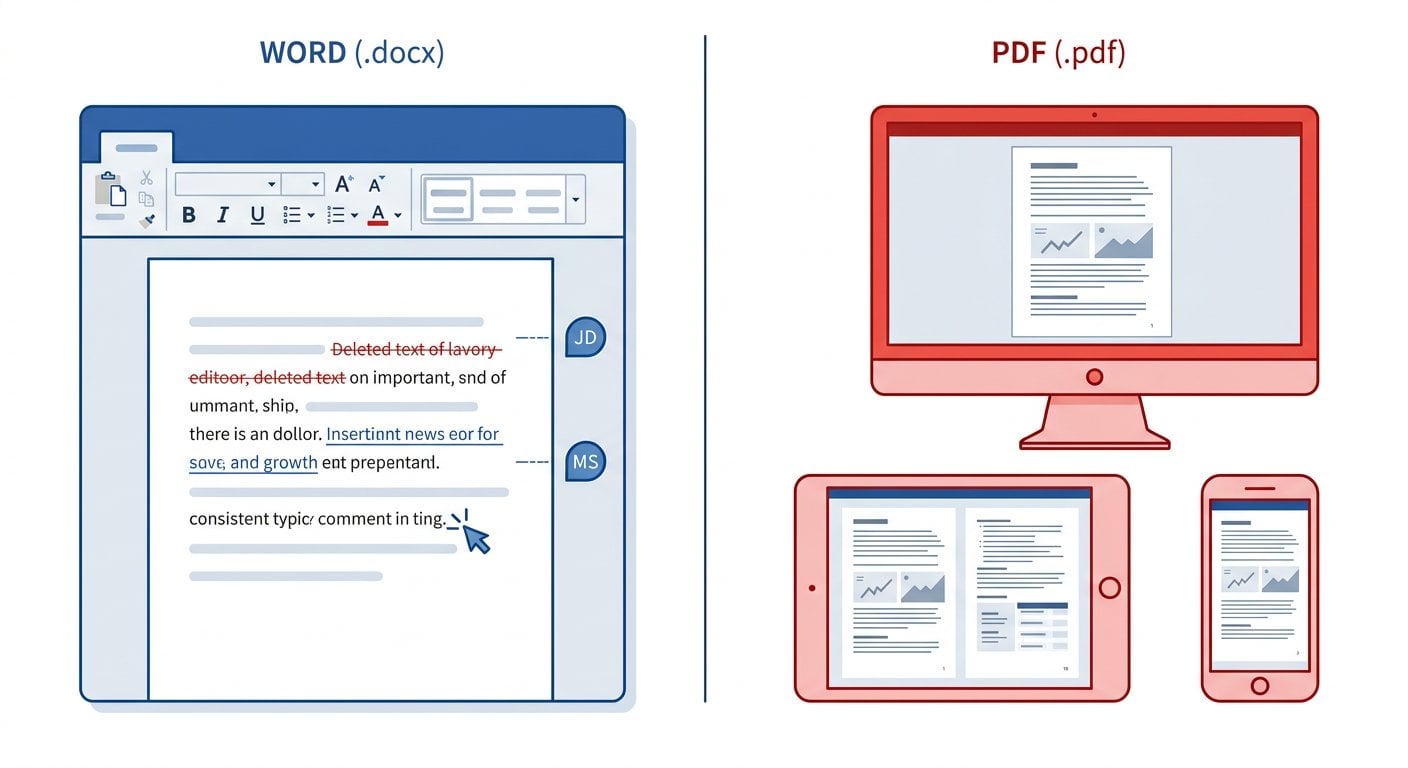
The Portable Document Format is a file type designed to present documents consistently, regardless of the software, hardware, or operating system used to view them. Think of it as a digital photograph of your document. Unlike Word files or spreadsheets that can shift and change appearance on different computers, a PDF locks everything in place.

According to ISO 32000-2:2020, PDFs are now an open international standard, which means anyone can create software that reads or writes PDF files. This openness has made PDFs the default choice for official documents, contracts, academic papers, and government forms worldwide.

Key Characteristics of PDF Documents

  • Fixed layout: Text, images, and graphics stay exactly where you placed them
  • Universal compatibility: Opens on Windows, Mac, Linux, iOS, and Android
  • Compact file size: Compression keeps documents manageable for email and storage
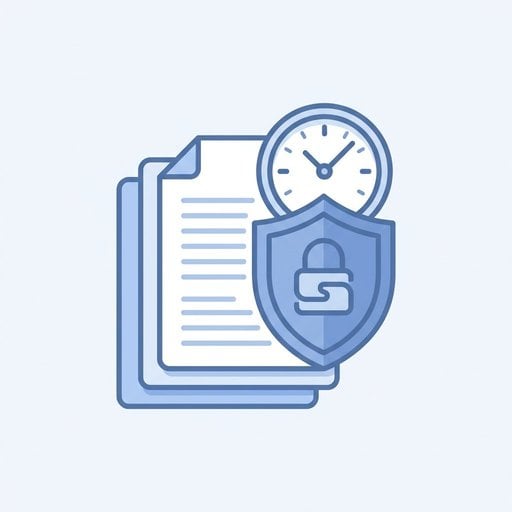
  • Security options: Password protection and encryption keep sensitive information safe
  • Searchable text: Most PDFs allow you to search for specific words or phrases

For learners, PDFs solve a frustrating problem. Have you ever sent a Word document to a teacher or colleague, only to have them report that the formatting looked completely different? PDFs eliminate this issue entirely. Learn more about PDF security and privacy to protect your important documents, or explore our complete PDF resource library for more tips.

Common Use Cases for PDF Documents

Understanding the Portable Document Format becomes much easier when you see how people actually use it. Here are the most common scenarios where PDFs shine.

Use Case 1: Submitting Academic Assignments in PDF Format

Most educational institutions require assignments in PDF format. This ensures that your carefully formatted essay, complete with proper margins and citations, appears exactly as intended when your instructor opens it. You can easily edit PDF files online to make last-minute corrections before submission.

Real constraint: Many learning management systems only accept PDF uploads. If you submit a different format, your work may not be graded.

Use Case 2: Creating Professional Portfolios with PDF Files

Designers, writers, and job seekers often compile their best work into PDF portfolios. The format preserves high-quality images and precise layouts that showcase professional skills. You can convert images to PDF format using our JPG to PDF converter to include visual work samples. For additional formatting options, check out our guide on PDF formatting best practices.

Use Case 3: Sharing Financial Documents as PDFs

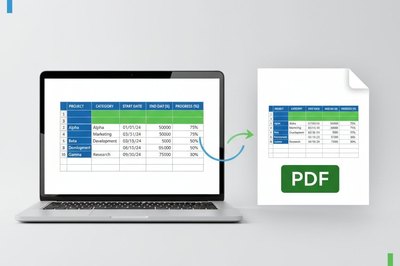
Bank statements, invoices, and tax forms typically arrive as PDFs. When you need to extract data from these documents, you can use tools to convert PDF to Excel for easier analysis. Conversely, when sharing your own financial records, converting Excel to PDF ensures recipients cannot accidentally modify your numbers.

Use Case 4: Archiving Important Records in Portable Document Format

PDFs are ideal for long-term storage of contracts, certificates, and legal documents. Their stability means a PDF created today will open correctly decades from now. For sensitive information like social security numbers or personal addresses, you can redact PDF content before sharing. Our document archiving guide provides additional strategies for long-term file storage.

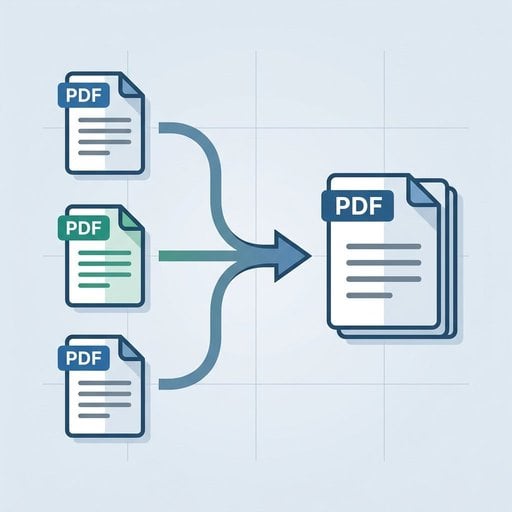
Diagram showing PDF creation and editing workflow with arrows connecting document sources to free online PDF edit tools and final output formats

Use Case 5: Converting Web Content to PDF for Offline Access

Students and researchers often save web pages as PDFs for offline reading and citation purposes. Our guide on converting HTML to PDF explains this process in detail.

Step-by-Step Guide to Editing and Converting PDF Files

Now that you understand what PDFs are and why they matter, let us walk through the essential tasks you will encounter. These steps use free online PDF edit tools that work directly in your browser.

Step 1: Creating a PDF Document from Scratch

Most word processors (Microsoft Word, Google Docs, LibreOffice) include a "Save as PDF" or "Export as PDF" option. Here is the typical process:

  1. Open your document in your preferred word processor
  2. Click File, then look for "Save As" or "Export"
  3. Select "PDF" from the format dropdown menu
  4. Choose a filename and save location
  5. Click Save or Export

Tip: Before saving, review your document carefully. While you can edit PDFs later, it is easier to make changes in the original format first.

Step 2: Editing an Existing PDF File Online

Sometimes you receive a PDF that needs modifications. Perhaps a date is wrong, or you need to add your signature. Using a free online PDF editor, you can:

  1. Upload your PDF file to the editing tool
  2. Select the text or area you want to modify
  3. Make your changes (edit text, add images, insert signatures)
  4. Download the updated PDF

Real constraint: Some PDFs are "flattened" or protected, which limits editing capabilities. Check out our article on common PDF mistakes and how to fix them for troubleshooting tips. You may also find our complete PDF editing tutorial helpful for advanced techniques.

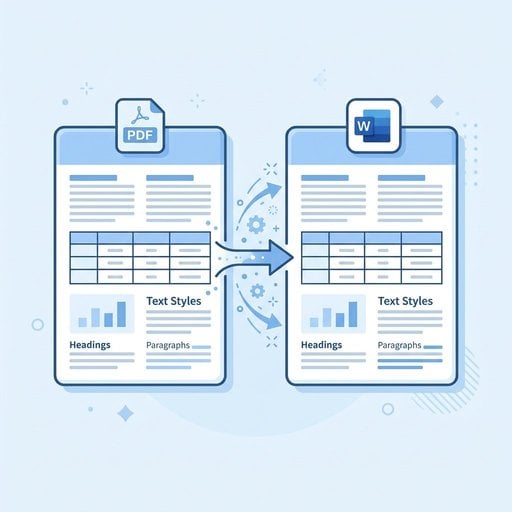
Step 3: Converting PDF Documents to Other Formats

There are times when you need your PDF content in a different format. Perhaps you want to edit a table in Excel or use an image from a PDF in a presentation.

For a complete overview of all available conversion options, visit our PDF tools directory.

Step 4: Reducing PDF File Size with Compression Tools

Large PDFs can be problematic for email attachments or online uploads. Most platforms limit attachment sizes to 10-25 MB. Learn techniques in our guide on compressing PDFs without losing quality, or use our PDF compression tool directly.

Step 5: Protecting Sensitive Information in PDF Documents

Before sharing PDFs containing personal data, consider using the PDF redaction tool to permanently remove sensitive information. Unlike simply drawing a black box over text, proper redaction completely removes the underlying data. For more security options, read our complete PDF security guide.

Hypothetical Case Study: PDF Workflow in Action

Note: This is a hypothetical example created to illustrate common PDF workflows for learners.

Background: Maria is a 34-year-old marketing professional taking an online certificate program in data analytics. She juggles coursework with a full-time job and needs efficient ways to manage her digital documents.

The Challenge: Managing Multiple PDF Files

Maria faced several PDF-related obstacles during her first semester:

  • Course materials arrived as scanned PDFs with no searchable text
  • Assignment submissions required specific PDF formatting
  • Her Excel homework needed conversion to PDF for grading
  • A 45 MB PDF textbook chapter exceeded the email attachment limit when she tried sharing study notes with classmates

The Solution: Using Free Online PDF Edit Tools

Maria discovered free online PDF edit tools that addressed each challenge:

  1. Searchable notes: She used OCR (Optical Character Recognition) features to make scanned PDFs searchable, allowing her to quickly find specific topics
  2. Assignment formatting: The PDF editor helped her add required headers and page numbers
  3. Excel conversion: She converted her spreadsheet homework using the Excel to PDF tool, preserving all formulas and formatting
  4. File compression: The compression tool reduced her 45 MB file to 8 MB without visible quality loss

The Results: Improved PDF Document Management

By the end of the semester, Maria had:

  • Saved approximately 3 hours per week on document management
  • Never missed a submission deadline due to formatting issues
  • Created a searchable digital library of all course materials
  • Successfully collaborated with study group members through efficient file sharing

Maria's experience demonstrates how understanding the Portable Document Format transforms digital workflows from frustrating to efficient.

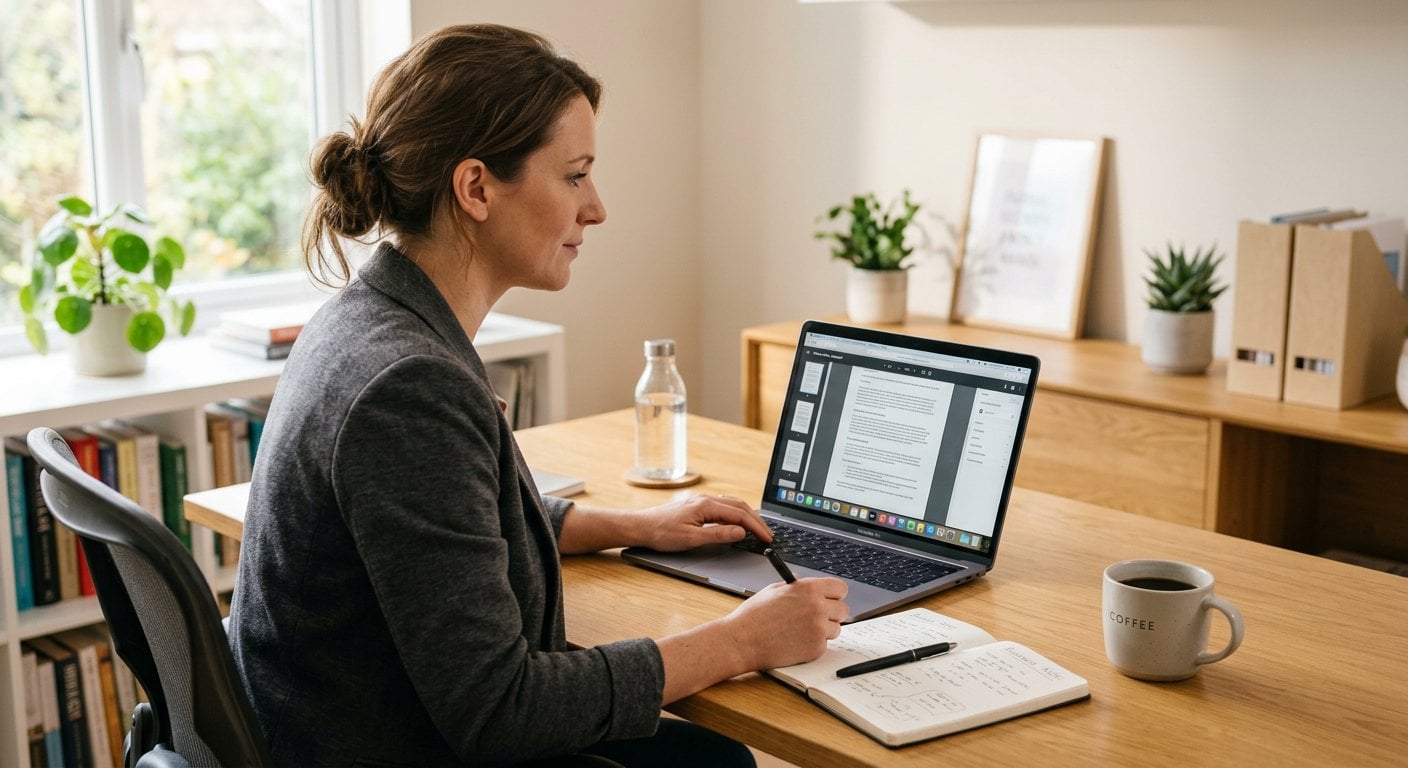
Professional woman at laptop using free online PDF edit tools to manage coursework documents and convert files between formats

Key Takeaways

Key Takeaways:

  • The Portable Document Format preserves document formatting across all devices and operating systems, making it the universal standard for sharing files
  • Free online PDF edit tools allow you to modify, convert, compress, and protect PDFs without installing software
  • Common PDF tasks include converting between formats (Excel, JPG), reducing file sizes, and redacting sensitive information
  • Understanding PDF workflows saves significant time in academic, professional, and personal document management

Frequently Asked Questions About PDF Files

What is a PDF file and what does PDF stand for?

PDF stands for Portable Document Format. It is a file type created by Adobe in 1993 that preserves document formatting across all devices and operating systems. When you open a PDF file, it looks exactly the same whether you view it on a Windows computer, Mac, smartphone, or tablet. This makes PDFs ideal for sharing documents where consistent appearance matters.

How can I edit a PDF file for free online?

You can edit PDF files for free using online PDF edit tools that work directly in your browser. Simply upload your PDF to a free online PDF editor, make your changes (such as editing text, adding images, or inserting signatures), and download the updated file. No software installation is required, and most basic editing features are available at no cost.

How do I convert a PDF to Excel or Word?

To convert a PDF to Excel, use a PDF to Excel converter that extracts tables and data from your PDF into an editable spreadsheet format. For Word documents, look for PDF to Word conversion tools. These converters work best with text-based PDFs rather than scanned images. For scanned documents, you may need OCR (Optical Character Recognition) technology first.

How can I reduce the file size of a PDF?

You can reduce PDF file size using a PDF compression tool. These tools work by optimizing images, removing unnecessary data, and applying compression algorithms. Most compression tools let you choose between different quality levels, allowing you to balance file size reduction with document quality. A typical 45 MB PDF can often be reduced to under 10 MB without noticeable quality loss.

Is it safe to use free online PDF tools?

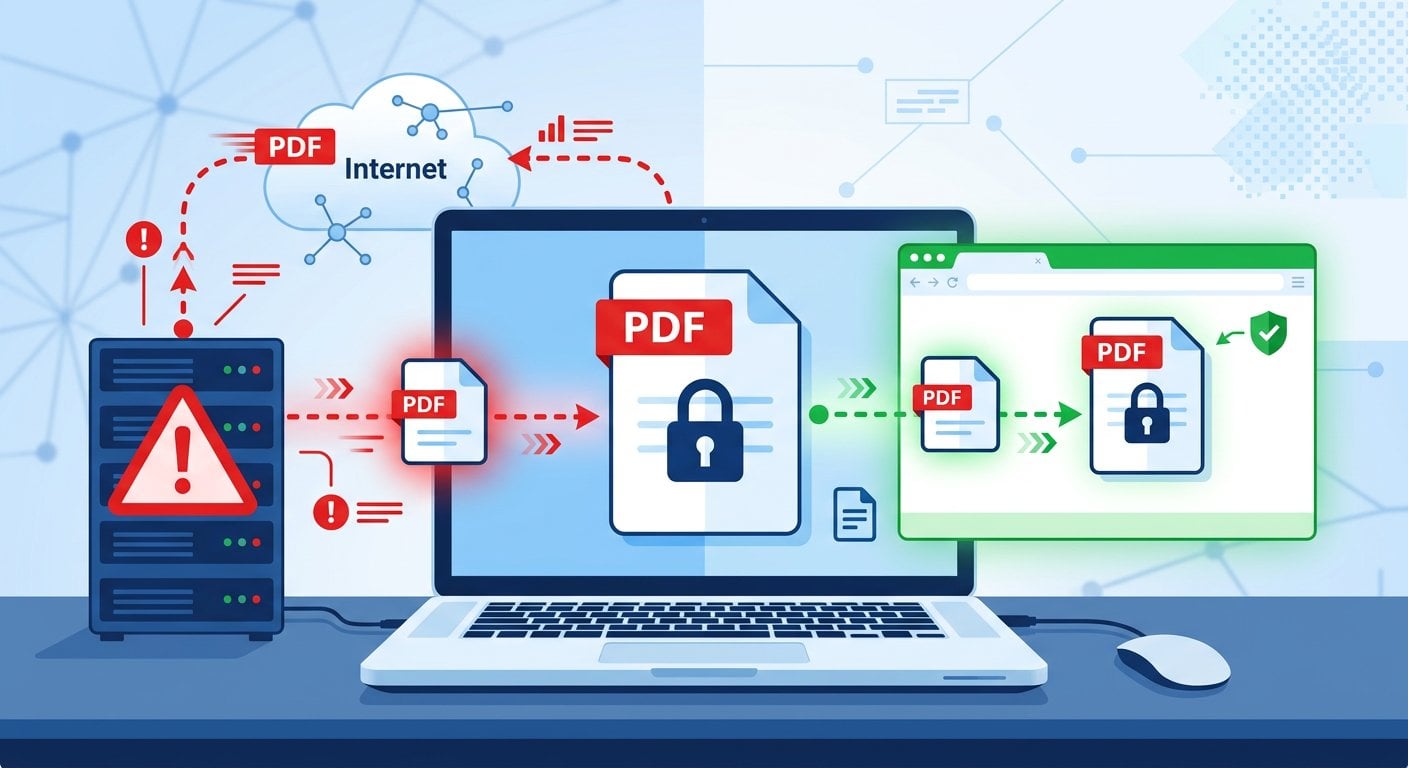
Reputable free online PDF tools are generally safe to use. Look for services that use encrypted connections (HTTPS), automatically delete your files after processing, and have clear privacy policies. Avoid uploading highly sensitive documents to any online service. For maximum security with confidential files, consider using desktop software or our PDF security guide for additional protection tips.

Can I convert images to PDF format?

Yes, you can easily convert images to PDF using a JPG to PDF converter. This is useful for creating portfolios, combining multiple photos into a single document, or converting scanned images into a more shareable format. Most converters allow you to arrange multiple images and adjust settings like page size and orientation before creating the final PDF.

Why does my PDF look different on another computer?

While PDFs are designed to look identical across devices, occasional differences can occur if fonts are not embedded in the document or if the PDF viewer software interprets certain elements differently. To ensure consistent appearance, always embed fonts when creating PDFs and use standard PDF viewers. Check our article on common PDF mistakes and how to fix them for troubleshooting solutions.

Conclusion

The Portable Document Format has become essential knowledge for anyone working with digital documents. From students submitting assignments to professionals sharing contracts, PDFs ensure your content appears exactly as intended on any device. The good news is that working with PDFs no longer requires expensive software or technical expertise. With free online PDF edit tools, you can create, modify, convert, and protect your documents in seconds. Ready to put this knowledge into practice? Use our tools to edit your first PDF, convert a spreadsheet, or compress a large file. Start with the PDF editor and discover how simple document management can be. For more tips and tutorials, explore our complete blog library.