हर finance professional इस परेशानी को जानता है: आप घंटों Excel spreadsheet को perfect बनाने में लगाते हैं - सटीक column widths, conditional formatting, और carefully placed borders के साथ, लेकिन जब आप इसे PDF में convert करते हैं तो सब कुछ बिखर जाता है। Merged cells टूट जाते हैं, colors बदल जाते हैं, और आपकी polished financial report अचानक एक jumbled mess की तरह दिखने लगती है। यह guide आपको proven methods दिखाएगी कि कैसे Excel को PDF में convert करें बिना formatting खोए, actionable steps के साथ जिन्हें आप तुरंत apply कर सकते हैं।
मुख्य बातें:
- Excel की built-in PDF export अधिकतर formatting handle करती है लेकिन complex tables के लिए specific settings की जरूरत होती है
- Multi-page documents के लिए print area और page break preview essential pre-conversion steps हैं
- जब Excel उपलब्ध नहीं हो तो quick conversions के लिए online converters सबसे अच्छे काम करते हैं
- Pre-conversion checklist 90% common formatting disasters को रोकती है
Content Table
- Excel to PDF Conversion क्यों महत्वपूर्ण है
- Excel Table Formatting की चुनौतियां समझना
- Method 1: Built-in Excel Export to PDF
- Method 2: Online PDF Converters का उपयोग
- Method 3: Print to PDF Advanced Techniques
- Perfect Table Formatting के लिए Pro Tips
- Common Issues की Troubleshooting
- विभिन्न Document Types के लिए Best Practices
- निष्कर्ष और Tool Recommendations
Excel to PDF Conversion क्यों महत्वपूर्ण है
Business documents में consistency की demand होती है। जब आप quarterly sales report या budget proposal share करते हैं, तो recipients को बिल्कुल वही दिखना चाहिए जो आपने create किया है, चाहे उनका software या device कुछ भी हो। PDFs आपके document की appearance को lock कर देते हैं, जिससे ये contracts, invoices, और official records के लिए standard बन जाते हैं।
हालांकि, conversion process में real challenges आती हैं। AIIM के 2023 के survey में पाया गया कि 67% professionals को spreadsheets को PDF में convert करते समय formatting issues का सामना करना पड़ता है। सबसे common problems में truncated columns, misaligned headers, और lost conditional formatting colors शामिल हैं।
इस scenario को consider करें: Sarah, एक financial analyst ने color-coded variances के साथ 15-page budget comparison तैयार की। Default settings का उपयोग करके PDF में convert करने के बाद, उसके manager को एक ऐसा document मिला जहाँ red negative values black दिख रहे थे, merged header cells pages में split हो गए थे, और तीन columns completely cut off थे। यह guide और Excel to PDF converter उसके दो घंटे की rework बचा सकते थे।
Excel Table Formatting की चुनौतियां समझना
Solutions में dive करने से पहले, आपको समझना होगा कि excel table formatting pdf conversion क्यों fail होता है। Excel और PDF visual elements को fundamentally अलग तरीके से handle करते हैं।
Core Translation की समस्या
Excel formatting को instructions के रूप में store करता है (अगर value negative है तो red fill apply करें), जबकि PDFs formatting को static visual elements के रूप में store करते हैं। यह translation specific challenges create करती है:
| Excel Feature | PDF Translation Issue | Risk Level |
|---|---|---|
| Conditional Formatting | Colors preserved, लेकिन rules lost | Medium |
| Merged Cells | Page breaks में split हो सकते हैं | High |
| Complex Formulas | Results सही display होते हैं | Low |
| Column Auto-Width | अक्सर content truncate हो जाता है | High |
| Hidden Rows/Columns | Hidden ही रहते हैं (expected के अनुसार) | Low |
| Cell Comments | By default include नहीं होते | Medium |
इन translation points को समझना आपको conversion से पहले spreadsheet prepare करने में help करता है, formatting failures को dramatically reduce करके।
Method 1: Built-in Excel Export to PDF
Microsoft Excel का native export function properly configure करने पर अधिकतर conversion needs को effectively handle करता है। यहाँ save excel as pdf करने की step-by-step process है formatting preserve करते हुए:
Step-by-Step Export Process
- पहले अपना print area set करें: उन cells को select करें जिन्हें आप convert करना चाहते हैं, फिर Page Layout > Print Area > Set Print Area पर जाएं
- Export options access करें: File > Export > Create PDF/XPS Document पर click करें
- Options button पर click करें: यह advanced settings खोलता है जिसे अधिकतर users miss करते हैं
- Critical settings configure करें:
- अगर आपने print area set किया है तो "Selection" select करें, या सभी sheets के लिए "Entire Workbook"
- Metadata include करने के लिए "Document properties" check करें
- Archival documents के लिए "PDF/A compliant" enable करें
- Optimization choose करें: Print quality के लिए "Standard" या email attachments के लिए "Minimum size" select करें
- Publish करें: OK पर click करें, अपनी file को name दें, और save करें
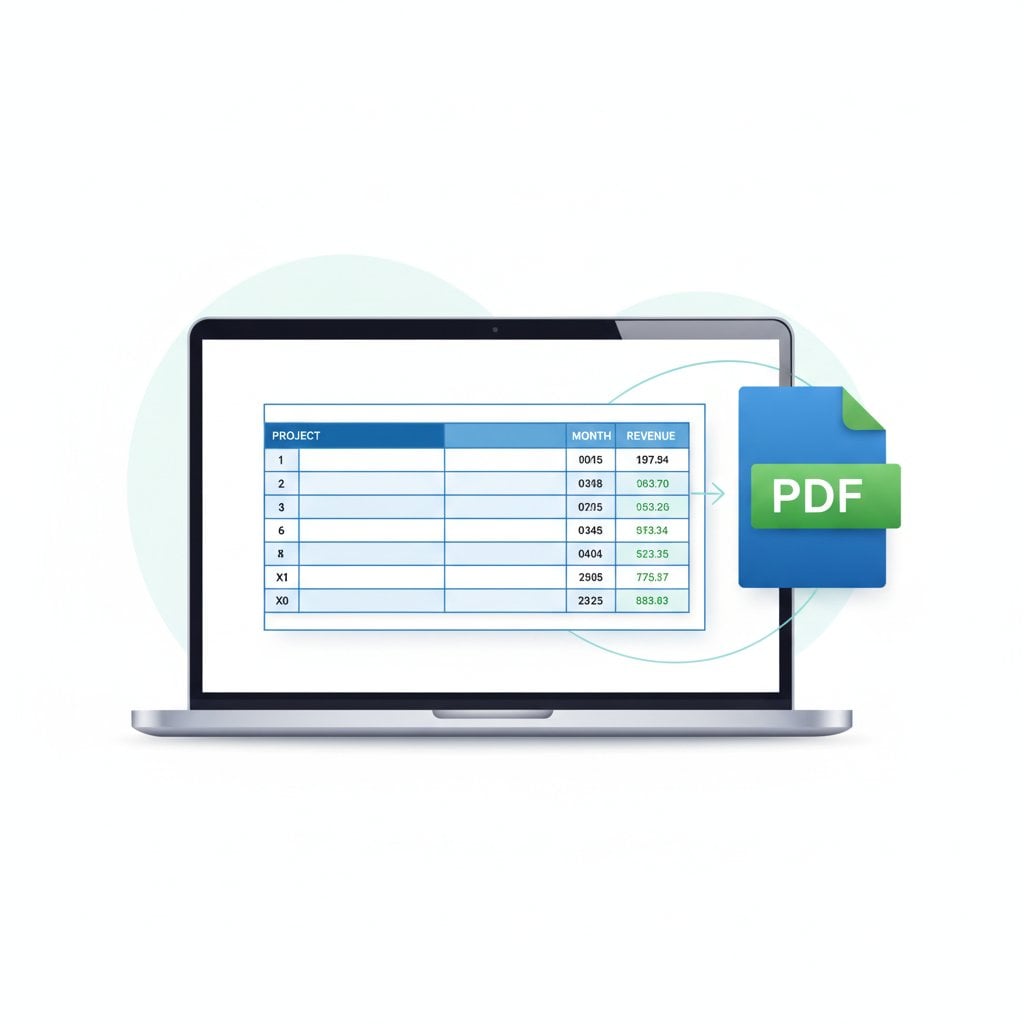
Pro Tip: Export करने से पहले हमेशा File > Print का उपयोग करके अपने document को preview करें। Print preview आपको exactly दिखाता है कि आपका PDF कैसा दिखेगा, page breaks और margins के साथ।
Method 2: Online PDF Converters का उपयोग
जब Excel available नहीं हो या आपको quick conversions की जरूरत हो, तो online tools reliable alternatives provide करते हैं। PDFDeal के हमारे tools एक streamlined Excel to PDF converter offer करते हैं जो software installation की जरूरत के बिना maintain table structure करता है।
Online Converters का उपयोग कब करें
- जब आप Microsoft Office के बिना device से काम कर रहे हों
- दूसरों से मिली files को quickly convert करना हो
- Multiple files को batch में process करना हो
- विभिन्न Excel versions में consistent output की जरूरत हो
| Converter Type | Pros | Cons | Best For |
|---|---|---|---|
| Desktop Excel | Full control, offline | License की जरूरत | Complex documents |
| हमारे Online Tools | Fast, install की जरूरत नहीं | Upload की जरूरत | Quick conversions |
| Google Sheets | Free, collaborative | Limited formatting support | Simple tables |
सही conversion approach choose करने के लिए comprehensive guidance के लिए, PDF Conversion की Ultimate Guide देखें।
Method 3: Print to PDF Advanced Techniques
Print to PDF method page layout पर granular control offer करती है जो standard export में कभी-कभी lacking होता है। यह approach particularly well काम करती है maintain table structure pdf requirements के लिए multiple pages में।
Tables के लिए Print Settings Configure करना
- Page Setup खोलें: Page Layout > Page Setup group में dialog launcher पर click करें
- Orientation set करें: Wide tables के लिए Landscape choose करें (8 से ज्यादा columns)
- Scaling configure करें: "Scaling" के under, "Fit to: 1 page(s) wide by [blank] tall" select करें
- Margins define करें: Maximum table space के लिए Narrow margins का उपयोग करें
- Headers/footers add करें: Page numbers और document titles include करें
Page Breaks को Manage करना
View > Page Break Preview का उपयोग करके exactly देखें कि आपकी table कहाँ split होगी। Blue lines को manually adjust करने के लिए drag करें। यह tables को mid-row split होने से रोकता है, जो readability destroy कर देता है।
Perfect Table Formatting के लिए Pro Tips
हर excel to pdf converter operation से पहले इस pre-conversion checklist को apply करें:
Pre-Conversion Checklist
- Column widths: Complete content show करने के लिए सभी columns को manually adjust करें (auto-fit के लिए column borders पर double-click करें)
- Row heights: Data rows के लिए consistent heights set करें (typically 15-20 points)
- Font choices: Standard fonts जैसे Arial या Calibri का उपयोग करें जो consistently render होते हैं
- Border weight: कम से कम 1pt borders का उपयोग करें; hairline borders disappear हो सकते हैं
- Color contrast: Ensure करें कि background colors के against text readable रहे
- Print titles: हर page पर header rows repeat करने के लिए Page Layout > Print Titles का उपयोग करें
Real Example: एक regional sales manager ने 50-row commission table convert की। Row 1 (headers) को हर page पर repeat करने के लिए Print Titles set करके, recipients pages 2-4 पर data को page 1 पर वापस flip किए बिना समझ सकते थे।
Common Issues की Troubleshooting
Preparation के बावजूद भी, issues आती हैं। यहाँ preserve excel formatting pdf conversions में सबसे frequent problems के solutions हैं:
Cut-Off Tables
Problem: PDF से right columns missing
Solution: Landscape orientation पर switch करें या "Fit Sheet on One Page" scaling का उपयोग करें। Alternatively, font size को 1-2 points reduce करें।
Blurry Text
Problem: Text fuzzy या pixelated appear करता है
Solution: "Minimum size" के बजाय "Standard" quality का उपयोग करके export करें। Check करें कि आप 75% से कम scale नहीं कर रहे।
Missing Borders
Problem: PDF में cell borders disappear हो जाते हैं
Solution: Border weight को कम से कम 1pt तक increase करें। White backgrounds पर light gray borders अक्सर vanish हो जाते हैं; darker colors का उपयोग करें।
Color Shifts
Problem: PDF में colors different दिखते हैं
Solution: यह typically custom RGB colors के साथ होता है। Consistent output के लिए Excel के theme colors को stick करें। अगर colors critically matter करते हैं, तो पहले test page export करें।
अगर conversion के बाद आपकी PDF में issues हैं, तो आप हमारी guide में corrections करना सीख सकते हैं PDFs को online edit कैसे करें।
विभिन्न Document Types के लिए Best Practices
Financial Reports
Throughout consistent number formatting का उपयोग करें। Negative numbers को red में parentheses के साथ display करने के लिए set करें। हर page पर account headers repeat करने के लिए "Print Titles" enable करें। Compliance archiving के लिए PDF/A format consider करें।
Data Dashboards
Dashboards में अक्सर tables के साथ charts भी include होते हैं। Relative positioning maintain करने के लिए selections के बजाय entire sheet export करें। Charts को splitting से बचने के लिए "Fit to One Page" का उपयोग करें।
Presentation Tables
Presentations में जाने वाली tables के लिए, visual impact को maximize करें। Bold headers, alternating row colors, और generous white space का उपयोग करें। Highest quality पर export करें क्योंकि file size appearance से कम matter करता है।
निष्कर्ष और Tool Recommendations
Excel को PDF में convert करना formatting खोए बिना translation challenges और available tools दोनों को समझने की जरूरत होती है। अधिकतर business users के लिए, Excel की built-in export correctly configure करने पर daily needs handle करती है। हमारे tools excellent alternatives provide करते हैं जब आपको quick online conversions की जरूरत हो या desktop Excel access न हो।
Context के based पर अपना method choose करें:
- Complex multi-sheet workbooks: Custom options के साथ Excel की native export का उपयोग करें
- Quick single-table conversions: हमारे Excel to PDF tool का उपयोग करें
- Precise page layout control: Manual page breaks के साथ Print to PDF का उपयोग करें
Pre-conversion checklist को consistently apply करें, और आप उन frustrating rework cycles को eliminate कर देंगे जो हर week घंटों waste करते हैं।
Excel को PDF में Instantly Convert करें
हमारे free online converter के साथ अपनी table formatting को perfectly preserve करें। Software installation की जरूरत नहीं।
हमारा Free Tool Try करें →
Color shifts इसलिए होते हैं क्योंकि Excel RGB color profiles का उपयोग करता है जबकि PDFs CMYK का उपयोग कर सकते हैं। Custom colors सबसे ज्यादा affected होते हैं। Consistent results के लिए Excel के built-in theme colors को stick करें। Important documents finalize करने से पहले हमेशा test page export करें color accuracy verify करने के लिए।
Print Titles feature का उपयोग करें। Page Layout पर जाएं, Print Titles पर click करें, फिर "Rows to repeat at top" field में उन rows को select करें जिन्हें आप repeat करना चाहते हैं। यह ensure करता है कि आपकी header row आपकी converted PDF के हर page पर appear हो, multi-page tables को readable बनाते हुए।
हाँ। Excel के export function का उपयोग करते समय, Options पर click करें और "Active Sheet" के बजाय "Entire Workbook" select करें। हर worksheet PDF में एक separate section बन जाती है। आप export करने से पहले Ctrl hold करके sheet tabs पर click करके specific sheets भी select कर सकते हैं।
Single-page tables के लिए "Fit Sheet on One Page" या longer documents के लिए "Fit All Columns on One Page" का उपयोग करें। ये Page Layout के under Scale to Fit group में मिलते हैं। 70% से कम scaling avoid करें क्योंकि text पढ़ने में difficult हो जाता है।
Formulas PDF में transfer नहीं होते क्योंकि PDFs केवल static content display करते हैं। हालांकि, आपके formulas के calculated results correctly appear होते हैं। PDF आपको exactly वही दिखाता है जो आप screen पर देखते हैं। अगर आपको editable formulas share करने हैं, तो अपनी PDF के साथ original Excel file भी रखें।