
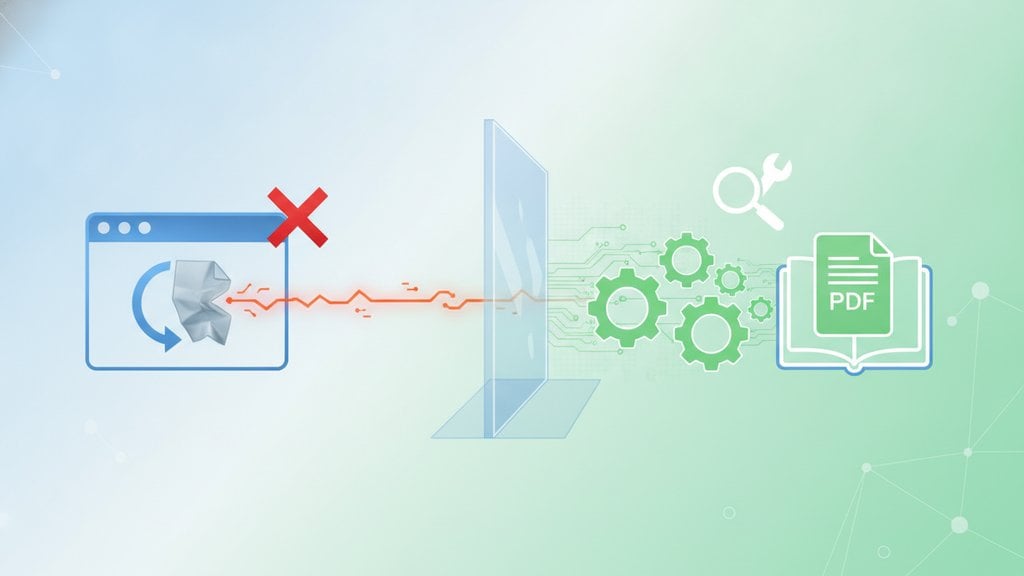
If you can't open a PDF, the problem usually comes down to one of three things: your browser's built-in PDF viewer has a glitch, the file itself is damaged or incomplete, or a setting somewhere is routing the file to the wrong application. The good news is that most PDF viewer issues are fixable in under two minutes once you know where to look.
Content Table
Why PDFs Fail to Open
There are more causes than most people expect. Here is a quick map of the most common culprits:
| Cause | What You See | Where the Fix Lives |
|---|---|---|
| Browser viewer bug or disabled plugin | Gray screen, spinning loader, or instant download instead of opening | Browser settings / flags |
| Incomplete download | Error message or blank PDF pages | Re-download the file |
| Corrupted PDF file | "File not supported" or garbled content | Repair tool or original source |
| Password protection | Password prompt or silent failure | Unlock the file first |
| Outdated browser or PDF reader | Crash or "unsupported format" warning | Update the app |
| Wrong default application | File opens in an image viewer or text editor | OS file association settings |
Browser PDF Support Problems
Every major browser ships with a built-in PDF viewer, but they handle edge cases differently. Chrome uses PDFium, Firefox uses PDF.js, Safari has its own WebKit-based renderer, and Edge uses the same PDFium engine as Chrome. When browser PDF support breaks, it usually shows up as one of these symptoms:
- The page loads but shows a blank white or gray rectangle.
- The browser downloads the file instead of displaying it.
- The viewer renders the first page and then freezes.
- The browser crashes or the tab goes unresponsive.
A surprisingly common trigger is a conflicting browser extension. PDF-related extensions (annotation tools, download managers, print helpers) sometimes intercept the file before the built-in viewer can handle it. Try opening the PDF in an Incognito or Private window first. If it works there, a browser extension is almost certainly the culprit. Disable extensions one by one to find the offender.
chrome://settings/content/pdfDocuments
into Chrome's address bar. Make sure "Download PDFs" is set to off. If it is on, Chrome will download every PDF instead of opening it inline.
In Firefox, go to Settings, then General, scroll to "Applications", find "Portable Document Format (PDF)" in the list, and make sure the action is set to "Preview in Firefox" rather than "Save File".
Blank or Partially Loaded PDF Pages
Blank PDF pages are one of the most confusing symptoms because the file technically opens, it just shows nothing. There are three main reasons this happens:
- Missing fonts. If the PDF uses fonts that are not embedded and your system does not have them installed, the text renders as invisible or as empty boxes. You can learn more about why this happens in this guide on why fonts go missing in PDFs.
- Transparent or white objects covering the content. This is a design flaw in the original file. The content is there but hidden behind a white shape.
- Rendering engine incompatibility. Some PDFs use advanced features like transparency groups, spot colors, or PDF 2.0 features that older viewers cannot render. Adobe Acrobat Reader (the desktop app) handles these far better than most browser viewers.
If you see blank pages in your browser but the file opens fine in Adobe Acrobat Reader or another dedicated app, the browser's rendering engine is the bottleneck, not the file itself.
Corrupted or Unreadable PDF Files
A corrupted PDF file is one where the internal structure has been damaged. This can happen during download (if the connection dropped mid-transfer), during email attachment handling, or if the file was saved incorrectly by the creating application. Signs of a corrupted PDF include:
- Error messages like "Invalid PDF structure" or "File cannot be opened".
- The file opens but shows random characters, boxes, or scrambled text.
- Only some pages load and the rest are missing.
- The file size is suspiciously small (a 20-page report that is only 3 KB is almost certainly incomplete).
One fast way to check: open the PDF in a plain text editor (Notepad on Windows, TextEdit on Mac in plain text mode). The very first line of a valid PDF file should start with
%PDF-1. followed by a version number like 1.4, 1.7, or 2.0. If you see garbage characters at the start, the file header is damaged. The
PDF specification
defines this header as mandatory, so its absence is a reliable corruption indicator.
If the file came from a website, try downloading it again using a different browser or a download manager that supports resume. If it came via email, ask the sender to re-send it. Sometimes the email server or antivirus software strips or modifies attachments during transit.
PDF Viewer Settings to Check
Before assuming the file is broken, run through these pdf viewer settings quickly. They catch a large percentage of "can't open PDF" complaints:
- Hardware acceleration: In Chrome, go to Settings, then System, and toggle "Use hardware acceleration when available". Some GPU drivers conflict with PDFium's rendering. Disabling it often fixes blank pages or rendering glitches.
- Protected Mode (Adobe Acrobat): Adobe Acrobat Reader has a Protected Mode that sandboxes PDFs for security. In rare cases it blocks legitimate files. Go to Edit, then Preferences, then Security (Enhanced), and temporarily disable it to test.
- Pop-up blockers: Some PDFs open in a new tab or pop-up window. If your browser is blocking pop-ups from the site, the PDF will silently fail to open.
- Cached broken file: Your browser might have cached a corrupted partial download. Clear the browser cache (Ctrl+Shift+Delete on Windows, Cmd+Shift+Delete on Mac) and try again.
Step-by-Step Fixes
Work through these in order. Most people find their fix within the first three steps.
- Try a different browser. If Chrome fails, try Firefox or Edge. If the PDF opens in one but not another, the issue is browser-specific, not the file.
- Download and open locally. Right-click the PDF link and choose "Save link as" to download it. Then open it with Adobe Acrobat Reader or your OS's default PDF app. This bypasses the browser viewer entirely.
- Clear the browser cache. A stale cached version of the file can cause persistent failures even after the original is fixed.
- Update your PDF reader. Adobe Acrobat Reader, Foxit, and browser engines all push updates that fix rendering bugs. An outdated version is a frequent cause of PDF not loading correctly.
- Check if the file is password protected. If you see a password prompt or a silent failure, the PDF may be locked. See this guide on dealing with locked PDF files for your options.
- Re-download from the original source. If the file is on a website, try downloading it again. If it came via email, ask for a resend.
- Try an online PDF tool. Upload the file to a web-based PDF converter or viewer. These use server-side rendering engines that are often more tolerant of minor structural issues than desktop apps.
When Nothing Works
If the file fails in every viewer you try, the PDF is likely genuinely corrupted. At this point your options are:
- Request the source file. Ask whoever created the PDF to export a fresh copy from the original document (Word, InDesign, etc.).
- Use a PDF repair tool. Several online and desktop tools attempt to rebuild a PDF's internal structure from whatever valid data remains. Success depends on how much of the file is intact.
-
Check if the file is actually a PDF.
Sometimes files are mislabeled. A file saved as ".pdf" that is actually an HTML page, an image, or a ZIP archive will fail to open in any PDF viewer. Open it in a text editor to confirm it starts with
%PDF-. - Look for an alternate version. Many documents are available in multiple formats. If the PDF is unreadable, check whether the sender or website also has a Word or HTML version.
If the PDF opens but has other structural problems like broken links, that is a separate issue. The guide on why hyperlinks in PDFs stop working covers that specific problem in detail.
One last thing worth knowing: the PDF specification is maintained by the ISO as ISO 32000. Files that strictly follow the spec open reliably everywhere. Files created by non-compliant tools often work in some viewers and fail in others, which is why switching viewers can sometimes solve a problem that looks like a corrupted file.

PDF still won't open? Convert it to a format that will
When you can't open a PDF no matter what you try, converting it to another format can rescue the content. Our free PDF conversion tool works directly in your browser, no installation needed.
Try Free PDF Conversion →
Your browser is set to download PDFs rather than preview them. In Chrome, go to Settings, then Privacy and Security, then Site Settings, then Additional Content Settings, then PDF Documents, and switch "Download PDFs" off. In Firefox, go to Settings, then General, then Applications, find PDF in the list, and change the action to "Preview in Firefox".
Blank PDF pages usually mean one of three things: the PDF uses fonts that are not embedded and your system does not have them, a white or transparent object is covering the content in the file's design, or the PDF uses advanced rendering features (like transparency groups or PDF 2.0 elements) that your viewer cannot handle. Try opening the file in Adobe Acrobat Reader, which has the most complete rendering support.
Open the file in a plain text editor. A valid PDF must start with
%PDF-1.
or
%PDF-2.
on the very first line. If you see random characters, the file header is damaged. Other signs include a file size that is far too small for the content it should contain, error messages about invalid structure, or pages that load and then cut off mid-document.
Yes, in specific cases. If your browser downloaded a partial or corrupted version of a PDF and cached it, it will keep serving that broken version even after the original file is fixed on the server. Clearing the cache forces a fresh download. It does not fix problems caused by the file itself or by viewer settings, but it is a fast, harmless step worth trying early in any troubleshooting process.
Different browsers use different PDF rendering engines. Chrome and Edge use PDFium, Firefox uses PDF.js, and Safari uses WebKit's renderer. Each engine handles edge cases differently, so a PDF using unusual transparency, non-standard fonts, or newer PDF 2.0 features might render perfectly in one engine and fail in another. If this happens, the file is not corrupted. Download it and open it in Adobe Acrobat Reader for the most reliable result.
Technically there is no hard size limit, but very large PDFs (hundreds of megabytes or thousands of pages) can cause browser viewers to time out, run out of memory, or appear to freeze. In practice, files above roughly 50 MB often load slowly or fail in browser viewers. The fix is to download the file and open it in a desktop PDF reader, or to compress the PDF first to reduce its size before sharing or viewing it.