

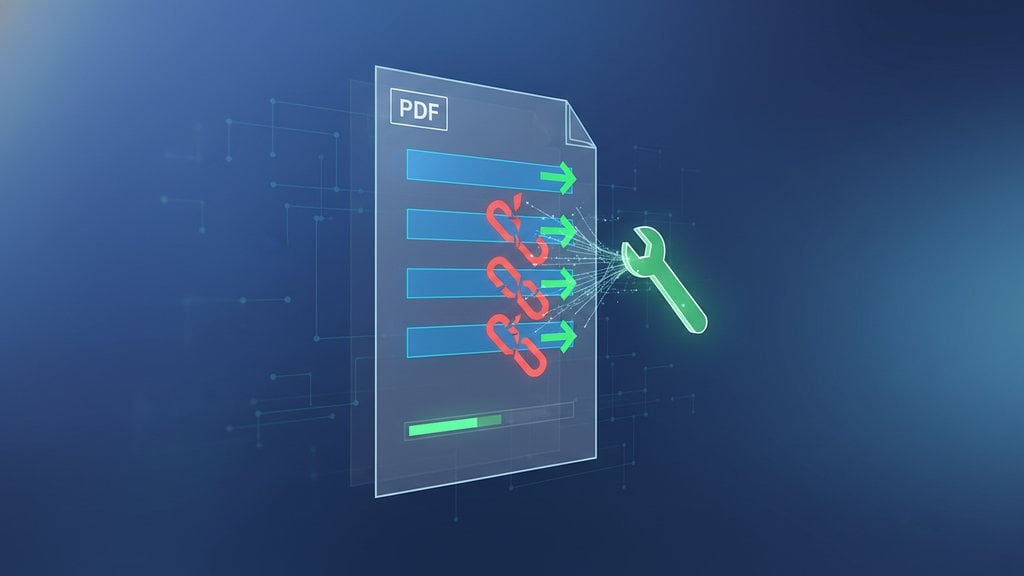
If you've ever sent a PDF only to hear back "the links don't work," you're dealing with one of the most frustrating quirks of the format. PDF hyperlinks not working is almost always caused by one of a handful of fixable problems: the links were never properly embedded, the PDF viewer is blocking them, or something went wrong during export. The good news is that each cause has a clear solution.
Content Table
Why PDF Links Break in the First Place
There is a common misconception that if you can see blue underlined text in a PDF, the hyperlink is working. Not necessarily. A PDF can display styled text that looks like a link but is just formatted text with no clickable action attached. True interactive PDF links are stored as annotation objects inside the file's structure, separate from the visible text. If those annotations are missing or corrupted, the link is dead on arrival.
The most common root causes of broken PDF links are:
- Exported from a program that strips link annotations (some "Print to PDF" drivers do this by default)
- Converted from another format (Word, PowerPoint, HTML) using a tool that does not preserve hyperlink metadata
- Opened in a viewer that disables external links for security reasons
- Locked or restricted by a password or permission setting that prevents interactive elements from functioning
- The URL itself is broken (typo, dead domain, or a relative path that doesn't resolve)
- The file was flattened during a merge, compression, or signing step
The PDF Viewer Is the Problem
Before you assume the file is broken, check the viewer. This is the single most overlooked cause of a pdf link not working, and it costs people hours of unnecessary troubleshooting.
Browser-based PDF viewers (Chrome's built-in viewer, Firefox's viewer, Edge's viewer) block external hyperlinks by default in some configurations, or they silently fail to follow links to non-HTTPS destinations. Chrome's PDF viewer, for example, will follow standard HTTP/HTTPS links, but embedded JavaScript-based "links" will not fire at all.
Preview on macOS does support clickable links, but only if the link annotation is properly formed. Malformed annotations are silently ignored rather than flagged as errors.
Adobe Acrobat Reader (the most widely used dedicated PDF viewer) shows a security warning dialog before opening any external URL. If a user clicks "Cancel" or "Block," the link appears broken even though the file is fine. You can check Acrobat's trust settings under Edit > Preferences > Trust Manager.
The fastest diagnostic: open the same PDF in two different viewers. If the links work in one and not the other, the file is fine and the viewer is the culprit.
Export and Conversion Errors That Kill Links
This is the most common source of broken PDF links for people creating documents in Word, Google Docs, PowerPoint, or design tools.
Microsoft Word
Word has two ways to create a PDF. "Save As PDF" (using the built-in export) preserves hyperlinks. "Print to PDF" using a generic printer driver strips all link annotations because print drivers convert everything to a flat visual image. Always use File > Save As > PDF, not the print dialog, when you need working links.
Google Docs
File > Download > PDF Document preserves hyperlinks in most cases. However, links added as plain text (typed out as a URL without being formatted as a hyperlink via Insert > Link) will not become clickable in the exported PDF. The text looks like a URL but there is no annotation behind it.
PowerPoint
Same rule as Word: use File > Export > Create PDF/XPS, not Print to PDF. PowerPoint also has a known behavior where action buttons (not standard hyperlinks) may not export correctly to PDF depending on the version.
Design tools (Canva, Figma, Illustrator)
Canva supports clickable links in its PDF exports when you explicitly add them via the link tool. Figma does not natively export interactive PDF links. Adobe Illustrator requires you to use the "Acrobat Layers" export option and ensure hyperlinks are set via the Attributes panel, not just styled text.
Security Restrictions Blocking Your Links
PDF security settings can restrict interactive features, including hyperlinks. A PDF with "Content Copying" or "Commenting" disabled can sometimes interfere with how link annotations behave in certain viewers. More directly, if the file has been locked with a permissions password, some viewers treat all interactive elements as restricted.
If you suspect a locked file is the issue, read about why your PDF is locked and how to fix it before going further. Removing or adjusting permissions is often the fastest path to restoring link functionality.
There is also a subtler issue: PDF/A format. PDF/A is an archiving standard that intentionally disables external links and JavaScript to ensure long-term self-containment. If your file was saved as PDF/A-1b or PDF/A-2b, external hyperlinks will not work by design. You need to re-export as a standard PDF to restore them.
How to Fix Broken PDF Links Step by Step
Work through these fixes in order. Most people find the answer by step 3.
- Test in a different viewer. Open the PDF in Adobe Acrobat Reader (free) and try clicking the link. If it works there, the problem is your primary viewer's settings, not the file.
- Check Acrobat's security warning settings. In Acrobat Reader, go to Edit > Preferences > Trust Manager and make sure "Allow PDF files to open other files" and external link access are not blocked.
- Re-export from the source document. If you created the file in Word, Google Docs, or PowerPoint, re-export using the correct method (Save As PDF, not Print to PDF). This rebuilds the link annotations from scratch.
- Verify the URLs themselves. Paste each link into a browser directly. A dead URL is a dead link regardless of how well the PDF is structured. Check for typos, missing "https://", or URLs that have changed since the document was created.
- Check if the file is PDF/A. Open the file in Acrobat and look for a blue bar at the top that says "This file claims compliance with the PDF/A standard." If you see it, re-export from the source as a regular PDF.
- Check if the file was flattened. Open the file in Acrobat, go to Tools > Print Production > Preflight, and run a check for link annotations. If none are found in a document that should have them, the file was flattened and needs to be rebuilt from the source.
- Remove restrictive permissions. If the file is locked, remove the restrictions and test again. See the section above on security restrictions.
Making Sure Links Stay Interactive
If you are building a document specifically designed to be clicked through (a digital brochure, a report with source citations, a form), you want to treat it as an interactive PDF from the start, not bolt on links as an afterthought.
The PDF specification supports several types of link actions beyond simple URLs: opening another page within the document, triggering a form action, opening an email client, or running JavaScript. Each type has different compatibility across viewers.
For maximum compatibility, stick to these practices:
-
Use absolute URLs (starting with
https://), never relative paths - Avoid JavaScript-based links if your audience might use non-Acrobat viewers
- Do not rely on "Print to PDF" for any document with interactive elements
- Test the exported file in at least two viewers before distributing it
- If using a design tool, check the tool's documentation for its specific PDF link export behavior
If you want to build a document with buttons, navigation links, and form actions that all work reliably, read our full guide on how to make an interactive PDF with buttons and form actions.
Always Test Before You Send
The single habit that prevents 90% of broken PDF link complaints is testing the final file before it leaves your hands. Download the exported PDF to a fresh location, open it in Adobe Acrobat Reader (not the editor), and click every link. Do not test in the same application you used to create it, because the editor may render links differently than a standard viewer will.
If you are sending to a broad audience, also test in a browser-based viewer (open Chrome, drag the PDF into a new tab) since many recipients will view it that way. A link that works in Acrobat but silently fails in Chrome's viewer is still a broken link for a large portion of your readers.
Fix PDF hyperlinks not working by converting your file the right way
When broken PDF links come from a bad export, re-converting your document is the fastest fix. Our free PDF conversion tool preserves link annotations so your interactive PDF links survive the process intact.
Convert Your PDF Free →
The most likely reason is a difference in PDF viewers. If you tested in Adobe Acrobat and your recipient is using a browser-based viewer or Preview on Mac, the link behavior can differ. Ask them to try opening the file in Adobe Acrobat Reader (free to download). Also confirm they are not seeing a security warning dialog that they may be dismissing without realizing it blocks the link.
Yes. Adobe Acrobat Pro lets you add link annotations to any existing PDF using the Edit PDF > Link tool. You draw a rectangle over the text you want to make clickable, then assign a URL action to it. Some online PDF editors also support adding links to existing files. This is useful when you do not have access to the original source document anymore.
Some compression tools flatten a PDF into a rasterized image to achieve smaller file sizes, which removes all interactive elements including link annotations, bookmarks, and form fields. To avoid this, use a compression tool that works at the object level (compressing fonts, images, and streams) rather than flattening to an image. Always test links in the compressed version before distributing it.
No. Hyperlinks are interactive elements that only function in a digital viewer. When a PDF is printed on paper, link annotations have no meaning. If you are creating a document that will be printed, consider displaying the full URL as visible text next to any linked phrase so readers can type it manually. Some style guides recommend including the URL in parentheses for exactly this reason.
Internal document links (like a table of contents jumping to a page) use a different action type than external URL links. Many PDF viewers allow internal navigation by default but block or warn on external URLs for security reasons. This is especially common in browser-based viewers and corporate environments with strict security policies. The fix is usually adjusting the viewer's trust settings or switching to Adobe Acrobat Reader.
It depends on the conversion tool. High-quality converters that use the PDF's structural data (not just image rendering) can preserve hyperlinks through a PDF-to-Word round trip. Lower-quality tools that rasterize the PDF will lose all link annotations. After any round-trip conversion, always open the resulting PDF in Acrobat Reader and click each link to verify they survived the process.