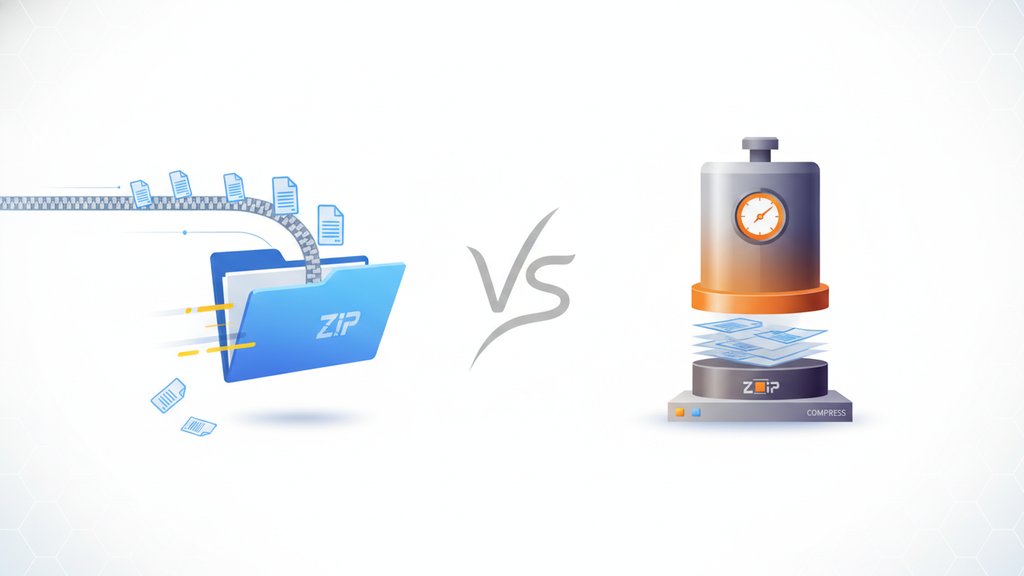
PDF zip compression covers two different things that people often mix up: zipping a PDF (wrapping it in a ZIP archive) versus actually compressing the PDF itself to reduce its file size. Both approaches shrink what you're dealing with, but they work differently, produce different results, and suit different situations. Knowing which one to use saves you time, frustration, and sometimes a bounced email attachment.
Content Table
- How ZIP compression actually works
- How PDF compression works internally
- Zipping vs compressing PDFs: Side-by-side comparison
- When zipping a PDF actually makes sense
- When to compress the PDF directly instead
- How to zip a PDF file on Windows, Mac, and Linux
- How to unzip a PDF file
- Common mistakes people make with PDF compression
How ZIP compression actually works
ZIP is a container format, not a PDF-specific tool. When you zip a file, you're using a general-purpose compression algorithm (usually DEFLATE, which combines LZ77 and Huffman coding) to look for repeated patterns in the raw binary data and encode them more efficiently. The ZIP file wraps the compressed version of your file in an archive container.
Here's the catch: PDFs are already partially compressed internally. Modern PDF files (PDF 1.5 and later, which covers pretty much everything made after 2003) use zlib/DEFLATE compression on their internal streams by default. So when you try to ZIP a PDF, you're often running a compression algorithm on data that's already compressed. The result? You might get a ZIP file that's only 1-5% smaller than the original PDF, or in some cases, marginally larger.
How PDF compression works internally
PDF-native compression is a completely different process. Instead of treating the PDF as a black box and squeezing the whole thing, PDF optimization works inside the file structure. It targets the actual sources of bloat:
- Image downsampling: Reducing image resolution from, say, 300 DPI to 150 DPI for screen viewing. This is usually where the biggest file size savings come from.
- Image re-encoding: Converting images to more efficient formats (like switching from uncompressed TIFF to JPEG or JPEG 2000 inside the PDF).
- Font subsetting: Embedding only the characters actually used in the document instead of the full font file.
- Removing hidden data: Stripping out metadata, embedded thumbnails, form field data, and revision history that accumulates when a PDF is edited multiple times.
- Stream compression: Applying DEFLATE to any uncompressed content streams still present in older PDF files.
A PDF optimizer can realistically reduce a 10 MB PDF to 2-3 MB, depending on what's inside. That's a 70-80% reduction, which is orders of magnitude more useful than the 1-5% you'd get from zipping it.
Zipping vs compressing PDFs: Side-by-side comparison
| Factor | Zipping a PDF | Compressing the PDF |
|---|---|---|
| Typical size reduction | 1-5% (sometimes 0%) | 30-80% |
| Works on the PDF structure | No (treats PDF as raw bytes) | Yes (targets images, fonts, streams) |
| Output file type | .zip (must be extracted before opening) | .pdf (opens directly) |
| Best for multiple files | Yes (bundles many PDFs together) | No (one PDF at a time) |
| Preserves PDF quality | 100% (lossless) | Depends on settings (can be lossy) |
| Recipient needs to... | Extract the ZIP first | Just open the PDF |
| Password protection | ZIP-level encryption (AES-256 in modern tools) | Separate PDF security feature |
When zipping a PDF actually makes sense
Zipping a PDF is genuinely useful in a handful of specific scenarios, even if the compression savings are minimal:
- Sending multiple PDFs at once: Bundling 15 quarterly reports into one ZIP file is much cleaner than attaching 15 separate files to an email.
- Archiving PDF files: If you're storing PDFs long-term and want a single container with a clear folder structure, ZIP archives are a standard, universally supported format.
- Email attachments with file type restrictions: Some email servers block .pdf attachments outright (a surprisingly common corporate security policy). Sending a .zip gets around this.
- Adding a layer of encryption: ZIP with AES-256 encryption (supported in 7-Zip and WinRAR) gives you a quick way to password-protect a batch of PDFs without modifying each one individually.
- Preserving the exact original file: If you need to send a PDF and guarantee it arrives byte-for-byte identical (for legal or audit purposes), a ZIP preserves the original without any re-encoding.
When to compress the PDF directly instead
Direct PDF compression is the right call in most everyday situations:
- You need to email a large PDF and it's bouncing because of size limits (Gmail's 25 MB limit, Outlook's 20 MB limit).
- You're uploading a PDF to a web form that has a file size cap.
- You're optimizing PDFs for a website where page load speed matters.
- You scanned a document and the resulting PDF is enormous (scanned PDFs are notorious for being 10-50x larger than they need to be).
- You want the recipient to be able to open the file directly without any extraction step.
For context on what's possible with PDF optimization techniques, a scanned 50-page document that comes in at 40 MB can often be reduced to under 5 MB with aggressive compression settings, while still being completely readable on screen.
How to zip a PDF file on Windows, Mac, and Linux
Windows
- Right-click the PDF file (or select multiple files, then right-click).
- Choose Send to and then Compressed (zipped) folder.
- A .zip file appears in the same folder. Rename it if needed.
For password protection or better compression ratios, use 7-Zip (free, open-source). Right-click, choose "7-Zip > Add to archive", set the encryption method to AES-256, and add a password.
Mac
- Right-click the PDF (or Command-click multiple files).
- Select Compress from the context menu.
- A .zip file is created in the same location.
Note: macOS's built-in ZIP tool does not support password protection. For encrypted ZIPs on Mac, use the Terminal command below or a third-party tool.
zip -e protected.zip yourfile.pdfLinux
zip archive.zip yourfile.pdfTo add multiple PDFs to one archive:
zip archive.zip file1.pdf file2.pdf file3.pdfHow to unzip a PDF file
Unzipping is straightforward on every platform:
- Windows: Double-click the ZIP file, then drag the PDF out, or right-click and choose "Extract All".
- Mac: Double-click the ZIP file. The PDF extracts automatically to the same folder.
-
Linux:
Run
unzip archive.zipin the terminal, or use your file manager's "Extract Here" option. - Mobile (iOS/Android): Most modern file manager apps handle ZIP extraction natively. On iOS, tap the ZIP in Files and it extracts in place. On Android, use the Files by Google app or any file manager.
Common mistakes people make with PDF compression
- Zipping a PDF to make it smaller before emailing: As covered above, this rarely works. Compress the PDF itself instead.
- Double-compressing: Compressing an already-compressed PDF again usually produces a file that's the same size or slightly larger. One pass is enough.
- Confusing ZIP encryption with PDF security: A ZIP password protects the archive, but once extracted, the PDF inside is unprotected. For document-level security, you need PDF-native encryption. Read more about PDF security and how to protect your documents properly.
- Using online tools without checking their privacy policy: Uploading sensitive documents to a random online compressor can be a real risk. Before using any web-based tool, it's worth understanding whether online PDF tools are safe to use and what they do with your files.
- Expecting lossless compression to dramatically shrink image-heavy PDFs: If you need a small file AND perfect image quality, you may be asking for something physically impossible. Images compressed with JPEG are already lossy; there's no lossless way to make them significantly smaller.

Shrink your PDF without zipping it
Skip the ZIP workaround. Our PDF compression tool reduces file size directly inside the PDF, so recipients can open it instantly without extracting anything. Perfect for large scanned documents or image-heavy PDFs that are too big to email.
Compress Your PDF Now →
Rarely by any meaningful amount. Modern PDFs already use internal compression (DEFLATE/zlib) on their content streams, and images inside PDFs are typically compressed with JPEG or JBIG2. When you ZIP a PDF, the DEFLATE algorithm finds very little redundancy left to exploit, so you typically get a 1-5% reduction at best. To meaningfully shrink a PDF, you need to compress it at the PDF level, targeting images, fonts, and embedded data directly.
On Windows and Mac, you can often double-click a ZIP, see the PDF inside, and open it temporarily, but you're actually extracting it to a temp folder behind the scenes. Any changes you make won't save back to the ZIP cleanly. For reliable editing or viewing, always extract the PDF to a proper folder first. On mobile, most apps require full extraction before the PDF can be opened in a viewer.
It depends on the settings you choose. Text, vector graphics, and document structure can be compressed losslessly with no quality change. Images inside the PDF are where lossy compression comes in: reducing DPI or re-encoding images with higher JPEG compression will visibly reduce image quality at extreme settings. Most PDF compressors let you choose a quality level (screen, ebook, print, prepress) so you can balance file size against visual fidelity.
Scanned PDFs are essentially images, not text. Each page is stored as a high-resolution image (often 300 DPI or higher), which takes up far more space than a text-based PDF where characters are stored as vector data. A 10-page scanned document can easily be 20-40 MB, while the same document as a native PDF might be under 100 KB. PDF compression tools can dramatically reduce scanned PDFs by downsampling images and applying better image encoding.
Compress the PDF directly in almost every case. This reduces the actual file size significantly, and the recipient can open the PDF immediately without an extraction step. Zipping is only worth doing if you're sending multiple PDFs at once (to bundle them) or if the recipient's email server blocks .pdf attachments. For a single PDF that's too large to send, PDF compression is the right tool.
Yes, it can. Digital signatures in a PDF are tied to the document's exact byte structure. If a compression tool modifies the file (even losslessly), it can invalidate existing digital signatures because the hash of the document changes. If your PDF has a digital signature that needs to remain valid, do not compress it after signing. Compress first, then sign. Password protection and encryption applied at the PDF level are also sometimes stripped by compression tools, so always verify security settings after compressing.