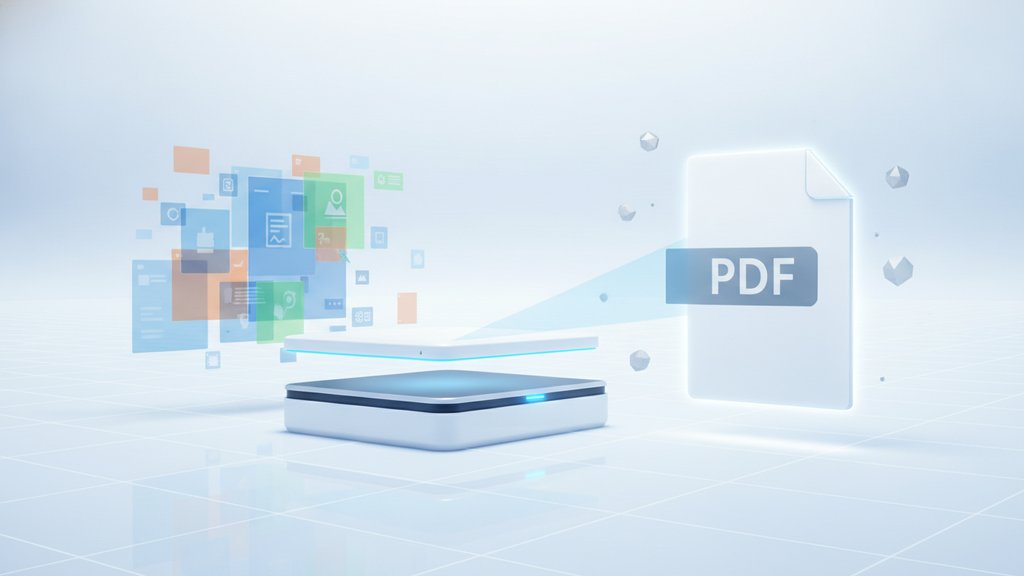
Flattening a PDF means merging all its separate layers, form fields, annotations, and interactive elements into a single, static layer, so the file looks exactly the same everywhere but can no longer be edited or clicked. Think of it like taking a stack of transparent sheets with text, signatures, and stamps on them, then pressing them into one solid sheet. The content stays visible, but you lose the ability to move or change any individual piece.
People often confuse flattening with compression, but they solve different problems. Flattening locks down the structure of a PDF; compression shrinks its file size. They can overlap (flattening sometimes reduces size as a side effect), but knowing the difference helps you pick the right action for your file.
Content Table
What flattening actually does
A PDF is rarely one flat picture. It often stacks several kinds of content on top of each other:
- Interactive form fields (text boxes, checkboxes, dropdowns you can type into)
- Annotations and comments (highlights, sticky notes, drawn shapes)
- Digital and image signatures
- Optional content layers (like CAD drawings or map layers you can toggle)
- Stamps and watermarks
When you flatten the file, all of those get "baked" into the page content. The text you typed into a form becomes part of the page image. A highlight stops being a movable object and turns into printed color on the page. Nothing appears to change on screen, but the file's editable machinery disappears.
Flattening vs compression
Because both are often listed under "optimize" menus, people assume they're the same. They aren't.
| Aspect | Flattening | Compression |
|---|---|---|
| Main goal | Lock structure into one layer | Reduce file size |
| Editability after | Removes interactive elements | Keeps elements editable |
| Effect on size | Small reduction, sometimes | Often a large reduction |
| Affects image quality | Usually no | Can, depending on settings |
Compression works mainly by shrinking images and stripping unused data, and you can do it without harming how the document looks. If your goal is a smaller email attachment rather than a locked file, see our guide on how to compress PDF files without losing quality. And if you're deciding between shrinking a PDF directly or just putting it in an archive, our breakdown of zipping vs compressing PDFs clears that up.
PDF form flattening explained
PDF form flattening is the most common reason people flatten anything. When you fill out an interactive form (a job application, a tax form, an invoice template), the values live inside separate field objects. Flattening converts those filled-in values into permanent page text.
Why that matters:
- Prevents accidental edits. Once flattened, a recipient can't clear or retype your answers.
- Fixes display issues. Some readers and browsers show empty or misaligned form fields. Flattening guarantees everyone sees the same filled-in result.
- Removes hidden field data. Interactive fields can carry metadata and default values you don't want to share. Flattening is one step; you may also want to strip other hidden data your PDF reveals through metadata.
What flattening means when printing a PDF
Flattening also shows up in print dialogs, and there it means something slightly more technical: combining transparent objects (drop shadows, gradients, semi-transparent images) into opaque artwork the printer can handle.
Older printers and some professional RIP (raster image processor) workflows don't understand live transparency. Without flattening, you can get:
- White boxes where transparent areas should be
- Shifted or missing drop shadows
- Thin white lines ("stitching") where flattened regions meet
Adobe's print production tools handle this automatically for most people. You can read Adobe's own explanation of flattening transparency in Acrobat if you're troubleshooting a commercial print job. For everyday home or office printing, you rarely need to touch these settings.
Should I flatten my PDF?
Flatten when you want the document finalized and tamper-resistant. Skip it when you still need editing room.
| Flatten it when... | Leave it alone when... |
|---|---|
| Sending a completed form or contract | Others still need to fill in fields |
| Preparing a file for commercial printing | You may need to edit annotations later |
| You want form fields to display identically everywhere | You rely on layers (CAD, maps, multilingual) |
| Archiving a final version | You want a signature to stay verifiable |
If your goal is long-term archiving specifically, flattening pairs well with saving in a preservation format. Our explainer on the PDF/A archiving standard covers when that matters.
Can you unflatten a PDF?
Not really, and this is the part people wish they'd known earlier. Flattening is a one-way process. Once form fields, annotations, and layers are merged into the page, that structural information is gone. There's no reliable "unflatten PDF" button that restores clickable fields or separate layers.
Your options after the fact are limited:
- Go back to your original unflattened file (the reason to always keep one).
- Add new elements on top. You can place fresh annotations or fields, but you can't recover the old editable ones.
- Re-extract the text. If the flattened content is still real text, you can copy or repurpose it. If it became an image, you'd need OCR to extract the text from the scanned-style page.

Finalize and optimize your PDF in one place
When flattening a PDF and shrinking its size go hand in hand, our optimize tool cleans up structure and file size so your finished document shares cleanly everywhere.
Optimize your PDF →
Frequently asked questions
Sometimes, but only slightly. Flattening removes interactive objects and can trim a little data, but its purpose is locking structure, not shrinking size. For a real size reduction, use dedicated compression, which targets images and unused elements directly.
You can no longer edit form fields or annotations, since those become part of the page. Regular body text may still be editable if it stayed as text rather than being converted to an image, but the interactive layers are permanently merged.
They overlap. Printing a document to PDF often produces a flattened result because it renders everything into static page content. True flattening tools do this more deliberately and can preserve real text, while "print to PDF" behavior varies by application.
Yes, it can. A digital signature verifies the document hasn't changed since signing. Flattening alters the file structure, which invalidates that verification. Always flatten your form before applying a digital signature, never after.
The safest recovery is your original unflattened copy, since flattening is not reversible. If you don't have one, you can add new fields or annotations on top, but the previously interactive elements cannot be restored to their editable state.