

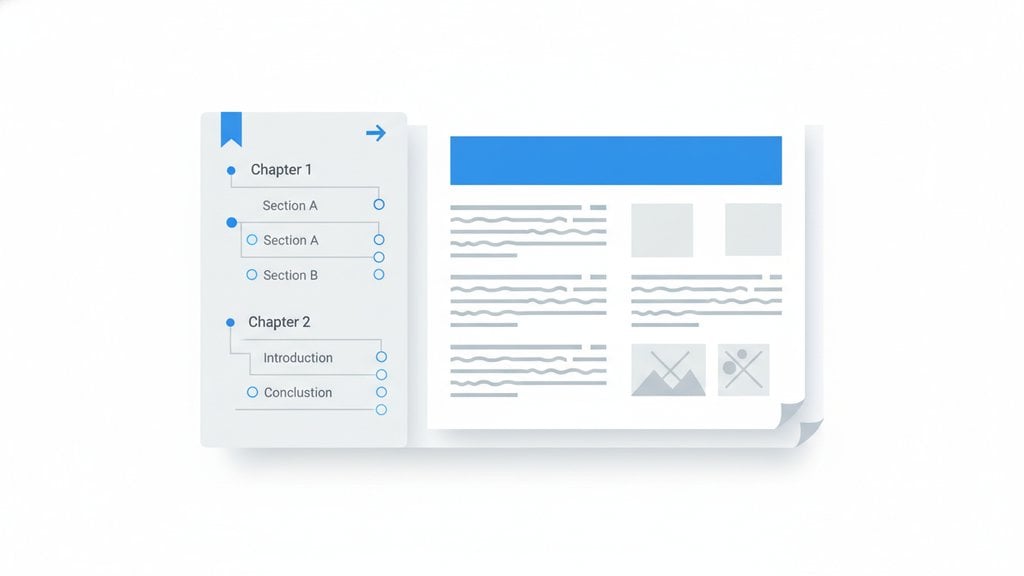
Adding bookmarks to a PDF turns a wall of pages into something you can actually navigate. Instead of scrolling through a 50-page report to find section three, a bookmark gets you there in one click. PDF bookmarks work like a clickable table of contents built directly into the file, and most PDF readers display them in a sidebar panel so readers can jump around without losing their place.
Content Table
What Are PDF Bookmarks, Exactly?
In the PDF spec, bookmarks are formally called "outline items." They live in a dedicated outline tree inside the file structure, separate from the page content itself. When you open a bookmarked PDF in Adobe Acrobat Reader, Chrome, Firefox, or any modern PDF viewer, you'll see a panel (usually labeled "Bookmarks" or shown as a list icon) that lists every bookmark as a clickable link pointing to a specific page or even a specific position on a page.
This is different from browser bookmarks or web favorites. PDF bookmarks are embedded in the file, so they travel with the document wherever it goes. Send the file to a colleague and they get the navigation structure too.
How to Add Bookmarks to a PDF
The method you use depends on what software you have available. Here are the most common approaches.
Adobe Acrobat (Pro or Standard)
Acrobat is the most capable option for bookmark work. The general workflow looks like this:
- Open the PDF in Acrobat.
- Navigate to the page (or the exact position on the page) you want to bookmark.
- Open the Bookmarks panel from the left sidebar.
- Click the "New Bookmark" icon (or use Ctrl+B on Windows / Cmd+B on Mac).
- Type a name for the bookmark and press Enter.
- Repeat for each section.
- Save the file.
Acrobat also lets you auto-generate bookmarks from document headings if the PDF has proper tagged structure. Under Tools, look for "Accessibility" and then "Add Tags to Document" first, then use the bookmark auto-detection. This is a huge time-saver for long documents.
PDF-XChange Editor (Windows, free tier available)
PDF-XChange Editor supports manual bookmark creation in its free version. Navigate to the target page, open the Bookmarks pane, right-click, and choose "Add Bookmark." You can rename it and drag it into a hierarchy just like in Acrobat.
Preview on macOS
Apple's Preview app does not support creating or editing PDF bookmarks in the outline sense. It has a "Bookmarks" menu entry, but those are session-only markers that don't get saved into the PDF file structure. For real embedded bookmarks on a Mac, you need a third-party tool.
Online PDF editors
Several browser-based tools let you add and edit PDF bookmarks without installing anything. These are useful for quick edits on documents you don't want to run through desktop software. If you're already working with interactive elements in your PDF, pairing bookmarks with other navigation features makes a big difference. Check out how to make an interactive PDF with buttons and form actions for a broader look at building navigable, clickable documents.
Bookmark Organization: Nesting and Naming
A flat list of 40 bookmarks is barely better than no bookmarks at all. Good bookmark organization means using a hierarchy that mirrors your document's structure.
Most PDF editors let you nest bookmarks by dragging child items slightly to the right under a parent. A typical structure for a business report might look like this:
- Executive Summary
-
Chapter 1: Market Overview
- 1.1 Regional Breakdown
- 1.2 Competitor Analysis
-
Chapter 2: Financial Results
- 2.1 Revenue
- 2.2 Operating Costs
- Appendix
This nested structure is essentially a create PDF outline approach. Readers can collapse top-level sections and expand only what they need.
Naming tips:
- Match bookmark names to the actual heading text in the document. Readers shouldn't have to guess which section a bookmark leads to.
- Keep names short enough to read in the sidebar without truncation. Around 40 characters or fewer works well.
- Use consistent capitalization (title case or sentence case, pick one).
- Avoid numbering bookmarks separately from your headings unless the document is already numbered.
PDF Bookmarks Not Working? Common Fixes
If you've added bookmarks but they aren't showing up or aren't clickable, these are the most common culprits.
| Problem | Likely Cause | Fix |
|---|---|---|
| Bookmarks panel is empty | No bookmarks were saved into the file, or the viewer doesn't support them | Re-open in Acrobat Reader or a full PDF editor to confirm they exist |
| Bookmarks visible but not clickable | PDF is security-restricted, disabling navigation actions | Check document permissions; a locked PDF may block interactions |
| Bookmarks jump to the wrong page | Pages were added or removed after bookmarks were created | Re-edit each affected bookmark destination in Acrobat |
| Bookmarks don't appear in browser viewer | Chrome/Firefox PDF viewers hide the bookmarks panel by default | Look for a sidebar toggle icon or open in a dedicated PDF reader |
| Bookmarks lost after editing the PDF | Some editors strip the outline tree when re-saving | Use an editor that explicitly preserves PDF structure on save |
Security restrictions are a particularly common cause of PDF bookmarks not working as expected. If a PDF was exported with restrictions on content copying or form interactions, navigation actions can get blocked too. For more on why PDFs end up locked and how to address it, see why your PDF file is locked for editing and how to fix it .
How to Remove Bookmarks from a PDF
Sometimes you inherit a PDF with outdated or messy bookmarks and need to start fresh. Removing them is straightforward in most editors.
In Adobe Acrobat:
- Open the Bookmarks panel.
- Select the bookmark you want to delete (hold Ctrl or Cmd to select multiple).
- Right-click and choose "Delete."
- To remove all bookmarks at once, select the top-level bookmark, then Shift-click the last one to select all, and delete.
- Save the file.
In PDF-XChange Editor: Right-click any bookmark in the panel and choose "Delete Bookmark." There's also an option to delete all bookmarks from the document properties area.
Via command line (for technical users): Tools like PDFtk and QPDF can manipulate PDF structure from the command line, including stripping or replacing the outline tree. Useful if you're processing batches of files.
Creating Bookmarks at the Source
The easiest way to get good PDF bookmarks is to generate them automatically when you first create the PDF, rather than adding them manually afterward.
From Microsoft Word
When you export a Word document to PDF using "Save As" or "Export," there's an option labeled "Create bookmarks using: Headings." This converts every Heading 1, Heading 2, and Heading 3 style into a nested PDF bookmark automatically. The result is a clean outline that matches your document structure exactly.
To find it: File > Export > Create PDF/XPS > Options > check "Create bookmarks using Headings."
From Google Docs
Google Docs does not currently generate PDF bookmarks from headings when you use File > Download > PDF. The resulting PDF is flat, with no outline. If you need bookmarks from a Google Doc, one workaround is to open it in Microsoft Word first (download as .docx, then export to PDF from Word).
From LaTeX
The
hyperref
package in LaTeX automatically generates a full PDF bookmark tree from your
\section
,
\subsection
, and
\subsubsection
commands. Add
\usepackage{hyperref}
to your preamble and compile. This is one reason academic papers produced in LaTeX often have excellent navigation out of the box.
From InDesign
Adobe InDesign generates PDF bookmarks from the document's Table of Contents feature. When you export to PDF (File > Export > Adobe PDF), check "Create Tagged PDF" and "Bookmarks," then map your TOC styles. InDesign will build the entire outline from your paragraph styles automatically.
For documents that started as physical paper and were scanned in, you'll need to run OCR before any bookmark structure makes sense. A scanned PDF is essentially a flat image, and no tool can auto-detect headings from pixels alone. Learn more about how OCR works and how to extract text from scanned PDFs before attempting to add navigation to a scanned document.
Edit your PDF files online for free
PDFDeal lets you edit, annotate, and manage PDF files directly in your browser — no downloads, no sign-up needed..
Try PDFDeal Free →
Most modern PDF readers support bookmarks, including Adobe Acrobat Reader, Foxit Reader, and desktop browsers like Chrome and Firefox. However, some lightweight mobile apps and older viewers don't display the bookmarks panel at all, or they show bookmarks but don't render the nested hierarchy correctly. If your audience uses a specific reader, test the file in that environment before distributing.
Yes. Several free and low-cost tools support PDF bookmark creation without Acrobat. PDF-XChange Editor has a free tier that handles bookmarks well. Online PDF editors also work for adding and editing bookmarks directly in the browser. If you're creating the PDF from a source document like Word or LaTeX, you can generate bookmarks automatically during export without needing any dedicated PDF software at all.
Many PDF processing tools, especially online ones, rebuild the file structure during operations like compression or merging. This rebuild can strip the outline tree entirely. To avoid this, use tools that explicitly advertise bookmark preservation, or re-add your bookmarks after processing. Some tools like Acrobat and PDF-XChange Editor do preserve bookmarks during most operations, but it's always worth checking the bookmarks panel afterward.
A PDF table of contents is a formatted page inside the document, usually with clickable links that jump to sections. PDF bookmarks are a separate structural layer stored in the file's outline tree and displayed in the reader's sidebar panel. They serve the same navigation purpose but exist independently. A well-structured long document typically has both: a visual TOC page for readers who print or skim, and bookmarks for anyone reading on screen.
There's no hard limit in the PDF specification, but usability has practical limits. For a document under 20 pages, top-level bookmarks for each major section are usually enough. For longer documents (50+ pages), a two-level or three-level hierarchy works well. Avoid creating a bookmark for every single paragraph or sub-point. The goal is to let readers jump to the section they need, not to replicate every heading in the sidebar.
You can manually add bookmarks to any PDF, including scanned ones, by navigating to the target page and creating a bookmark that points to that page number. However, automatic bookmark generation from headings won't work on scanned PDFs because the text isn't recognized as real text. You'd need to run OCR first to convert the scanned image into searchable text, and then either re-export with bookmarks or add them manually afterward.